TESTED · EVERYDAY TECH
Reset one broken website in Chrome without clearing every site
Remove one website's local cookies and storage in Chrome, check the deletion scope, and understand why a sign-in or shopping cart may disappear.
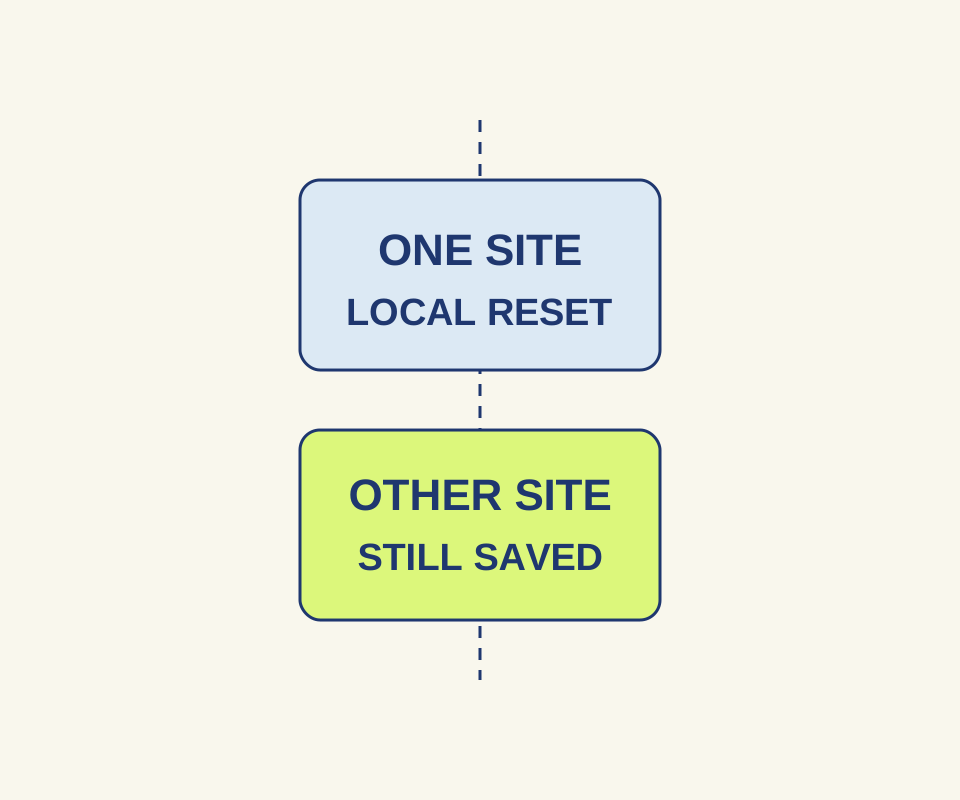
If one website keeps loading an old shopping cart or behaving strangely, you can delete that site’s data in Chrome without choosing the browser-wide “Delete all data” option. Save anything you have not submitted, note anything you need from the cart or offline data, and make sure you can sign back in first. Deletion may clear a problem in data stored on your device; it will not establish the cause of a server error or a problem affecting other sites.
Delete the site’s data
In desktop Chrome, open More > Settings > Privacy and security > Third-party cookies > See all site data and permissions. Search for the website, use the deletion button for its entry, then confirm the named site. Chrome’s labels can vary; you can also open chrome://settings/content/all directly. Check the name in the confirmation dialog before deleting.
Websites use cookies to remember sign-ins and preferences, and they can keep other data on your device, including shopping cart information. Chrome’s tested confirmation dialog warned that deleting the selected site’s data and permissions could sign you out, including in open tabs, and remove offline data. Review the site’s permissions again when you return. Changing Chrome’s global allow, block, or delete-on-close setting is a different action from deleting one site’s data.
What a one-site test showed
A local test put a harbor=blue cookie and a blue local-storage value on each of two distinct sites. After deleting the 127.0.0.1 site through Chrome Settings:
| Site | Cookie after deletion | Local storage after deletion |
|---|---|---|
127.0.0.1:43952 |
Empty | null |
localhost:43952 |
harbor=blue |
blue |
That result shows the selected site’s test data was removed while the second test site’s data remained. A site can create new cookies or storage when you revisit it, so seeing data reappear does not by itself mean deletion failed.
For a stale image alone, see the cache-clearing guide. For a broader Chrome change, see the reset-settings guide.
Sources checked October 15, 2026: Google’s Chrome cookie instructions and on-device data explanation. The local test used headless Windows Chrome 155.0.8059.40 in a separate, signed-out profile and two local sites; it did not test real logins, passwords, changed permissions, or subdomain behavior.
KEEP GOING
More to explore.
TESTEDEveryday tech
Chrome popup blocker: open the window you need without allowing every site
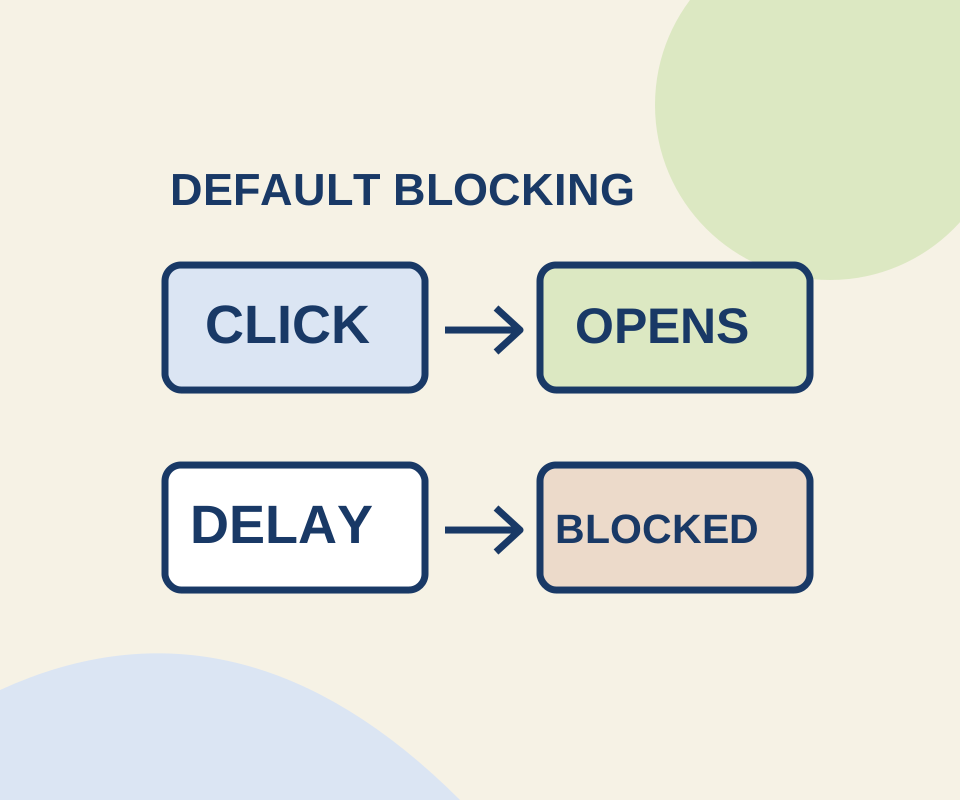
A direct click and a delayed request behaved differently in a controlled Chrome check. Use a site exception for the window you meant to open.
SOURCE-CHECKEDEveryday tech
Chrome zoom: enlarge one website and reset a saved size
Use the current menu percentage as your starting point, inspect the page after one enlargement, and remove an unwanted saved site size.