TESTED · EVERYDAY TECH
How to clear Chrome cache without deleting saved passwords
Clear cached images and files in desktop Chrome while keeping cookies, browsing history and saved passwords separate.
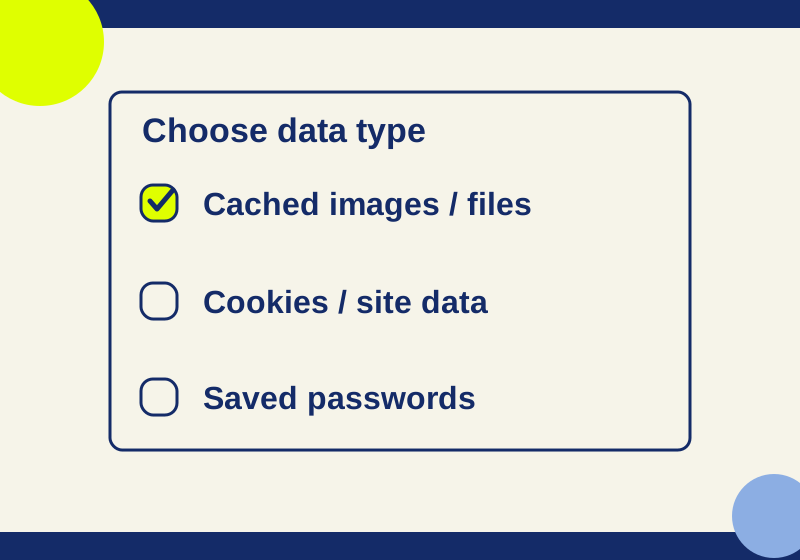
If a website still shows an old logo, icon, or other page element, you can clear Chrome’s cached images and files without selecting saved passwords or other browser data. Check every selection in the Delete browsing data dialog before confirming the deletion.
Clear only cached images and files
Save any unsent work in the website’s normal save flow before leaving the page. Then, in desktop Chrome:
- Open the More menu and select Delete browsing data.
- Choose a time range. Last hour limits the period; All time covers older cached data too.
- Review the full list of data types, including any expanded sections. Clear every selection.
- Select Cached images and files alone. Recheck the list so no other box remains selected.
- Select Delete data.
- Return to the same URL and compare the specific item that looked wrong.
Pause before confirming if Cookies and other site data is still checked. A time-range change does not make a checked category harmless: the category and the time range are separate choices. If you opened the dialog and have not decided which data to remove, cancel it and return when you can review the selections.
The time range is not a selector for one website. Choosing All time gives an older cached asset a better chance of being included, but it also applies the cache deletion across sites within that scope. A shorter range may leave an older asset in place. You cannot tell from the range label alone when a particular file was cached.
Keep the data types separate
Chrome uses cached data to remember page content such as text and images. Cookies and site data have their own category, which includes web storage. If your aim is to refresh a stale page element with the least additional deletion, leave that category unchecked, even if a broader set of instructions suggests clearing cookies too.
Leave browsing history, download history, site settings, and every other non-cache category unchecked as well. Download history is the list of downloads, not the files already on disk. Site settings cover permissions. Neither category needs to be selected to perform a cache-only deletion.
Current Chrome screens may differ from older screenshots. Passwords and passkeys may appear separately in Google Password Manager rather than as a checkbox in this dialog. You do not need to find a password checkbox to complete the task. Keep Cached images and files as the only selected data type.
A saved password, an active sign-in, and a site preference are different things. A saved password is a stored credential. Being signed in is the current state of your session with a website. A preference might be a setting the site stores locally. Leaving cookies and site data unchecked avoids deliberately clearing that category, but it cannot guarantee that every website will keep you signed in.
What changed in a controlled cache test
An October 3 test used an isolated Chrome 154.0.8037.59 profile and a synthetic website. Its JavaScript asset was served as cacheable with max-age=3600. The test counted requests for that asset before and after a cache-only deletion through Chrome’s settings.
| Stage | Cumulative asset requests |
|---|---|
| First visit | 1 |
| Second visit | 1 |
| Visit after cache-only deletion | 2 |
The unchanged count on the second visit and the new request after deletion show that Chrome requested that asset again in this setup. A synthetic cookie named howcurioSynthetic and local storage data remained after the deletion. This measures asset fetching; it gives no percentage speed improvement or guaranteed fix for another page.
If the image or page still looks wrong
Suppose a website says it changed its header image, but you still see the previous one. Write down the exact page URL and what the old image looks like. Clear only Cached images and files, return to that URL, and look at the header again.
If the expected image appears, you have a visible result for that page. If the old image remains, repeating the same deletion without new information may not help. Record the outcome and use the site’s own information or support channel to investigate that particular image. You could send a message such as: “On [exact page URL], I still see the old blue logo at [time]. I selected only Cached images and files in Chrome and then revisited the same URL. The logo did not change.” Replace the placeholders with what you actually observed.
If the page instead says “Permission denied,” shows a login error, or fails throughout the service, describe that symptom accurately. Cache deletion is not evidence of what caused it. For a login error, a useful hypothetical message is: “At [exact page URL], the page shows ‘[exact error text]’ after I try to sign in.” There is no reason to include your password in that message.
A sign-in problem also does not prove a saved password was deleted. For example, if you are signed out but can still see the website’s entry in Google Password Manager, the stored credential and the website session have different outcomes. Check the correct Chrome profile and the separately managed password entry before treating a missing autofill suggestion as password loss. Clearing the cache again is not a password-recovery step.
Source and test scope: Google Chrome Help, checked October 7, 2026, describes the desktop controls and data categories. The October 3 result came from an isolated synthetic Chrome 154.0.8037.59 trial; saved passwords and real website accounts were not tested.
KEEP GOING
More to explore.
SOURCE-CHECKEDEveryday tech
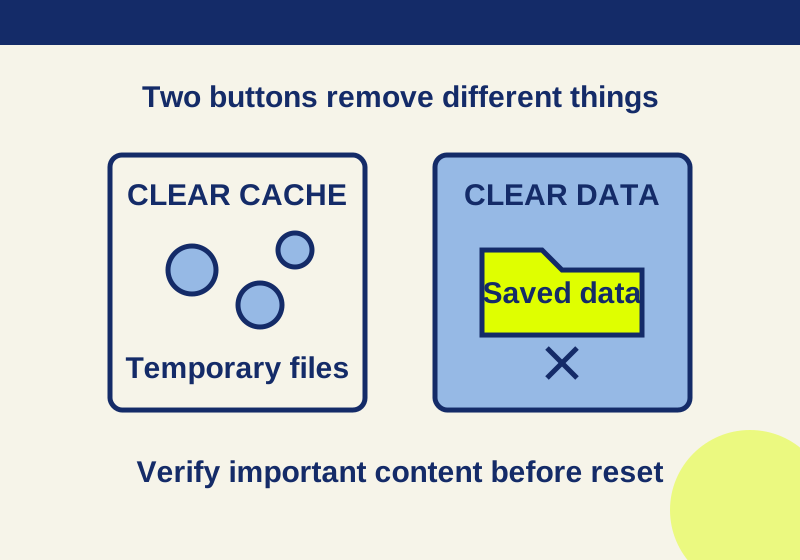
Clear cache vs. clear storage on Android: what gets deleted
Read the app storage breakdown and verify saved content before choosing a deletion button.
TESTEDEveryday tech
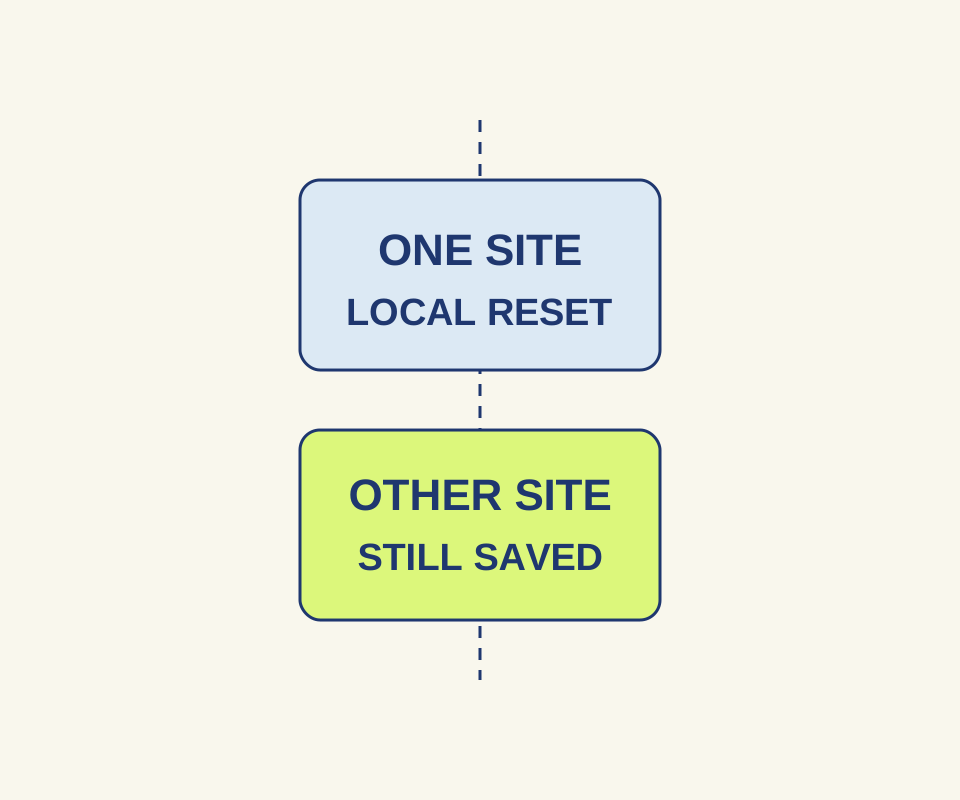
Reset one broken website in Chrome without clearing every site
A controlled site reset cleared one local site's cookie and storage while a second site kept both.