SOURCE-CHECKED · EVERYDAY TECH
Clear cache vs. clear storage on Android: what gets deleted
Understand Android cache and data deletion, follow Pixel and Galaxy controls, verify important notes and remove specific downloads before resetting an app.
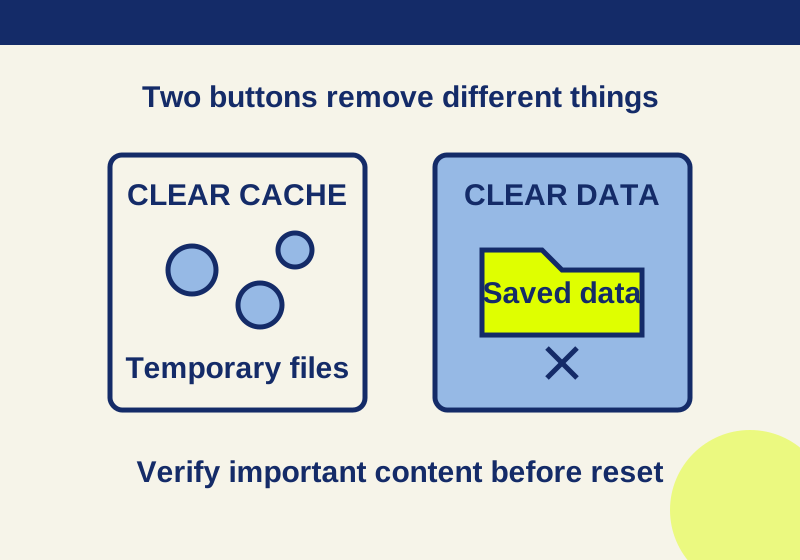
If one Android app is taking up space or misbehaving, check its Cache and Data sizes before tapping either clear button. Clearing cache removes temporary files. Clearing storage removes the app’s saved data, so verify anything you need to keep before using it. For a small cleanup or a first troubleshooting step, clear cache for the affected app and try the same action again.
| Action | What it removes | What to check |
|---|---|---|
| Clear cache | Temporary app files. The app may open more slowly afterward, and the cache can build up again. | Compare the Cache size and retry the action that failed. |
| Clear storage (called Clear data on some phones) | The app’s saved data. This can reset settings and personal data, and you may need to sign in again. | Confirm you can access the account and have a separate, verified copy of important content. |
Google describes clearing cache as a short-term way to free space because apps create cache again during use. It advises removing content from inside an app before erasing all its data. Android storage guidance
Check which part is large
Open the affected app’s storage screen and compare App, Data, and Cache. If Cache is small but Data is large, repeatedly clearing cache cannot recover the space shown under Data. Clearing cache also does not reduce the size of the installed app itself.
On a Pixel phone, the path is Settings > Apps > See all apps > [app] > Storage & cache, where you can choose Clear cache or Clear storage. On a Samsung Galaxy phone, use Settings > Apps > [app] > Storage. Samsung labels the second action Clear data and asks you to confirm with Delete. Menu names can differ by Galaxy model. Pixel instructions · Samsung instructions
These controls concern phone storage: space used for apps and their files. They are not a way to clear the phone’s working memory, or RAM. If the problem is that one action in an app fails, use that action to judge whether a troubleshooting step helped; a change in the storage number alone does not show that the problem is fixed.
If an app is failing, retry the same action
First, note what fails and any error message. Restart the phone and check for app and system updates. Google places those steps before later app troubleshooting. If the problem remains confined to one app, clear that app’s cache, then repeat the exact action that failed. A performance fix is not guaranteed. Pixel app troubleshooting
For example, if an app closes when you open a particular item, try opening that item again after clearing its cache. Record whether it opens or shows the same error. The Cache figure may drop immediately after clearing; do not expect it to stay at zero once you resume using the app.
If only one app continues to fail, contact its developer with your device, app version, the action that fails, the error, and the steps you tried. If several apps have a similar problem, avoid resetting them one by one. Check what they have in common, including the connection or service they use, and check for Google Play updates. Google’s troubleshooting guidance
Remove downloads inside the app when that is the goal
If you need space used by downloaded entertainment, remove the downloads you no longer want inside the relevant app. That targets the content you chose without resetting the whole app.
For Google TV, open Library, tap the Downloaded control beside the video you want to remove, then choose Remove. For YouTube Music, go to Library, open the item’s More menu, and choose Remove download. These are Google’s documented removal paths; they are more specific to the task than clearing an app’s storage. Android storage guidance
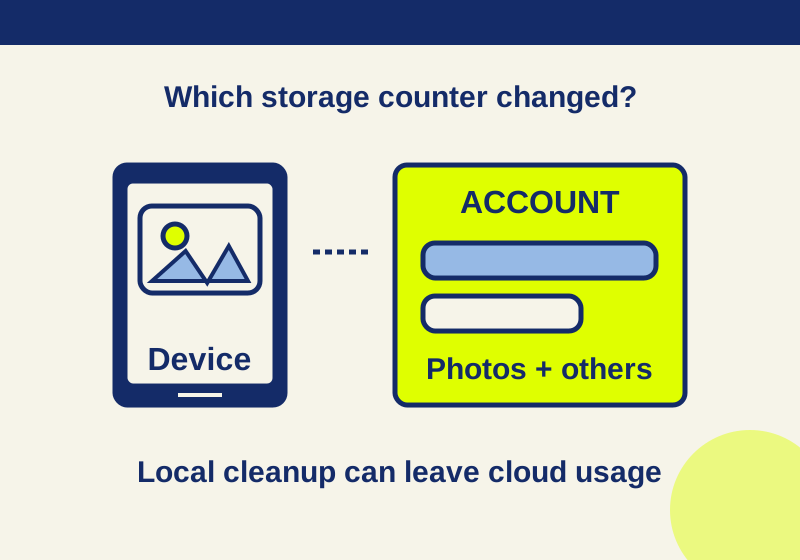
Likewise, clearing the storage of a photos app is not proof that every picture is safe elsewhere, and it is not a targeted way to delete photos. If photos or files are what you mean to remove, review those items in the appropriate app and delete the ones you intend to remove. Clearing an app’s storage also should not be treated as a way to reduce Google cloud storage usage.
Before clearing storage, verify what matters
Use Clear storage only after deciding that resetting the selected app is acceptable. Google says this action permanently deletes the app’s data; Samsung says clearing data resets app settings and personal data and may require another sign-in. Having an account name or a sync icon on screen does not, by itself, verify that a particular draft or offline change has a separate copy. Android storage guidance · Samsung instructions
Confirm that you can sign in again and have access to any recovery method you need. Check a separate copy of locally drafted or offline work before erasing app data. Being signed in does not establish that the newest content reached that copy.
Google Keep offers a concrete check for important notes. If a shared note appears missing, Google says to check that you are using the correct Google Account and that Keep sync is on. You can view notes at keep.google.com on a computer using that same account. Check that the newest content you need is actually there before clearing the phone app’s storage. Offline edits can conflict; Keep may offer a Keep both option. If a note is missing or conflicted, preserve its needed content in a separately verified copy before erasing local data. Google Keep help
For offline maps, there is also a targeted removal route. In Google Maps, open your profile picture or initial > Offline maps, tap the map you no longer need, then Delete. Review which area you are removing before doing it, especially if you will soon need that map without a connection. Google Maps instructions
When contacting support, include the app, the failing action or error, the cache size before and after clearing, and whether that action worked afterward. Keep a separate note of where important content was verified before considering a data reset. This gives the next troubleshooting step a concrete starting point.
Source note: Google and Samsung support pages were checked October 7, 2026. These are documented instructions; no phone data was cleared for this article.
KEEP GOING
More to explore.
SOURCE-CHECKEDEveryday tech
Android Private Space installs a second app, not a hidden copy
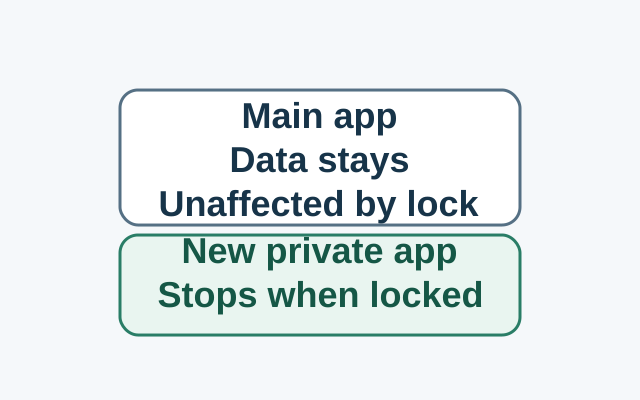
Installing in Private Space creates a separate app instance. The original app and its data stay in the main space; locking stops the private instance, while the original is unaffected.
SOURCE-CHECKEDEveryday tech
Deleted Google Photos but storage is still full? Diagnose the counter before deleting more
Understand why deleting photos may leave your Google storage total unchanged.