SOURCE-CHECKED · EVERYDAY TECH
Android Private Space installs a second app, not a hidden copy
Install an app in Android Private Space and understand which copy keeps its data and notifications when the space is locked.
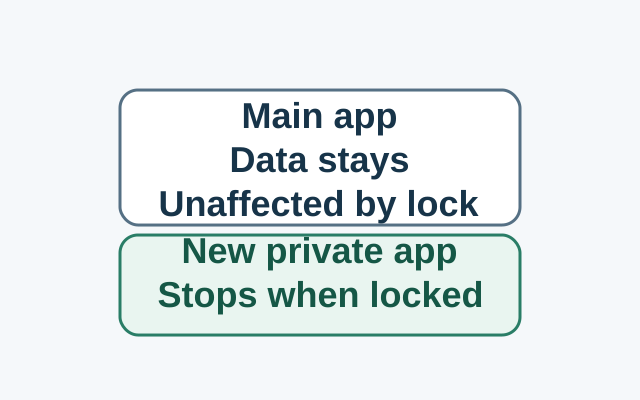
Installing an app in Private Space creates a new instance. On an eligible device running Android 15 or later, the original app keeps its data in the main space. Private Space is available to the device’s main user.
Install the private instance
Unlock Private Space, then touch and hold the app in All Apps. Tap “Install app in Private space” and follow the installer. You can also open Private Space and tap “+ Install”. Sign in to any accounts you want to use there; accounts from the main space are not signed in automatically.
If the original app still appears
If you already use the app in the main space, you now have two instances. Scroll to “Private space” in All Apps and tap “Lock”. The private instance stops foreground and background activity and cannot show notifications while locked. The original app keeps its data and is unaffected, so its icon or notifications may still appear. Their presence does not mean the original app moved or the private lock failed.
Signing in to the private instance with a Google Account used outside Private Space can make synced data available outside it. Google recommends a dedicated account to help avoid that overlap. You can copy or move individual files into Private Space, but this does not transfer the original app’s data.
Source: Google Android Help.
KEEP GOING
More to explore.
SOURCE-CHECKEDEveryday tech
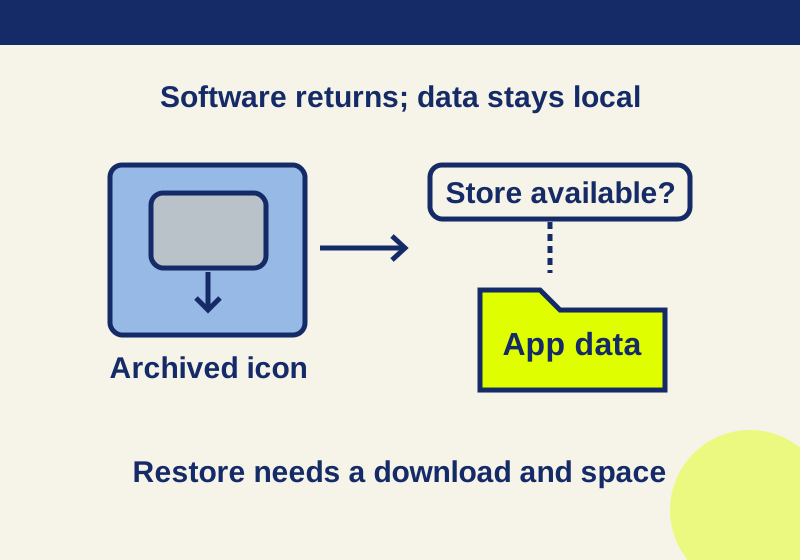
Android archived apps: restore faded icons and keep the data
A faded icon can preserve app data while the software needs downloading again. Follow the recovery branch that matches your phone.
SOURCE-CHECKEDEveryday tech
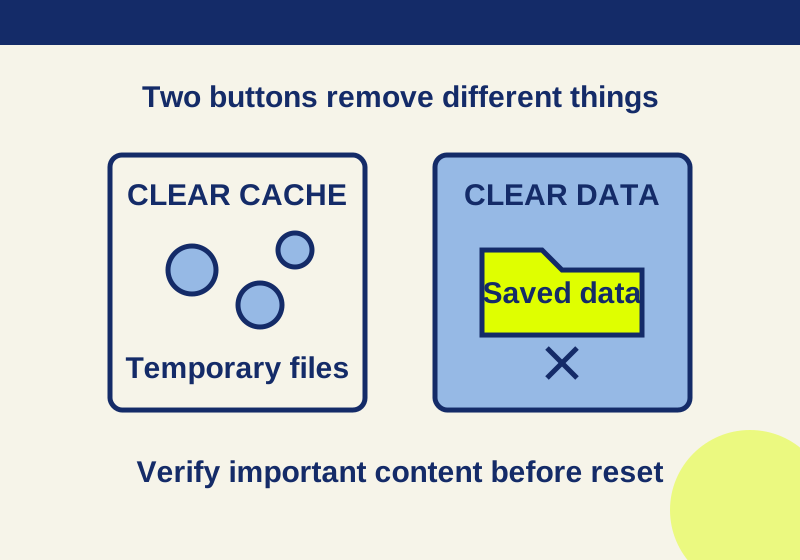
Clear cache vs. clear storage on Android: what gets deleted
Read the app storage breakdown and verify saved content before choosing a deletion button.