SOURCE-CHECKED · EVERYDAY TECH
Android archived apps: restore faded icons and keep the data
Restore archived Android apps, diagnose missing stores and storage prompts, control automatic archiving and check whether archiving will free useful space.
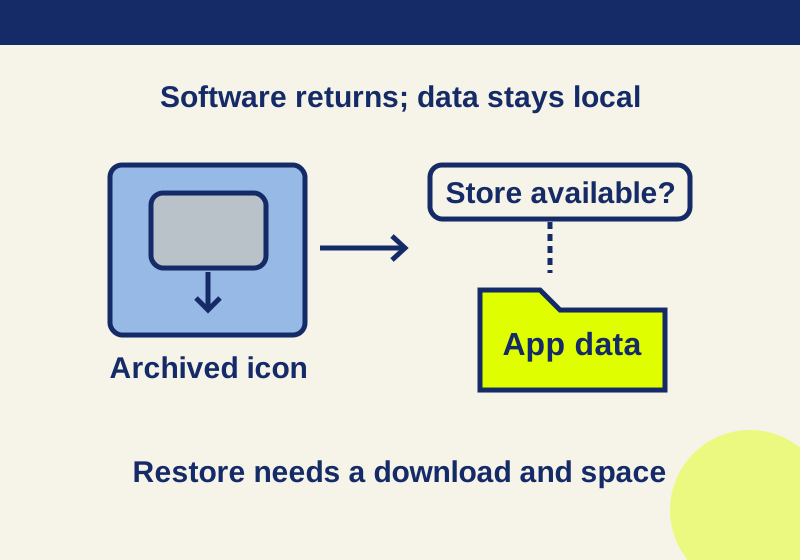
A faded app icon with an archive badge usually means Android has kept the app’s icon and data while removing its software. Tap the icon to start restoring the app. Before you do, check that you have enough device storage and can still get the app from an installed app store. The app data may still be on the phone, while using it again depends on fetching the app software.
Check whether the app is archived
Look for the archive badge on the faded icon. If you cannot identify one, use the missing-icon checks below before treating the app as archived.
Android’s archiving guide says archiving removes the app software, permissions, and temporary files, and stops its notifications. It retains the icon and app data. Retained local data is useful, but it is not an independent backup or a promise that every account setting will be ready when the app returns.
Restore the app
- Connect to the internet and tap the faded icon with the archive badge. You can also use the app’s information or app store details to restore it.
- If Android asks you to manage storage, free space and try again. Start with in-app downloads you have chosen and can download again, such as saved media. Avoid clearing the app’s storage just to make room.
- Let the app download and install, then open it. Check the content that matters to you, your actual sign-in state, any permissions the app requests, and whether notifications you need are working.
Restoration depends on an installed app store and an app that remains available there. Android 15 supports archiving across app stores; when you tap an archived icon, the installer responsible for the app receives the restore request, according to Android’s developer documentation. For troubleshooting, the practical question is whether the appropriate installer and app listing are still available on your phone.
If the store is missing, identify the installer the app originally came from before choosing a replacement. The developer documentation explains that restoration goes through the responsible installer. An unrelated store listing with a similar name is not evidence that it can restore your archived app.
If the app’s listing has disappeared, preserve its retained data and contact the developer about your options. Uninstalling it first would discard a useful piece of the recovery situation. Write down the exact app name, developer and store, together with the message shown when restoration fails, so support can distinguish an unavailable download from a device-storage problem.
If the app opens but alerts do not return, first confirm that restoration finished. Then check the app’s current notification settings. Archiving stops notifications and removes permissions, so check the restored app’s actual state instead of assuming its old access and alerts resumed.
Decide whether archiving will help with storage
Android distinguishes storage, where apps and their data reside, from memory, which running apps and the operating system use. Archiving addresses the installed app software; it is not a general fix for running-app memory.
Before archiving an app for space, inspect its App size, Data, and Cache figures on your own phone. If data accounts for much of the total, archiving may free less space than you expect because the app data is retained. That is a consequence of what archiving keeps, not a measured saving for any particular app.
The Google Play storage guide offers two other actions with different effects. Clear cache removes temporary data; it does not remove the installed app software. Clear storage permanently deletes all of that app’s data. If downloaded content is taking space, remove downloads you no longer need from inside the app before using a whole-app data erase.
For an app you may need to restore later, keep a short note of its name, the store you got it from, its current App size/Data/Cache breakdown, the content you need to keep, whether its listing is available, and whether you depend on its notifications. Those details help you decide which space-saving action addresses the actual problem.
When the icon or Archive button is missing
Search Settings > Apps for the exact app rather than judging from one home-screen page. A removed shortcut and an app that is no longer installed lead to different next steps. Finding the app in Settings gives you a place to inspect its state; finding a store listing tells you only that a download is offered.
If the app is absent from the phone, Google notes that a missing icon may mean it was deleted. Do not treat reinstalling a deleted app as proof that its previous local data survives. This guide’s retained-data explanation applies to archiving.
An absent Archive control is a different problem. Check your Android version and your manufacturer’s instructions for that model. Google’s manual steps have software and hardware requirements, so a button missing on your phone does not establish that the app is damaged. You can still inspect the app’s own downloads to identify content you no longer need.
Control automatic archiving
For a supported app, the manual control is Settings > Apps > [app] > Archive.
Google Play has a separate automatic setting under Play Store > profile > Settings > General > Automatically archive apps. Turn it on or off there. For a particular app, Settings > Apps > [app] > Manage app if unused lets you turn off management for that app. This per-app choice does not prevent you from archiving it manually.
Keep an app installed when you need dependable access to it or its notifications. If you plan to use an archived app where you will be offline, restore and check it beforehand: restoring requires another download, and the app must still be available.
Source note: Based on Google’s Android archiving and Google Play storage guides and Android 15 documentation as of October 7, 2026. No physical-device archive or restore test was performed.
KEEP GOING
More to explore.
SOURCE-CHECKEDEveryday tech
Android Private Space installs a second app, not a hidden copy
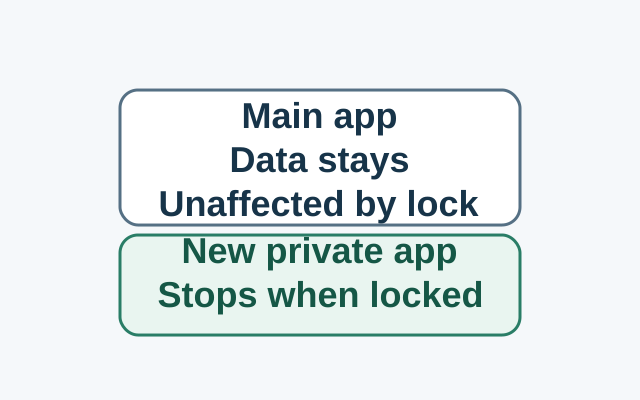
Installing in Private Space creates a separate app instance. The original app and its data stay in the main space; locking stops the private instance, while the original is unaffected.
SOURCE-CHECKEDEveryday tech
How to turn off one app's Windows 11 notifications without silencing everything
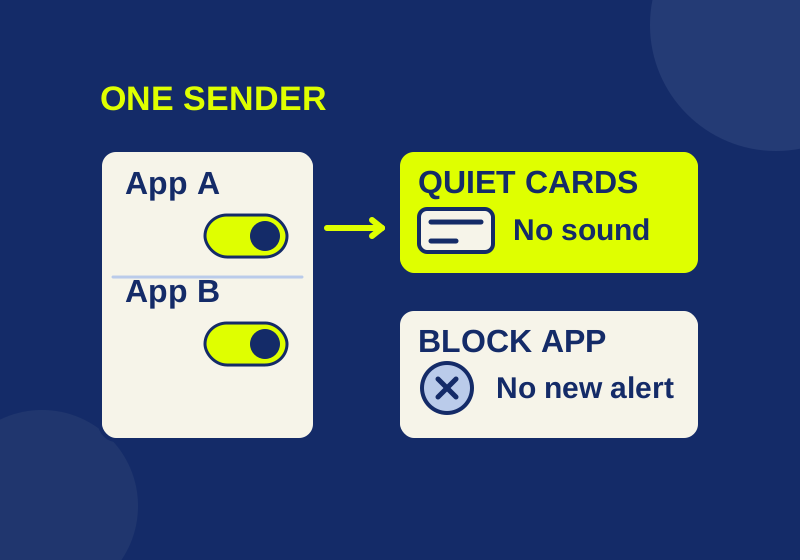
Silence the sender you meant to change, with a local preview of app, banner, sound and Notification Center controls.