SOURCE-CHECKED · EVERYDAY TECH
How to turn off one app's Windows 11 notifications without silencing everything
Stop one Windows 11 sender, keep quiet notifications for later, and find the right control for Edge website alerts or Outlook reminders.
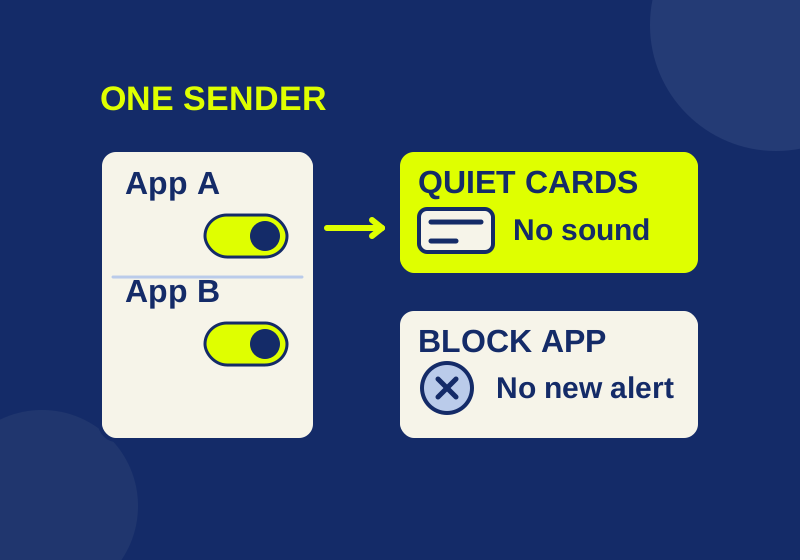
To stop alerts from one app, open Settings > System > Notifications, find the app under Notifications from apps and other senders, and turn its Notifications switch off. Leave the main Notifications switch on so other apps can still alert you. If you want to keep that app’s notices for later without seeing or hearing them as they arrive, leave the app on and turn off its banners and sound instead.
Identify the sender first
Note the name on the alert before changing a setting. A Windows app notification, a website notification delivered through Microsoft Edge, and a message displayed inside a browser window have different controls. If the alert has disappeared, press Win + N to check Notification Center. Clearing a card there removes that card; it does not block the next alert.
Also note where the message appeared. A notice at the lower right of the desktop may be a website notification from Edge, even when the browser is closed. A pop-up inside the current browser window or a new tab is a separate kind of browser pop-up. The site’s domain matters if you want to block only that site.
Turn off one Windows app
Select the sender in that list and use its own Notifications switch, rather than the main switch at the top of the page. This is the per-app control described in Microsoft’s Windows 11 notification guide.
For a quieter option, keep the app’s notifications on but switch off notification banners and sound, while leaving Notification Center on. That combination lets you check eligible notices later with Win + N without a banner or notification sound. It is useful, for example, when an app’s updates matter but do not need to interrupt what you are doing.
The interactive notification switch preview lets you compare those choices before changing Windows. Its Quiet, but keep the card preset shows the quiet combination: app on, banners off, center on, sound off. Its Block this app preset shows how turning the app off takes precedence over the three individual controls. The preview uses example settings; it does not read your PC or change permissions.
After changing Windows, check the result when a new message from that sender arrives. An old card in Notification Center cannot tell you whether a future alert will appear. Turning off an app’s Windows notifications also does not unsubscribe you from its emails or delete existing messages.
Block a website without muting Edge
If the sender is a website, turning off notifications for the whole Edge app is broader than necessary. In Edge, go to Settings > Privacy, search, and services > Site permissions > All sites, choose the site, and set Notifications to Block. You can also use View site information in the address bar, then Permissions for this site > Notifications > Block. These are the controls in Microsoft’s Edge website notification guide.
Use the site’s notification permission for a site alert. If the unwanted item opens within a browser window or tab, it is a browser pop-up, so changing that site’s notification permission may not address it.
Check which Outlook you use
Outlook has its own controls, and the path depends on the version. In new Outlook, go to View > View Settings > General > Notifications and check Notify me about for Mail, Calendar, or Documents. In classic Outlook, go to File > Options > Mail > Message arrival and change Display a Desktop Alert. Classic Outlook has separate checkboxes for other message-arrival behavior. Microsoft lists both alert paths; use the one that matches your Outlook.
A calendar reminder is not the same control as a new-email alert. If the interruption is a reminder window, check the calendar reminder controls. In new Outlook, a reminder can be set to Don’t remind me, snoozed, or dismissed. Do not assume the Windows app switch controls every window Outlook itself displays.
For a meeting, use temporary quiet
If you want alerts to resume after a meeting or a focused task, use Do not disturb and turn it off afterward. You can also inspect its automatic conditions under the Windows Notifications page, including a schedule, duplicated displays and full-screen use.
Check Set priority notifications if you need selected apps to interrupt that quiet period. This is separate from an app’s Top, High or Normal notification priority, which orders cards in Notification Center. Raising an app’s position in the list and allowing it through Do not disturb solve different problems. Microsoft describes both controls in its Windows notification guide.
If an expected alert is missing
Check the scope of the last setting you changed. With banners off and Notification Center on, look in Win + N. If you cleared a card, wait for a new message to check the setting. If Do not disturb is on, ordinary notifications go to Notification Center, subject to its alarm, reminder, and chosen-app exceptions. Windows can also enable Do not disturb automatically, and its priority notification settings affect exceptions.
If you turned off the main Notifications switch while trying to quiet one sender, turn it back on and use that sender’s per-app switch. To undo any other change, return to the exact app, site, or Outlook control you changed and restore it. Leave unrelated apps alone.
The Windows, Edge and Outlook instructions follow Microsoft’s linked documentation, checked October 7, 2026. The original preview explains normal notification eligibility; it does not inspect your PC, test app delivery or change settings.
KEEP GOING
More to explore.
SOURCE-CHECKEDEveryday tech
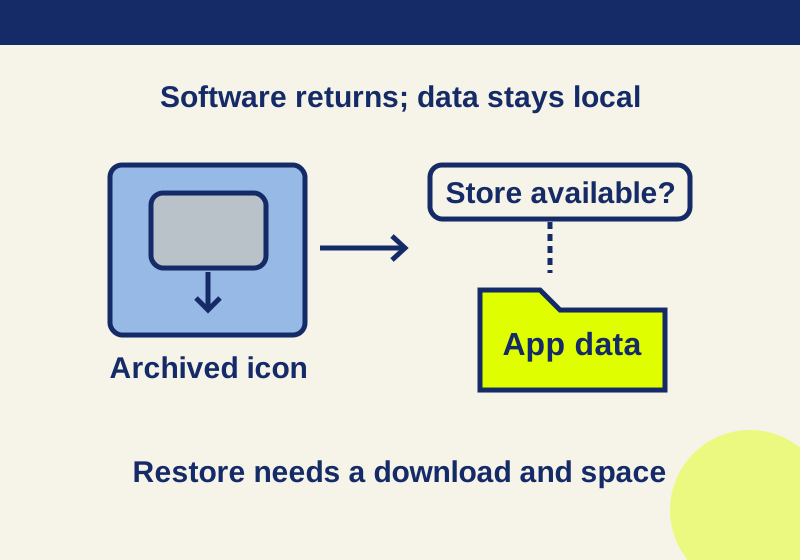
Android archived apps: restore faded icons and keep the data
A faded icon can preserve app data while the software needs downloading again. Follow the recovery branch that matches your phone.
SOURCE-CHECKEDEveryday tech
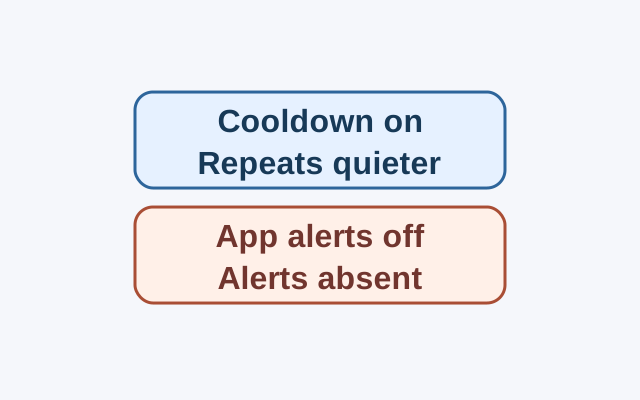
Pixel alerts suddenly get quieter? Check Notification cooldown
On Pixel phones running Android 14 or later, Notification cooldown can lower the volume of repeated notifications from the same app. Whether alerts still appear helps determine which setting to check first.