SOURCE-CHECKED · EVERYDAY TECH
Chrome zoom: enlarge one website and reset a saved size
Enlarge one Chrome website, distinguish saved site zoom from the default, and compare a wrapping paragraph with a wide table in a scrolling region.
To enlarge the site you’re viewing in desktop Chrome, open More > Zoom and select +. Select - to reduce it. Chrome’s page zoom changes everything on the page. You can also use Ctrl + + or Ctrl + - on Windows and Linux, or Command + + or Command + - on Mac. For a setting that applies to all webpages, go to Settings > Appearance > Page zoom. Google’s Chrome zoom instructions describe both controls.
Compare the paragraph and the table
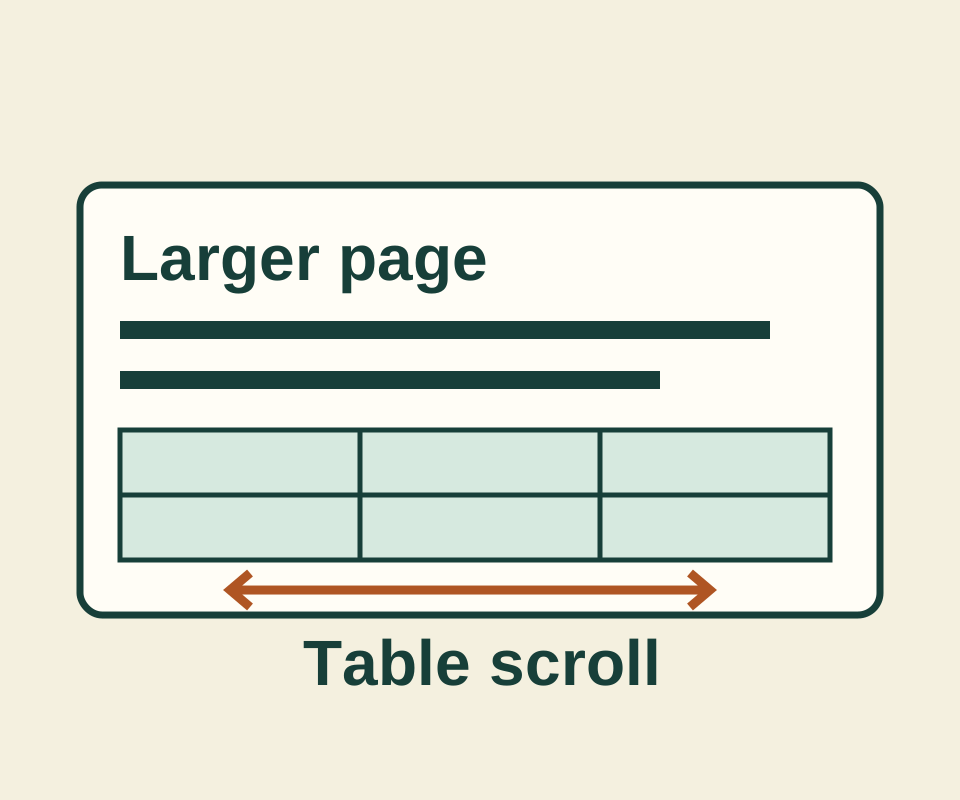
Try one zoom step on the practice page. Record the percentage shown in Chrome’s Zoom menu first. After increasing it, check whether the paragraph wraps onto different lines. Then check whether the whole page needs sideways scrolling or only the table’s scroll area does. The practice page has a flexible paragraph and a 720px-wide table inside its own scroll area, so the two parts give you different things to inspect. Return Zoom to the percentage you recorded when you finish.
Remove an unwanted saved size
If one site keeps opening at a size you no longer want, go to Settings > Privacy and security > Site Settings > Additional content settings > Zoom levels and click X beside that site to remove its saved size. Google’s help page also lists Font size as a separate setting, though some sites do not allow font-only changes. Enlarging text alone cannot guarantee that a fixed-width layout will fit without sideways scrolling. For article pages, Chrome Reading mode is another reading option.
Source and scope: Chrome instructions come from Google’s help page, checked October 11, 2026. The practice page has an original layout specimen; its wrapping and scroll boundaries were checked in a browser. Native Chrome zoom controls were not tested.
KEEP GOING
More to explore.
TESTEDEveryday tech
Reset one broken website in Chrome without clearing every site
A controlled site reset cleared one local site's cookie and storage while a second site kept both.
TESTEDEveryday tech
Chrome camera or microphone blocked? Check permission before the device
A permission preflight checks camera and microphone independently without opening a stream; a controlled Chrome setting change shows prompt, denied and granted.