TESTED · EVERYDAY TECH
Chrome camera or microphone blocked? Check permission before the device
Check Chrome camera and microphone permissions, read permission states without recording, and distinguish allowed access from a working device or call.
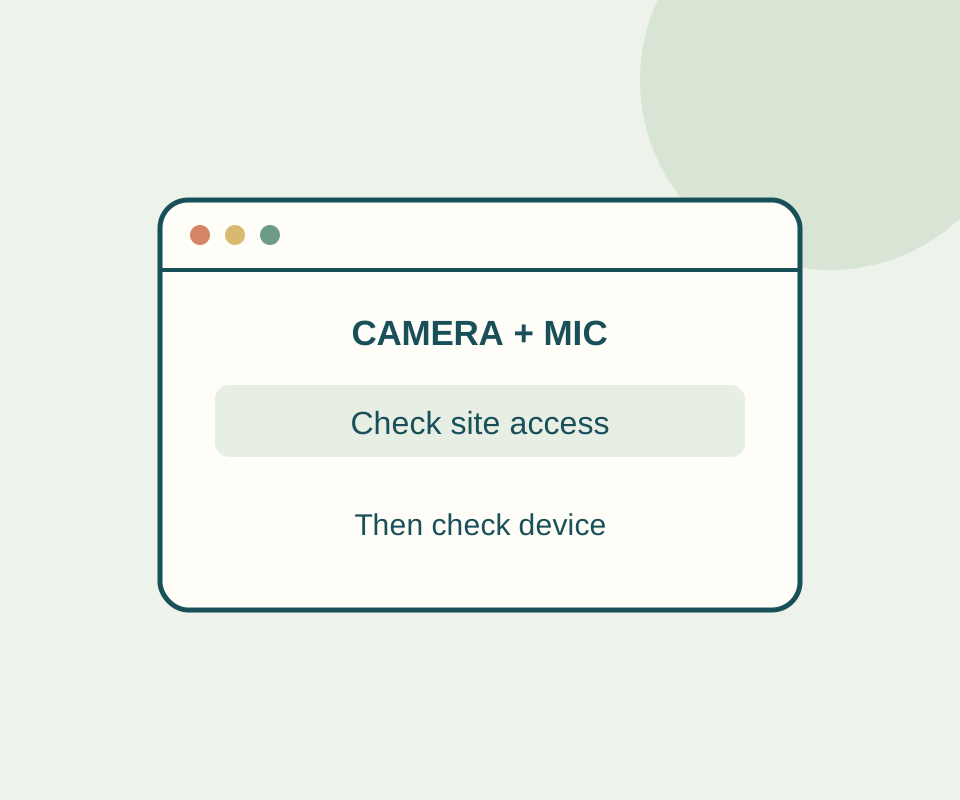
If a website cannot use your camera or microphone, first check whether Chrome allows that site to access it. A blocked site permission is different from a device that is missing, muted, or failing during a call.
In Chrome, open More > Settings > Privacy and security > Site settings > Camera or Microphone. Review the blocked sites and allow the site you intend to use if it appears there. Each category also lets you select a default device. If the site is allowed but a call still has no picture or input sound, check the device selected in the calling service, your computer’s permissions, and any headset or in-call mute control. On a managed computer, ask the administrator if a policy prevents access. Chrome’s camera and microphone instructions describe these settings.
Read a permission state
The camera and microphone permission checker shows the states for HowCurio’s own site. Select Check permission states to see whether the page is a secure context, whether the capture API is present, and whether the camera and microphone permissions are granted, denied, or prompt. It does not start camera or microphone capture. Clear results removes the displayed results; it does not revoke a permission.
Permission belongs to an origin. If this checker says prompt while a meeting site says its camera is blocked, the two readings can both be correct: the checker cannot inspect the meeting site’s permission. You do not need to allow HowCurio access to diagnose another site.
In a recorded Chrome trial, the camera initially read prompt. Blocking it in Chrome’s site controls and reloading changed the reading to denied; allowing it and reloading changed it to granted. The microphone remained prompt. These readings show what Chrome reported for that origin, not whether either device could capture or work in a call. If permission is granted but a call is blank, check the calling service’s device selection and the computer’s settings instead of repeatedly changing unrelated site permissions.
Source note: MDN’s Permissions API reference defines the three states and notes that an unsupported permission descriptor can cause a query to fail; the checker shows an unavailable state when it cannot obtain one. MDN’s getUserMedia() reference explains its secure-context requirement. The recorded trial used a fresh, signed-out Windows Chrome 154 session at http://127.0.0.1:43902 on October 13. The page reported a secure context and a present capture API, but no camera or microphone capture was started; microphone policy changes, operating-system settings, devices, and live calls were not tested.
KEEP GOING
More to explore.
SOURCE-CHECKEDEveryday tech
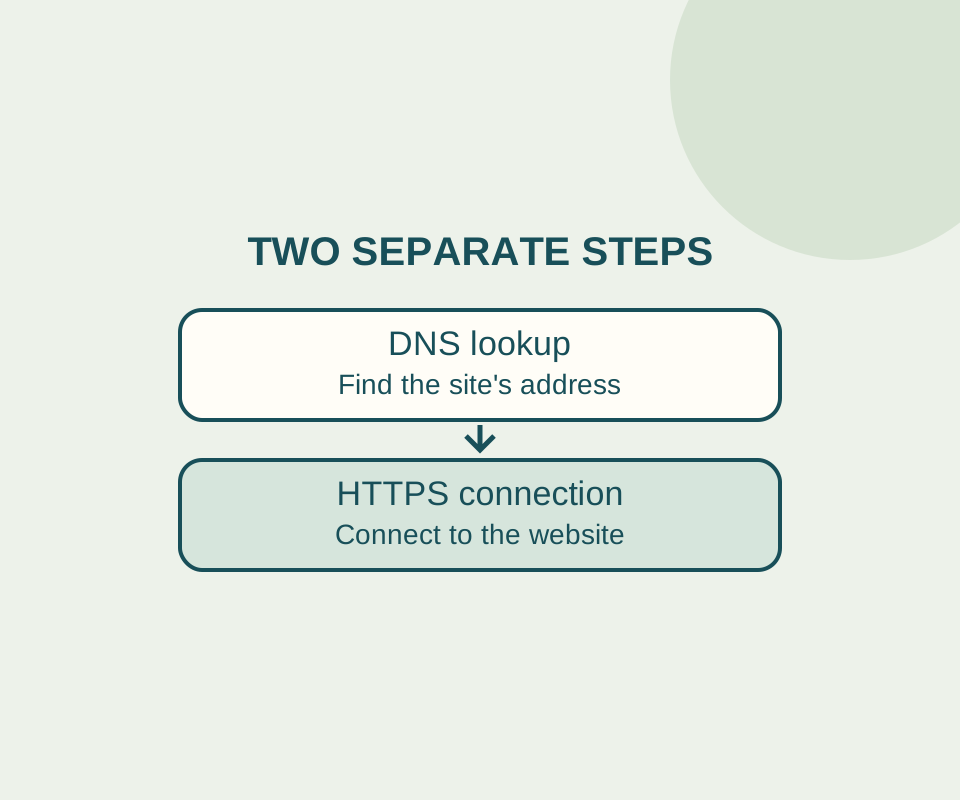
Chrome Secure DNS: why a custom provider can stop a site loading
Automatic Secure DNS can fall back to an unencrypted lookup. A custom provider follows a different rule, so record the original setting before changing it.
SOURCE-CHECKEDEveryday tech
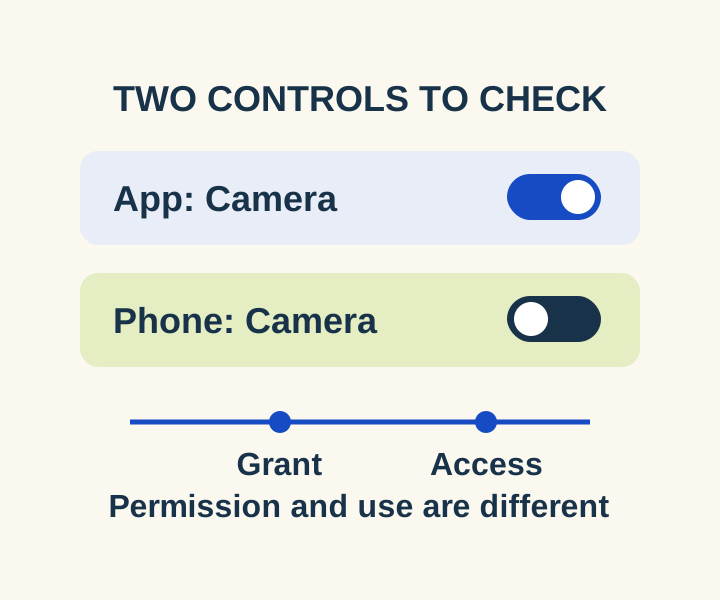
Android camera or microphone blocked? Check the app and the phone-wide switch
Check the two controls for a blocked camera or microphone, then distinguish an allowed permission from a recorded access.