SOURCE-CHECKED · EVERYDAY TECH
Android camera or microphone blocked? Check the app and the phone-wide switch
Diagnose Android camera or microphone access with app permissions, phone-wide privacy controls, actual access history, and unused-app resets.
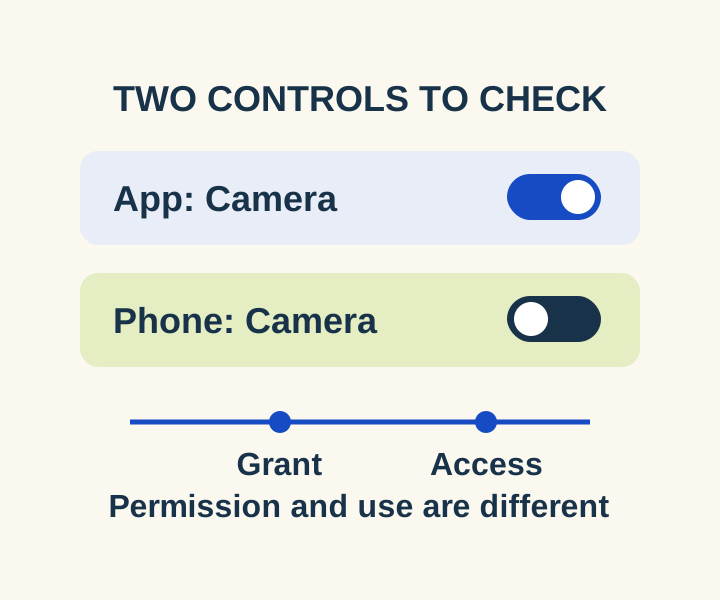
If an Android app cannot use your camera or microphone, check two settings: the app’s permission and the phone-wide access switch. An app can have permission while camera or microphone access is turned off for the phone. Check the setting for the feature that fails, then retry that specific action.
Check the app’s permission
Open Settings > Apps, select the app, then tap Permissions. If you cannot find the app, tap See all apps. Select Camera for live video or photos, or Microphone for recording audio. Google lists Allow only while using the app, Ask every time, and Don’t allow among the choices you may see; the options depend on the phone. All the time applies to location, not camera or microphone. Restore only the permission the action needs. Google’s app permission instructions
For example, if a meeting app can display an existing portrait but cannot start live video, check its Camera permission. If typed messages work but a voice-note button records nothing, check Microphone. These examples identify which setting to inspect; neither symptom establishes the cause on its own.
You can also start with a permission rather than an app. Go to Settings > Security & privacy > Privacy > Permission manager, then select Camera or Microphone to see which apps have that permission setting. This is useful when you do not know which app’s setting you changed. Google’s app permission instructions
Check phone-wide access
If the app’s permission looks right, go to Settings > Security & privacy > Privacy > Privacy controls. Check Camera access or Microphone access, depending on what failed. A phone-wide switch that is off is a separate setting to address before retrying the app. Checking both controls does not rule out every other cause of a failed call or recording. Google’s camera and microphone control instructions
Google notes that some of its Pixel permission steps require Android 11 or later. Menu names and paths may also differ by phone manufacturer, so look for the named permission and access controls if the route above does not match your screen.
See whether the app accessed it
The Privacy dashboard answers a different question from the Permissions screen. A permission set to “allow” shows what the app is permitted to use; it does not show that the app actually accessed the camera or microphone.
Open Settings > Security and Privacy or Privacy, then Privacy dashboard. You may need to tap Privacy again. Select Camera or Microphone to see the listed apps and access times. Google documents a seven-day activity view for Android 13 and a 24-hour view for Android 12. An empty view outside the available period cannot show whether an app used the permission earlier. An access entry shows use at a time; it does not, by itself, show misuse. Google’s Privacy dashboard instructions
For a focused check, note the current app permission and phone-wide setting. Change one setting that applies to the failed action, retry that same action, and then check the dashboard for the same app and time. As a hypothetical example, allowing the microphone at 10:05 and seeing a microphone access entry at 10:08 are two different observations: permission was allowed first, and access was recorded later. If the action still fails, the comparison tells you what you changed and observed without assuming why it failed.
If an older app asks again
Android can revoke permissions from an app that has not been used for a long time. It can also delete that app’s temporary files and stop its background activity and notifications. If an old scanning app asks for camera permission when you reopen it, check its current permission before reinstalling it. Google’s unused-app instructions
To review apps affected by this feature, open Settings > Apps > Unused apps. Google says you can exclude a specific app through App Info > Unused apps by turning off Pause app activity if unused. Grant the needed permission first; turn off the pause setting only if you need that app to keep working in the background or sending notifications after a long period without use.
Finally, choosing an existing image is different from taking a new one. Android’s Photo Picker lets people select individual existing photos or videos in apps that offer it. If that option works while a live camera action fails, check the camera controls for the live action rather than treating the existing-photo choice as a camera test.
Source and scope: This guide uses Google’s Android Help pages as viewed October 8, 2026. No physical phone or app was tested for this article.
KEEP GOING
More to explore.
TESTEDEveryday tech
Chrome camera or microphone blocked? Check permission before the device
A permission preflight checks camera and microphone independently without opening a stream; a controlled Chrome setting change shows prompt, denied and granted.
SOURCE-CHECKEDEveryday Tech
How to pin and unpin an Android app before lending your phone
Keep one app open and check its accessible content before handing over your phone.