SOURCE-CHECKED · EVERYDAY TECH
How to pin and unpin an Android app before lending your phone
Pin an Android app on Pixel or Samsung, use the right unpin gesture, rehearse the credential check and inspect what a borrower can reach inside the app.
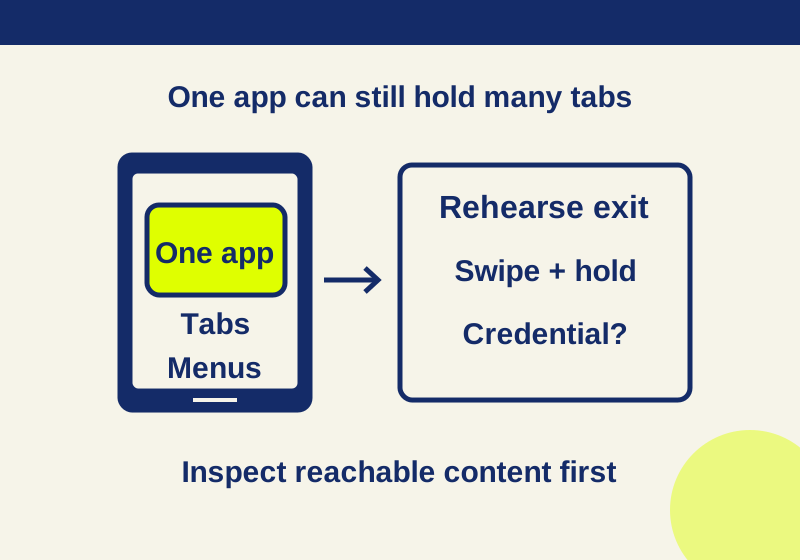
Android app pinning keeps one app on the screen until it is unpinned. It can help when you hand someone your phone for a specific task, but it does not limit what they can open inside that app. Before lending the phone, check the app’s tabs, menus, albums, or messages as well as the screen you intend to show.
Turn on app pinning
On the Android path documented by Google, open Settings, then look under Security or Security & location > Advanced > App pinning. If those labels are absent, check your phone manufacturer’s instructions; some of Google’s Pixel steps apply to Android 11 and later.
On a Samsung Galaxy phone, the documented path is Settings > Security and privacy > More security settings > Allow apps to be pinned.
Pin the app you want to share
Open the app, then open Overview, the view of recently used apps. With gesture navigation, swipe up and hold to reach it. With navigation buttons, tap the Overview button. Tap the app icon above its preview, then select Pin or Pin this app.
The icon’s location matters: long-pressing an icon on the home screen is a different action. Before pinning, bring the app to the screen you want the borrower to see.
Rehearse the handoff while you hold the phone
Choose an app in which the borrower can finish the task. If they need to move between several apps, decide when you will unpin the phone yourself.
Inspect the app’s reachable content. A visible photo may be one item in a gallery; an open email may be one item in an inbox. If other private material remains accessible, show the item while you hold the phone instead of lending it unlocked.
For a browser, inspect the tab switcher as well as the current page. Chrome’s Android instructions describe switching among open tabs. Pinning Chrome does not establish a single-webpage viewing mode or clear the account’s browsing history.
After inspecting the content, pin the app and try the exit action for your navigation mode. Check whether the phone actually asks for its lock credential. Unlock it yourself, return to the intended screen and pin it again before handing it over.
If unpinning does not produce the credential check you need, inspect your device’s pinning and lock options and consult its manufacturer. Samsung’s linked guide documents the exit buttons but does not specify credential behavior, so do not assume every Galaxy enforces the same authentication prompt.
Also consider whether your handoff depends on hiding incoming calls, system controls or notifications. App pinning’s documented purpose is keeping the app open. These other surfaces were not tested for this article and should not be assumed hidden.
Unpin the app
Use the exit action that matches your navigation setup:
| Navigation | Documented exit action |
|---|---|
| Gestures | Swipe up and hold. |
| Two buttons | Hold Back and Home together. |
| Three buttons | Hold Back and Overview together. Samsung calls the latter Recents. |
Google says a PIN, pattern, or password is required to unpin; enter your own credential when prompted. Samsung’s button instructions use Recents and Back simultaneously. Keep the credential with the owner.
If pinning does not work as expected
The Pin option is missing. Confirm that app pinning is enabled. Open the app and enter Overview, then tap the icon above the app preview rather than its home-screen icon. If the option is still absent, check instructions for your model and Android version.
You pinned the wrong app or screen. Unpin it yourself, open the right app and screen, then pin it again.
The app will not unpin. Identify whether your phone uses gestures, two buttons, or three buttons. Hold the documented controls together where a button combination is required. For gestures, swipe up and pause in the held position; a quick swipe home is a different movement.
Source note: Instructions are based on the Google Android, Samsung, and Chrome support pages linked above, checked October 7, 2026. No physical Android phone was tested for this article.
KEEP GOING
More to explore.
SOURCE-CHECKEDEveryday tech
Lock or hide one iPhone app before lending your phone
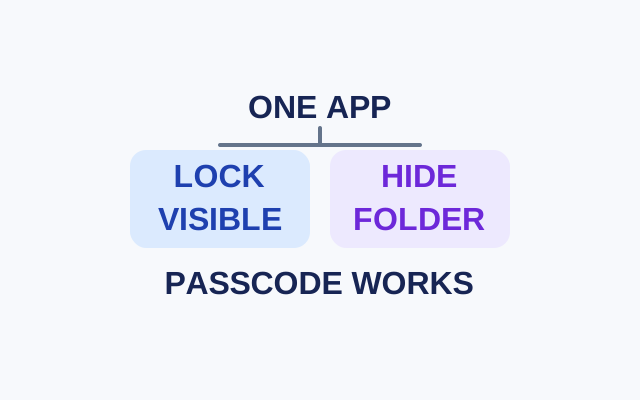
Locking requires authentication to open an app while leaving its icon visible. Hiding also moves an eligible App Store app to the authenticated Hidden folder. Both choices allow passcode authentication.
SOURCE-CHECKEDEveryday tech
Android camera or microphone blocked? Check the app and the phone-wide switch
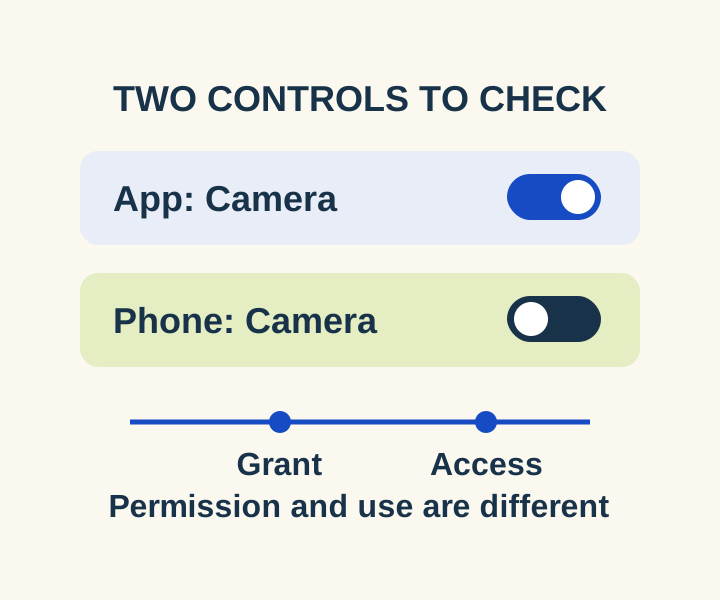
Check the two controls for a blocked camera or microphone, then distinguish an allowed permission from a recorded access.