SOURCE-CHECKED · EVERYDAY TECH
Lock or hide one iPhone app before lending your phone
Choose whether an app stays visible, learn when hiding is available, and find or unprotect it afterward.
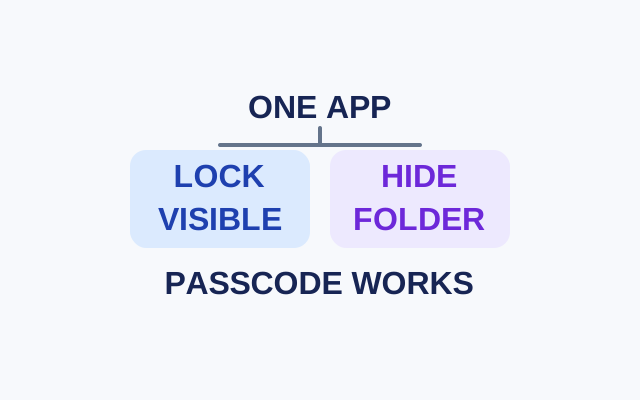
If someone borrowing your iPhone knows its passcode, they can use it to open an app you lock or hide. Check that first. If they do not know the passcode, your choice is mainly about visibility: a locked app stays in view, while a hidden app moves to the Hidden folder.
Choose what stays visible
Say you hand someone your unlocked phone to view a photo and want to protect another app. Lock it if you are comfortable leaving its icon visible. Opening it requires Face ID, Touch ID, or a passcode, and it locks again after you quit it. Apple says information inside a locked app also stays out of notification previews, search, Siri suggestions, CarPlay, and call history.
Hide the app if you also want it out of the Home Screen, the usual App Library view, and search results. It moves to the authenticated Hidden folder. Only apps downloaded separately from the App Store can be hidden. An app set as the default web browser, or as the default app marketplace in the EU, cannot be hidden.
Lock or hide the app
On the Home Screen, touch and hold the app, then tap Require Face ID, Require Touch ID, or Require Passcode, whichever appears. To lock the app, tap that option again. To hide it, tap Hide and Require Face ID (or its Touch ID or Passcode equivalent), authenticate, then tap Hide App.
Find it and remove the protection
To open a hidden app, swipe left past your Home Screen pages to App Library. Open Hidden at the bottom and authenticate. Tap the app and authenticate again. You can also see a list of hidden apps in Settings > Apps > Hidden Apps.
To remove a lock, touch and hold the app icon, tap Don’t Require Face ID (or its Touch ID or Passcode equivalent), and authenticate. To stop hiding an app, open Hidden and authenticate, then touch and hold the app, choose Don’t Require Face ID, and authenticate. The app appears near the top of App Library.
Locking and hiding apply only on that iPhone; the settings do not sync through iCloud. In a Family Sharing group, children under 13 cannot use them. For members aged 13 to 17, a parent or guardian can still see that an app was downloaded and how much it is used. The age rules vary by region.
Source: Apple’s iPhone guide.
KEEP GOING
More to explore.
SOURCE-CHECKEDEveryday Tech
How to pin and unpin an Android app before lending your phone
Keep one app open and check its accessible content before handing over your phone.
SOURCE-CHECKEDEveryday tech
iPhone Duplicates missing or confusing? Check detection and merge one set safely
Merge detected photo duplicates and check indexing when the collection is missing.