SOURCE-CHECKED · EVERYDAY TECH
Chrome Secure DNS: why a custom provider can stop a site loading
Separate Secure DNS from HTTPS, understand automatic fallback, and reverse one browser setting when a custom provider causes lookup errors.
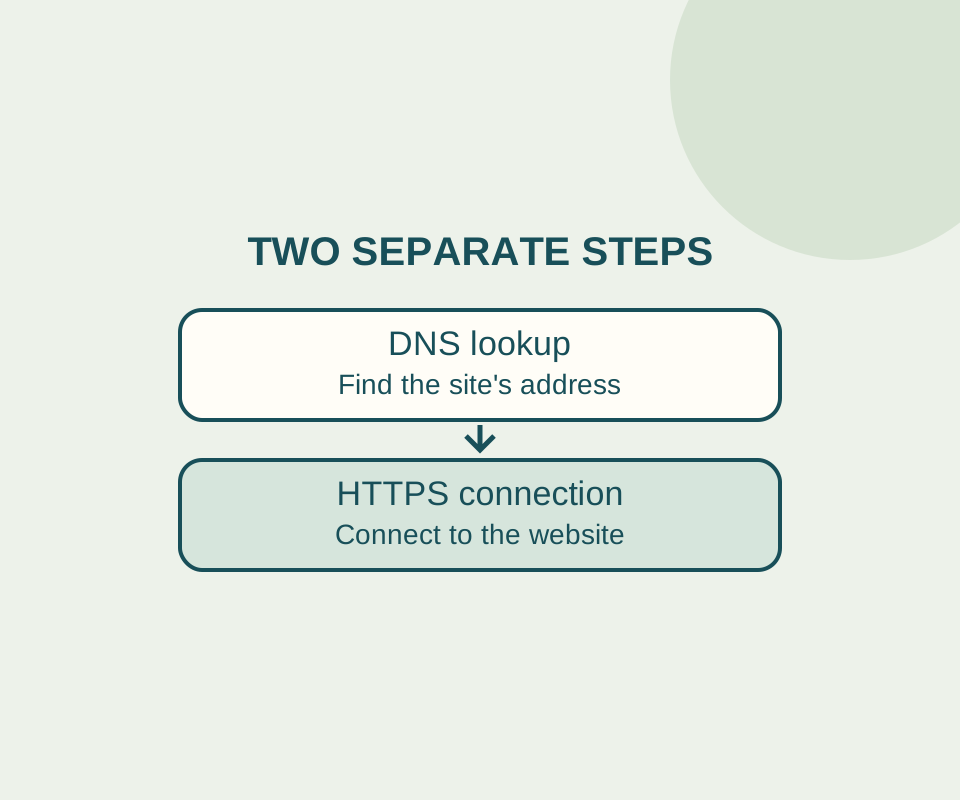
If a site stopped loading after you changed Chrome to a custom Secure DNS provider, check that setting first. Chrome needs to look up a site’s host name to find its IP address. Secure DNS encrypts that lookup information; it does not replace the site’s HTTPS connection.
In Chrome’s default automatic mode, a lookup problem can cause Chrome to use an unencrypted lookup. When you select a custom provider, Chrome does not fall back to an unencrypted lookup. A provider problem may therefore appear as a lookup error, including a message that the server’s IP address could not be found.
Check the selected provider
Open Settings > Privacy and security > Security > Advanced > Use secure DNS. Check which provider is selected, and write down your original choice before changing anything. In a current desktop Chrome settings view, the provider choices included OS default (when available), an option to add a custom DNS service provider, Cloudflare, Google, OpenDNS, and CleanBrowsing. The custom option has a field labeled Enter custom DNS query URL.
Text in that field is not proof that Chrome has started using the provider. In one recorded UI check, entering https://127.0.0.1:9/dns-query, a deliberately unavailable local endpoint, produced “Please verify that this is a valid provider or try again later.” A Mozilla HTTPS page loaded before and after that entry. The check showed field validation; it did not show an active custom resolver or a site outage.
Retest the same site
If the problem began just after a custom provider change, restore OS default (when available) if that was your previous setting. Then revisit the same URL that failed. If it loads, the result supports a connection between the setting and the problem, but does not establish the complete cause. Record the exact error and what happened after the change, then restore your intended setting when you have finished checking. The DNS troubleshooting notes page offers a place to record those details.
If the same URL still fails, stop changing DNS settings and investigate the actual error or site connection. There is no reason to clear cookies, delete passwords, or reset Chrome solely for this DNS check. Do not dismiss a certificate warning, disable Safe Browsing, or change parental or workplace controls to make the site load. Google says Chrome Secure DNS is unavailable on managed devices or when parental controls are on.
Secure DNS protects lookup information. It does not make all web traffic private or establish that a website is safe from malware.
Source note: Chrome’s Secure DNS help page documents the settings and lookup behavior. The recorded Chrome 154.0.8037.98 check was limited to the settings UI, its response to one deliberately unavailable URL, and whether one HTTPS page loaded; it did not test DNS traffic or provider reliability.
KEEP GOING
More to explore.
TESTEDEveryday tech
Chrome camera or microphone blocked? Check permission before the device
A permission preflight checks camera and microphone independently without opening a stream; a controlled Chrome setting change shows prompt, denied and granted.
SOURCE-CHECKEDEveryday tech
Change one Android app’s language without changing the phone
Android’s App Languages setting lets you choose a language for an individual app. An app following the system default instead uses the first language in the system list that it supports.