SOURCE-CHECKED · EVERYDAY TECH
Change one Android app’s language without changing the phone
Set a language for a supported Android app and work out why an app, language, or change is missing.
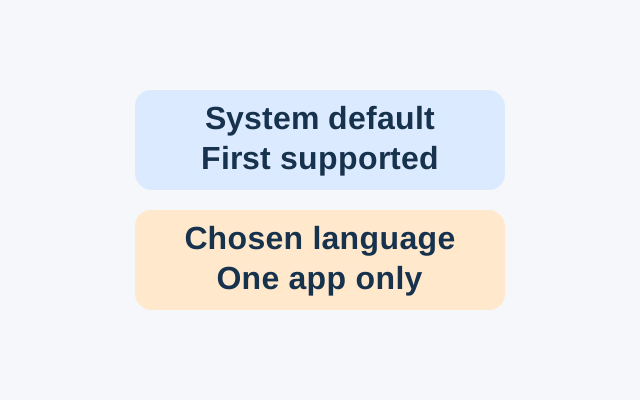
Android lets you choose a language for an individual app that supports language selection. Google notes that some of these steps work only on Android 14 or later.
How the default language is chosen
An app set to “system default” uses the first language in your phone’s language list that it supports. Suppose English is first and Spanish is second. An app that supports Spanish but not English will use Spanish, while your phone’s display language stays the same.
To choose a language for that app, open Settings > System > Languages > App Languages. Select the app, then choose a language it offers.
When an app or language is missing
If the app does not appear in App Languages, its developer may not have opted in. Check the app or its associated account for a language setting.
If the app appears but the language you want is missing, “All languages” shows what the app reports supporting. Update the app to get its most current list.
When your choice does not take effect
Restart the app and check its network connection. If the language still does not change, add it as a secondary language under Settings > System > Languages & input > Languages. Wait a few minutes, then return to Settings > System > Languages & input > App Languages and select it again. If that fails, the app’s reported language list may be inaccurate.
Source: Google Android Help, checked October 21, 2026.
KEEP GOING
More to explore.
SOURCE-CHECKEDEveryday tech
iPhone Precise Location: change accuracy without changing when an app can use it
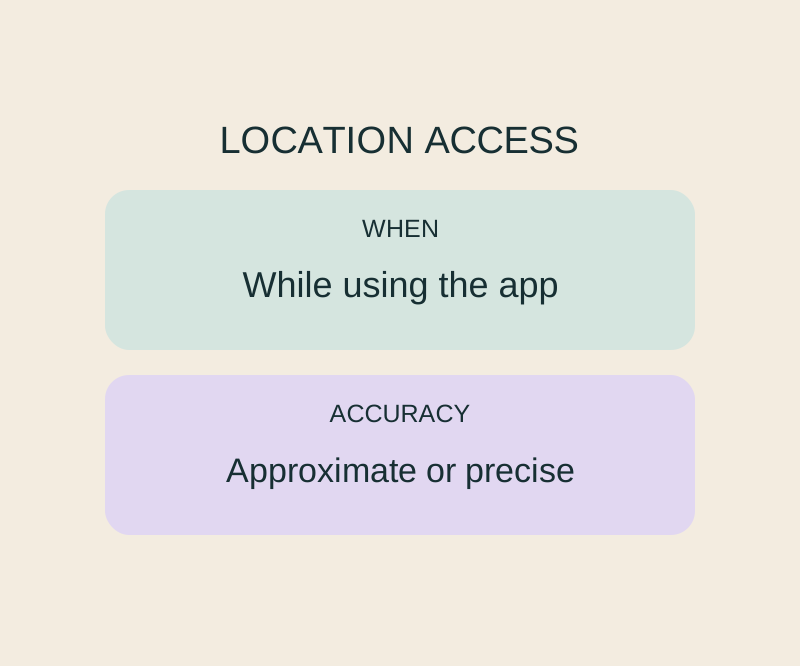
Precise Location and While Using the App control different parts of the same permission.
SOURCE-CHECKEDEveryday tech
Android app updates and system updates: find the right screen when one says up to date
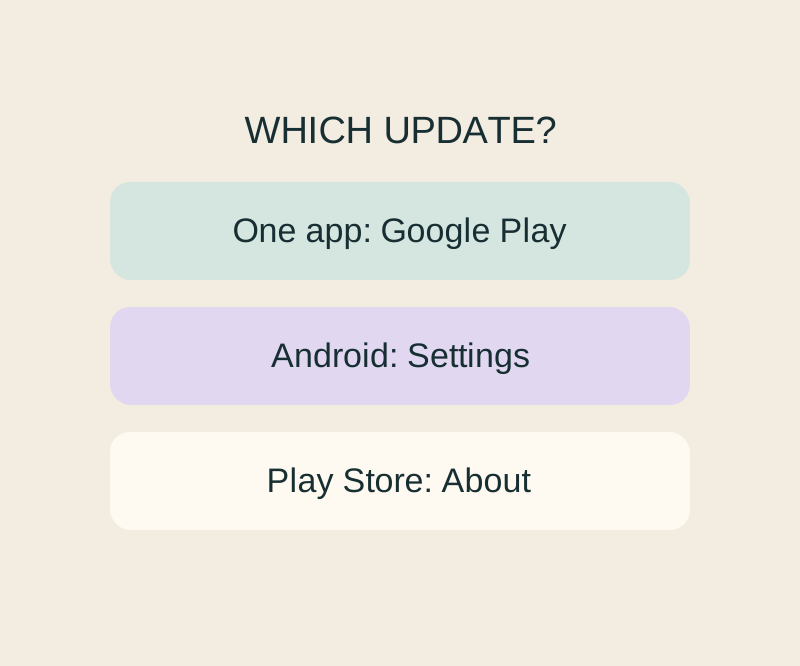
Update, Open and a stuck download lead to different next checks; an Android up-to-date message cannot settle all three.