SOURCE-CHECKED · EVERYDAY TECH
Android app updates and system updates: find the right screen when one says up to date
Use the actual app button to separate a missing update from a stuck download, recognize a feature limitation, and choose the next check with an original selector.
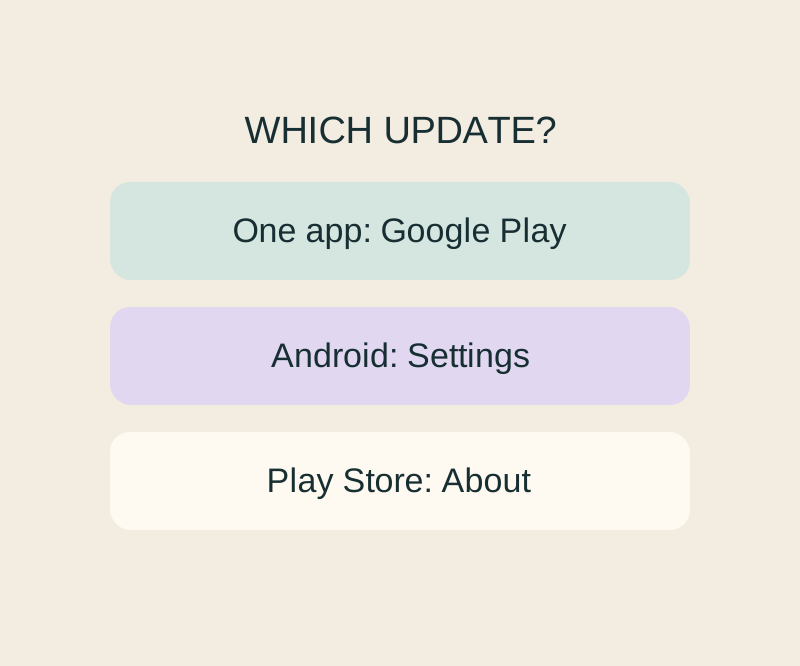
If one app seems outdated, open its page in the Play Store first. An Android “up to date” message refers to a different update check; it does not tell you whether that app has an update available. In the Play Store, you can also tap your profile picture, then Manage apps & device > Updates available > See details to find app updates. Google Play Help
Read the app’s button
- Update: The Play Store offers an update for that app. Install it, reopen the app, and check the feature again.
- Open: That page currently offers no update. The button alone cannot establish whether a particular feature is available to you.
- Pending or stuck: The app transfer has not finished. If you already chose Update, check why that transfer is waiting before investigating the missing feature.
For example, if Android reports “up to date” while the app’s page says Update, you can update the app without changing the Android system software. Android Help, Google Play Help
Check which update screen you opened
Settings > About phone > Android version shows the Android version, security update, Google Play system update, and build number. The route to system software updates varies by device. Older devices cannot always run newer Android versions, and update schedules depend on the manufacturer, device, and carrier. On Pixel phones, a system update downloaded in the background becomes active after a restart. Android Help
The Play Store itself has another check: profile picture > Settings > About > Update Play Store. Its “up to date” message concerns the Store client, not the app you selected or the Google Play system update shown in Android settings. Google Play Help
If an update stays pending
Start with a strong connection, check Settings > Storage, close and reopen the Play Store, and restart the phone. Google identifies less than 1 GB of free storage as a possible cause of download trouble. For instance, 700 MB free alongside several pending apps is a reason to check storage and the connection before troubleshooting each app separately; freeing space does not guarantee a download will succeed. If automatic updates are the issue, check the Play Store’s network preference: it can be set to Wi-Fi only, and a sign-in error can block automatic updates. Google Play Help, app update instructions
If only one app still fails, check its Play Store page for device availability. An app marked unavailable for the device cannot be downloaded there. For continuing trouble across multiple apps, Google provides further troubleshooting steps. Read their consequences before clearing data: clearing Play Store data can remove parental controls and password protection, while clearing Google Play services data is a last resort that can remove saved items and require you to sign in again. One-app guidance
Check the feature’s requirements
Suppose Google Maps shows Open, and you cannot request walking directions while offline. Google says offline maps support driving directions when the entire route is within the downloaded area, but not walking, biking, or transit directions. Reconnect to request a walking route rather than treating the missing offline option as an update failure. Google Maps Help
The next-check selector can route you from the screen you actually see to a relevant check and official source. You can use it without entering an app name or other private information. Its suggestions are editorial guidance, not a measurement of your phone.
Source note: Phone instructions and examples here are based on the linked Google documentation. The selector was checked in a browser; no physical Android phone test was recorded.
KEEP GOING
More to explore.
SOURCE-CHECKEDEveryday tech
Windows system sounds work but one app is silent: check its audio route
Follow the silent app from its own volume control to the selected speaker.
SOURCE-CHECKEDFree digital life
Cancel an iPhone subscription, even when it is missing from Settings
Match the subscription to its receipt before changing accounts or looking for a missing Cancel button.