SOURCE-CHECKED · EVERYDAY TECH
Windows system sounds work but one app is silent: check its audio route
Check the silent app in Windows 11 Volume mixer, compare its output device with the system output, and decide when broader audio repair makes sense.
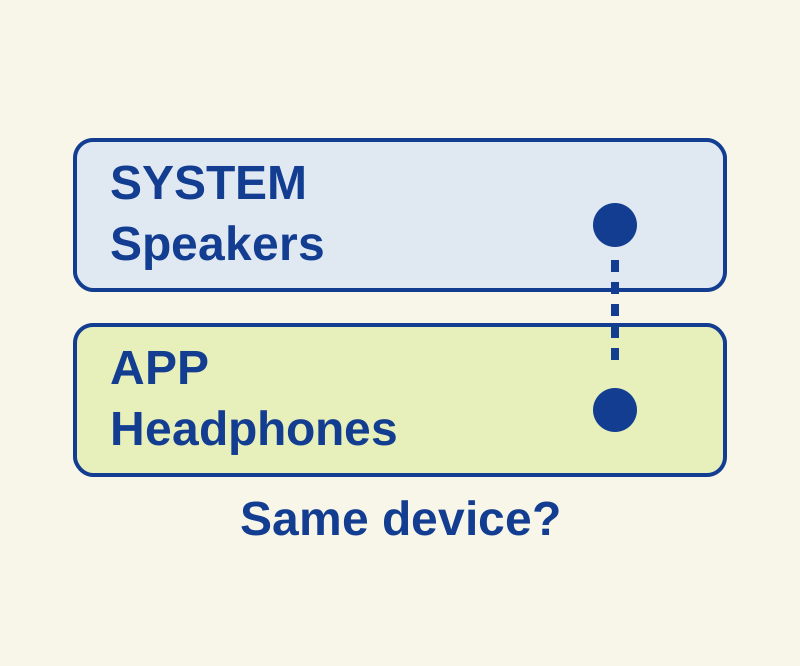
If system sounds play but one app is silent, check that app’s volume and output device in Windows 11 Volume mixer. A working system sound does not prove that the app is using the same speaker.
Check the device that is actually silent
Choose a short clip you already have on your PC and play the same segment after each change. Start at a low, comfortable volume. First, note whether your intended headphones or speakers can play a Windows system sound. Then check whether a second app can play through that same device.
The device matters: a system sound from your laptop speakers shows that the laptop speakers work. It does not show that a USB headset works if the silent app is routed to that headset.
Set the app’s output
Start or resume the test clip in the affected app, then open Start > Settings > System > Sound > Volume mixer. Under Apps, check that the affected app is not muted, its volume slider is up, and its Output device is the device you intend to hear. An app’s output can differ from the system output. On the main Sound page, check Output if you also want to change where system audio plays. Microsoft’s app audio guide describes these controls.
For example, if System is set to speakers but the affected app is set to a monitor or HDMI output, select your USB headset for the app and replay the clip. Select the headset for system output too only if you want system sounds there. If the app’s slider is muted, unmute that app and replay the clip before changing any routes. You can return a selection to its previous device if it does not help.
If the clip is still silent
If another app plays through the exact same device, check the silent app’s own speaker or volume control and try content you know is playable. That comparison narrows the problem to the affected app’s content, controls, or routing; it does not definitively rule out a driver issue.
If both the second app and system sounds fail through that device, use Microsoft’s speaker and headphone audio guide. If the device is missing, or its options are unavailable, follow the separate device detection guide.
When the mixer and app controls look right but the app remains silent, Microsoft’s app audio procedure also calls for restarting Windows Audio and Windows Audio Endpoint Builder in services.msc, then testing again. Finish any active call or playback first, since restarting audio services may interrupt it. Driver updates through Device Manager and a Windows restart are later steps in that procedure. If the sound is merely quiet, Microsoft separately identifies audio enhancements and an incorrect format as possible causes. Microsoft’s quiet sound guide covers those checks.
Source note: Microsoft documentation was checked October 10, 2026. These Windows controls were not independently tested for this article.
KEEP GOING
More to explore.
SOURCE-CHECKEDEveryday tech
Android app updates and system updates: find the right screen when one says up to date
Update, Open and a stuck download lead to different next checks; an Android up-to-date message cannot settle all three.
SOURCE-CHECKEDEveryday tech
How to stop apps from opening at startup in Windows 11
Find which sign-in mechanism opens an unwanted app, then check whether your change fixed that symptom.