SOURCE-CHECKED · EVERYDAY TECH
How to stop apps from opening at startup in Windows 11
Stop unwanted startup windows, trace apps that keep returning, and compare your own sign-in observations without treating impact labels as speed promises.
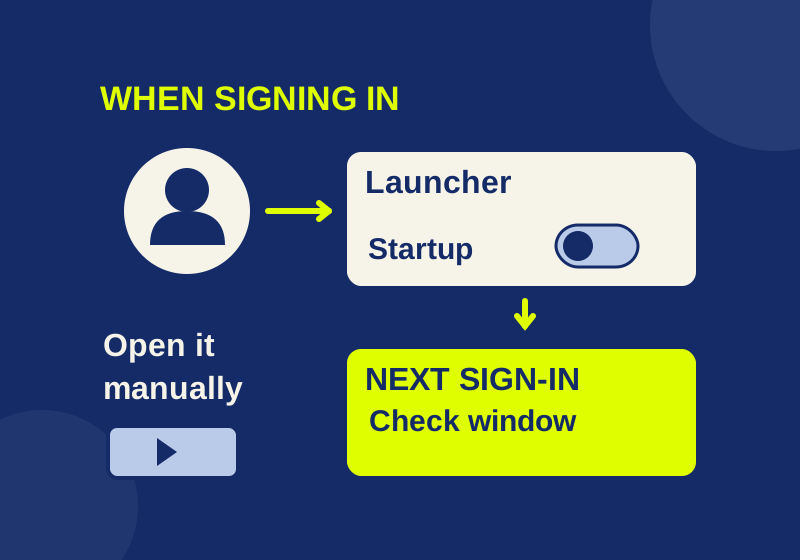
If a game launcher, chat app, or other familiar program opens whenever you sign in, start with its Windows startup switch. If it keeps returning, check when it appears. An app that opens at sign-in, one that returns only after you left it open, and a delay before the sign-in screen call for different checks.
The startup run log can help you sort those symptoms. Select whether you see an unwanted window after login, a busy desktop, a delay before sign-in, or an app that returns only if it was previously open. The page suggests a next check for the stage you choose. Its inputs are your observations; it cannot inspect or change Windows. It can also calculate a before-and-after median if you want to compare three sign-ins on each side of a change. You do not need to time anything when your only goal is to stop a window appearing.
Turn off a registered startup app
Open Settings > Apps > Startup and find the app you recognize. Switch it Off to prevent its automatic sign-in startup. You can also open Task Manager > Startup apps, select the entry, and choose Disable. These are Windows controls for registered startup apps. Turning an entry off does not uninstall the program or close a copy that is already running. You can still open the app manually, and On or Enable restores its startup setting. Microsoft’s startup app instructions describe both controls.
Change one familiar app at a time. Before doing so, note its name and original On or Off status somewhere private. At your next normal sign-in, check two things: whether the unwanted window stayed away and whether the app still does what you rely on when you open it yourself. If a sync or backup function you need stops working, restore the setting you recorded.
Task Manager also shows startup impact. High means the entry exceeded one second of CPU use or 3 MB of disk activity in Microsoft’s measure. It is a clue about resource use, not a claim that disabling the entry will cut a particular number of seconds from sign-in. Microsoft’s startup app instructions define the rating.
If the app is missing from the list
An app can start through a shortcut in a Startup folder. In File Explorer’s address bar, enter shell:startup to inspect shortcuts for your account. shell:common startup opens the folder for all users. If you identify an unwanted shortcut, remove the shortcut, not the original application. Check the scope before changing the all-users folder on a shared PC, because it affects other accounts. Microsoft documents both folders.
If you do not find the app there, check the app’s own preferences for a launch-at-sign-in setting. Record what you change so you can reverse it if needed. An entry missing from Windows’ common startup list does not, by itself, tell you which mechanism opened the app.
A listed entry with the “We couldn’t find this app” message presents a different problem. Microsoft says an app can point to a disconnected removable or network location, or to a program that has been uninstalled. Check which app the entry names and where it was installed before deciding what to do with it. A missing path alone does not establish why the entry remains. Microsoft’s startup app instructions describe this case.
If it still opens
First, pin down the trigger. Does the window appear after every sign-in, or only when the app was open before the previous session ended? Write that difference down before changing another entry. A delay before the sign-in screen belongs to an earlier interval than the sign-in task measured below.
Windows also has a restartable-apps option under Settings > Accounts > Sign-in options. Microsoft specifically directs Edge users to “Automatically save my restartable apps and restart them when I sign in” when they want to prevent it reopening at sign-in. Microsoft’s Edge startup guidance documents that route. It can affect session restoration for supported apps; it is a separate control from a registered Startup switch. Record its original value before changing it, and decide whether you want other supported apps to resume. An app returning after a previous session is a reason to check this option, not proof that this option caused that app to open.
For an app that still appears after you have checked Settings, Task Manager, its Startup shortcut, and its own preferences, Microsoft Autoruns offers a wider inspection view. It reports categories including logon entries, scheduled tasks, services, drivers, and shell extensions. Its image properties and Jump to Entry command can help you identify an entry. A scheduled task or service is not another copy of the toggle in Settings, so identify the specific entry before acting. In Autoruns, unchecking disables an entry; Delete deletes it. Work on a known entry rather than disabling categories in bulk.
Check whether the change helped
An unwanted window staying closed is a useful result even if sign-in time does not change. If timing matters to you, choose one endpoint that matches what you actually wait for, such as the point when Start search opens and you can open a local document. Start each measurement at sign-in and stop at that same endpoint. Keep time before sign-in separate so it cannot be credited to a startup-app change.
The run log accepts three before times and three after times in seconds. Enter non-negative numbers; leave a field blank if you do not know that time. It sorts each set numerically and uses the middle value as its median. For example, before times of 35, 39, and 72 seconds have a median of 39. After times of 31, 33, and 50 seconds have a median of 33, or 6 seconds shorter. The 72-second run remains in the entered data. If the after median is slower, the log reports the positive number of seconds longer.
Use the same task and comparable conditions for each run, letting normal sign-ins happen instead of restarting solely for a measurement. Note a heavy update or download alongside its run rather than quietly removing a slow value. The calculation describes the times you entered; it cannot show that the startup change caused the difference.
Source note: Windows controls and Autoruns behavior above come from the linked Microsoft pages checked October 7, 2026 KST. The run log’s example calculation and interactions were verified in Chromium at 320, 390, and 1440 pixel widths. No Windows setting was changed and no PC speedup was measured. The page makes no network calls, uploads, or saved records; entries remain only while the page is open, unless you print them.
KEEP GOING
More to explore.
SOURCE-CHECKEDEveryday tech
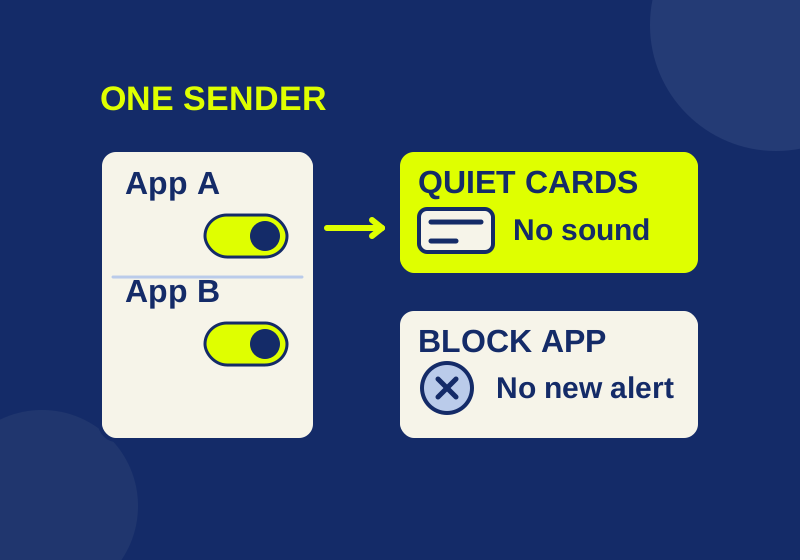
How to turn off one app's Windows 11 notifications without silencing everything
Silence the sender you meant to change, with a local preview of app, banner, sound and Notification Center controls.
SOURCE-CHECKEDEveryday tech
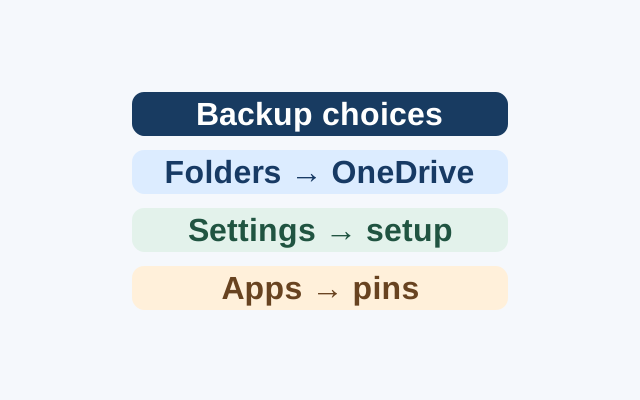
Windows Backup on a new PC: what comes back?
Selected folders become available through OneDrive. Supported preferences can return during Windows setup, while apps return as pins that may lead to restoration or an installer.