SOURCE-CHECKED · EVERYDAY TECH
Windows Backup on a new PC: what comes back?
Choose what Windows Backup saves, then tell synced files, restored settings and app pins apart on a new PC.
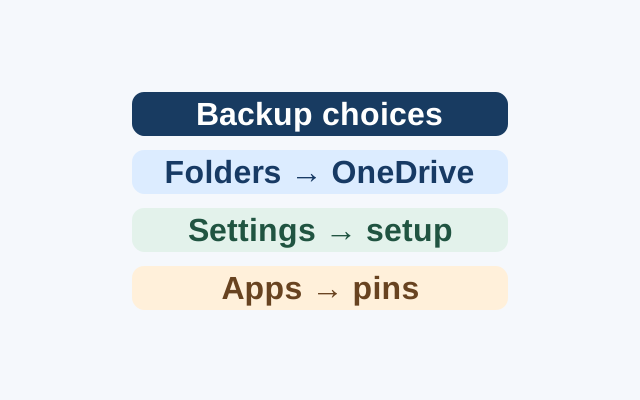
Windows Backup returns different things in different ways. Selected folders sync through OneDrive, supported settings can return during Windows setup, and remembered apps return as pins. A pin alone does not mean the program is installed.
Choose what to back up
Suppose you want your Documents and Pictures files, wallpaper preference, and an app pin on a new PC. You leave Videos unselected.
On the old PC, open Windows Backup from Start. Under Folders, turn on Documents and Pictures. Expand the settings and turn on Personalization and Installed apps, or confirm that each says Backed up. Select Back up, then check the status in Windows Backup or Settings > Accounts > Windows backup. Personalization backup requires OneDrive sign-in and available storage.
Check the new PC
During Windows setup, sign in with the same personal Microsoft account and choose the offered backup. If you backed up more than one PC, use More options to choose which backup to restore. Sign in to OneDrive with that account to access the selected Documents and Pictures files. Check whether your wallpaper preference returned. Leaving Videos unselected gives you no reason to expect it to have synced through this Windows Backup choice.
Look for the restored app pin. Selecting a Microsoft Store app’s pin starts restoration; a pin for an app outside the Store directs you to a web installer.
These steps come from Microsoft’s Windows Backup guide, which covers Windows 10 and 11. The Windows Backup app is for consumer devices using personal Microsoft accounts. Work or school accounts do not work with the app.
KEEP GOING
More to explore.
TESTEDEveryday tech
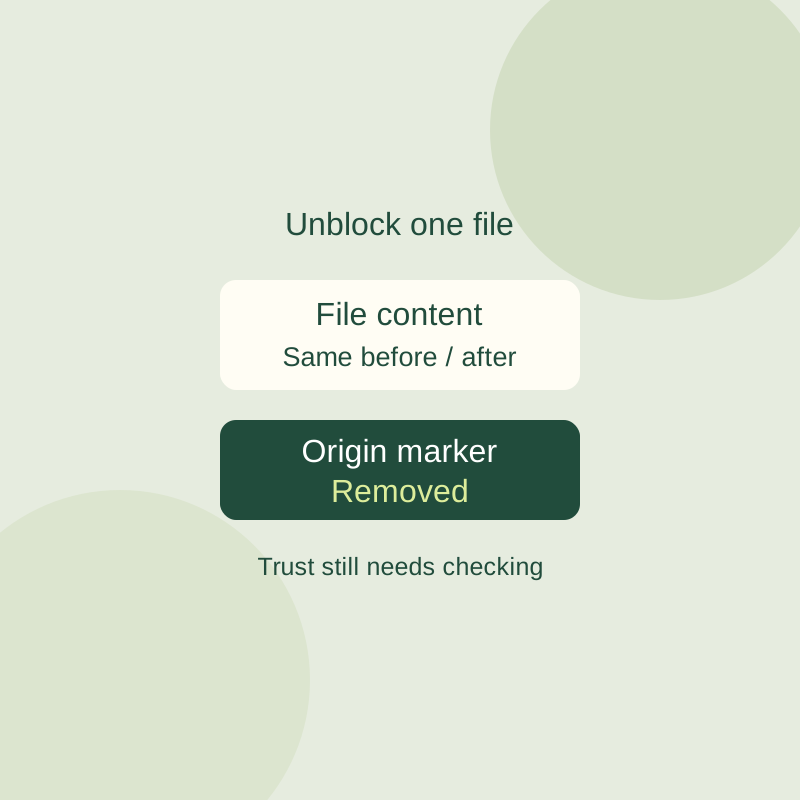
Windows Unblock file: what it removes and when to leave it alone
Inspect a downloaded file warning and unblock one verified file without changing global Windows security settings.
SOURCE-CHECKEDEveryday tech
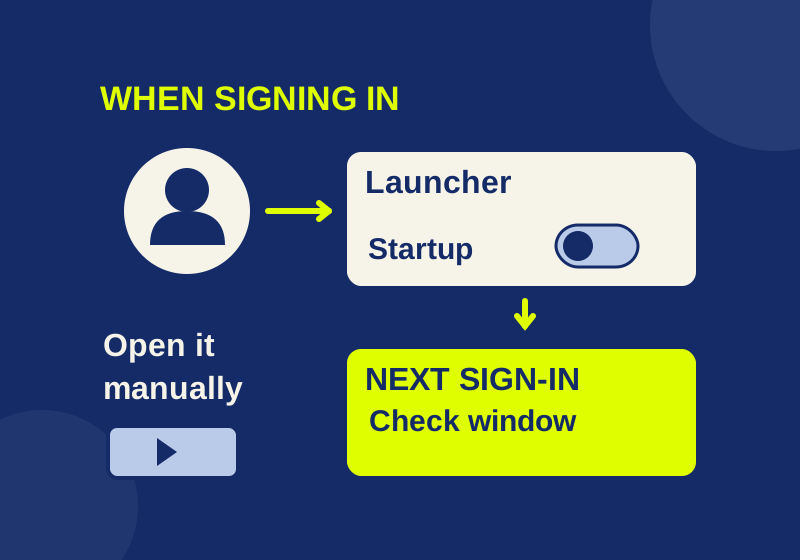
How to stop apps from opening at startup in Windows 11
Find which sign-in mechanism opens an unwanted app, then check whether your change fixed that symptom.