SOURCE-CHECKED · EVERYDAY TECH
iPhone Precise Location: change accuracy without changing when an app can use it
Separate iPhone location accuracy from access timing, fix a Maps location warning, and use an original permission model without changing your phone settings.
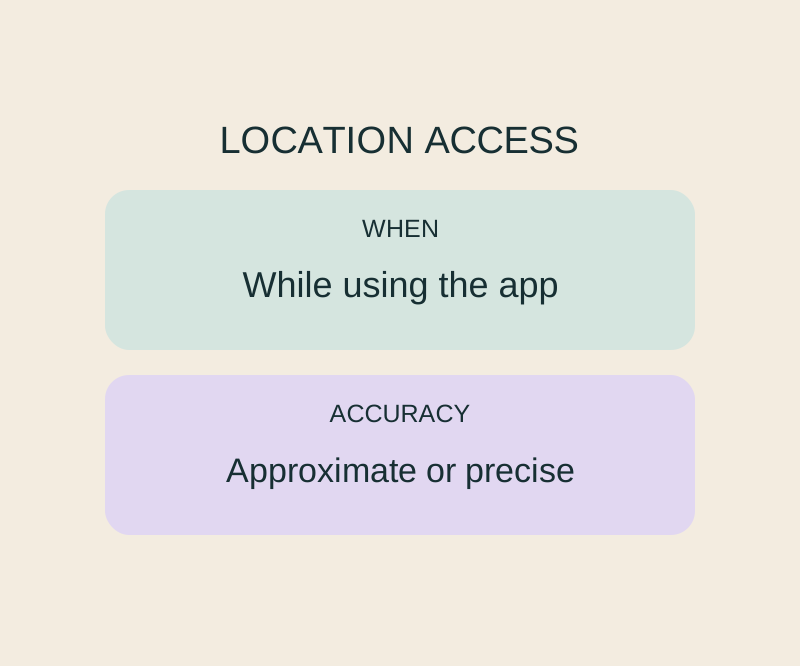
You can let an app use your approximate location without changing when it has access to Location Services. On iOS 14 or later, Precise Location controls whether an individual app receives a specific or approximate location. The app’s location permission controls when it can use that information. Turning Precise Location off does not block location access by itself. Apple explains these settings.
Change accuracy for one app
Open Settings > Privacy & Security > Location Services, select the app, and turn Precise Location off for approximate location or on for specific location. Leave the app’s other location permission as it is if you only want to change accuracy. You do not need to turn off Location Services for the whole phone to adjust one app. Apple’s iPhone guide describes the per-app controls.
Check the access timing separately if an app asks to use your location in the background. While Using the App permits access while an app is in use; Always also permits background access. An active location session can continue after you switch apps, with a location indicator. Selecting an accuracy setting does not change that access permission. Some apps offer fewer permission choices. Apple’s location settings guide explains the options.
Consider two fictional apps: City Forecast has permission while it is in use and receives an approximate location. Corner Pickup needs a specific pickup pin while it is open, so you turn on Precise Location for that app. That change does not give Corner Pickup background access. Whether a particular weather app can work with an approximate location depends on the app.
An explanatory permission model lets you compare access permission with accuracy. Set Never and change Precise Location: the model still shows no Location Services access for that app. Select While Using the App and turn precision off: the output describes approximate access during use, including the possibility of an ongoing location session. It does not predict whether a particular app is running such a session.
If an app is missing or asks again
An app appears in Location Services settings only after it asks for location access. If you chose Allow Once, that permission lasts for one session; reopening the app and requesting location again brings up another request. Apple documents both behaviors.
If you need to find your location or get accurate directions in Maps, check its precision setting and internet connection. Apple’s iOS 27 Maps guide says both are required for those functions and describes the alerts Maps may show.
Turning off Precise Location leaves approximate Location Services access available to an app with permission. Other methods can still reveal or suggest your location, and changing this switch does not delete information already shared. Apple’s personal safety guide explains that limit.
Source note: Based on the linked Apple documentation checked October 15, 2026 (KST). The phone feature was not physically tested; the linked model is explanatory only.
KEEP GOING
More to explore.
SOURCE-CHECKEDEveryday tech
Change one Android app’s language without changing the phone
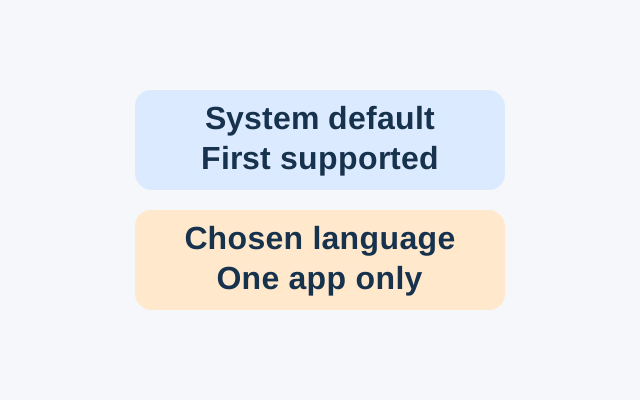
Android’s App Languages setting lets you choose a language for an individual app. An app following the system default instead uses the first language in the system list that it supports.
SOURCE-CHECKEDEveryday tech
Offload iPhone apps: calculate the space you can recover
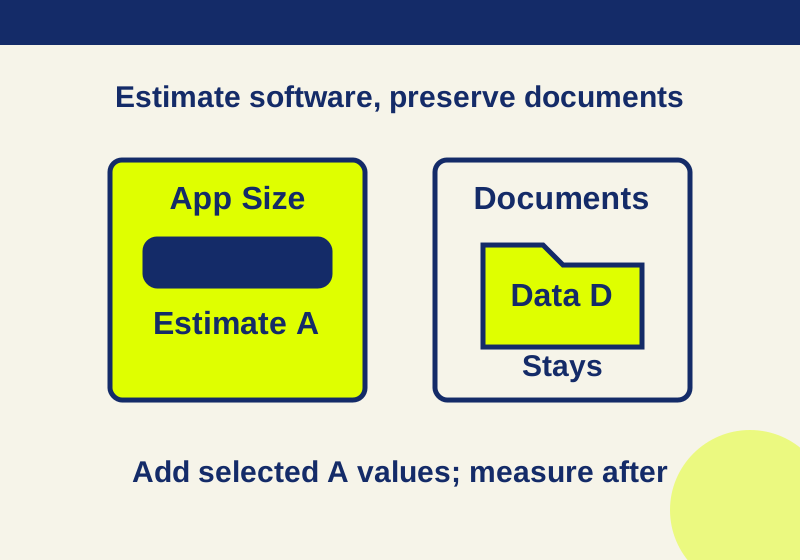
Offloading removes app software while documents remain. Calculate its likely contribution before choosing which apps to remove.