SOURCE-CHECKED · EVERYDAY TECH
Offload iPhone apps: calculate the space you can recover
Estimate iPhone offloading from App Size rather than Documents and Data. Use a blank worksheet, compare the storage gap and check recovery before removing software.
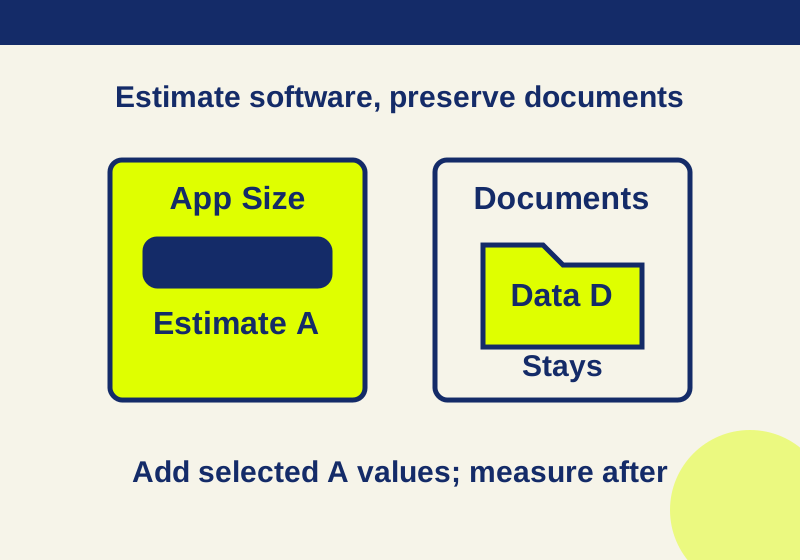
Offloading an iPhone app removes its software while keeping its documents and data. That makes it useful when an app takes up space but you may want its stored data later. The space you can estimate recovering is the app’s displayed App Size, not its App Size plus Documents & Data. Deleting the app is a different choice: it removes the app and its related data. Apple’s storage instructions
Before offloading anything, compare the space you need with the software sizes of apps you can do without. A blank offload worksheet gives you a place to record those sizes and your decision for each app.
Find the storage gap
Open Settings > General > iPhone Storage and let the storage analysis finish. Record the available space as F. Separately, write down the available space you want to reach as T. Use the same unit for both. Choose either all MB or all GB, and convert app sizes to that unit before adding them. Apple’s storage instructions
The gap to close is:
G = max(0, T − F)
If you already have at least T available, G is zero. Otherwise, G is the additional space you are aiming for. Keep F and T in a separate note; the worksheet has app rows, not fields for those two measurements.
Record what each app contains
In iPhone Storage, select an app to see its App Size and Documents & Data. Enter those figures in the worksheet’s AppSizeMB and DocumentsDataMB columns, using MB for every row. The other columns are App, NeededBeforeNextConnection, RecoveryChecked, and Decision. Leave a figure blank when you do not know it; an empty cell does not mean zero. Do not enter negative sizes or mix units. Apple’s storage instructions
For each app you are considering, call its displayed App Size Aᵢ and its displayed Documents & Data Dᵢ. Add the Aᵢ values for the apps you would offload. That sum is your eligible offload estimate. The remaining gap is:
max(0, G − sum of selected Aᵢ)
For example, suppose you select two apps. App 1 shows A₁ of software and D₁ of documents and data; App 2 shows A₂ and D₂. Your estimated software space to recover is A₁ + A₂. The displayed documents and data expected to remain total D₁ + D₂. Do not use A₁ + D₁ + A₂ + D₂ as the offload estimate.
These are planning figures, not a promise that the available-space reading will rise by exactly that amount. Apple notes that cached or temporary data may not be included in the displayed usage. After you act, use the phone’s updated available-space reading to see what changed. Apple’s storage instructions
A large App Size makes an inactive app a stronger offload candidate. If Documents & Data is large but App Size is small, offloading addresses only the smaller software portion. You may need to inspect that app’s own downloads, cache, or export options; what you can manage varies by app.
You can also calculate Aᵢ ÷ (Aᵢ + Dᵢ) to see what share of an app’s displayed total is software. This describes the size breakdown. It says nothing about whether the app or its data is safe to lose. Leave the ratio blank if either size is unknown or the displayed total is zero.
Choose apps you can spare
Use NeededBeforeNextConnection to flag apps you may need while traveling or before you can get online again. Assess an authenticator, an app holding essential records, or any app whose recovery matters to you before offloading it. Keeping documents and data does not guarantee that every login, service connection, or game save will be restored. Reinstalling also depends on a network connection and the app remaining available from the App Store. Apple’s offloading guide
For an app you choose, open its iPhone Storage detail page, tap Offload App, and confirm. Wait for the storage reading to update, then record the available space you actually see. Do not assume every system app offers the same action. Apple’s storage instructions
If you want to check recovery before making more decisions, start with one unimportant app. Record available space before and after offloading it. Then tap its cloud-marked icon to reinstall it while connected, check the particular data you care about, and record the result in RecoveryChecked. This is a check you can perform on your own phone, not a guarantee for other apps. Apple’s offloading guide
Decide whether to use automatic offloading
On iOS 26, Settings > Apps > App Store > Offload Unused Apps offers automatic offloading. An offloaded app’s icon remains with a cloud symbol, which you can tap to reinstall it. Apple’s offloading guide
Use manual selection when you need to assess particular apps first. The automatic setting does not provide a promised per-app exclusion list, so do not treat it as a way to approve some unused apps while protecting named others.
If an app needs to be downloaded again and its icon is unavailable, Apple’s App Store route is profile > Apps & Purchase History > Your Apps > Not on this [device]. If you cannot find it, check whether you used a different account or hid the purchase; compatibility, connection, and App Store availability can also affect redownloading. Check the important data before offloading; the purchase listing alone does not establish that the data can be recovered. Apple’s redownload instructions · Apple’s hidden-purchase instructions
Source scope: The steps above come from Apple’s published instructions and the linked blank worksheet. No iPhone offload, reinstall, or app-data recovery was independently tested for this article.
KEEP GOING
More to explore.
SOURCE-CHECKEDEveryday tech
iPhone Precise Location: change accuracy without changing when an app can use it
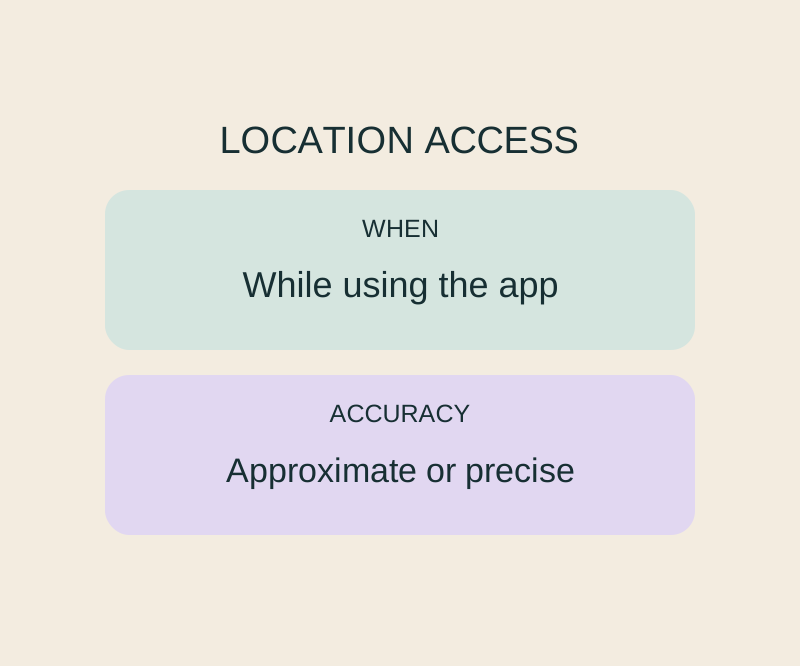
Precise Location and While Using the App control different parts of the same permission.
SOURCE-CHECKEDEveryday tech
Trim an iPhone voice memo without deleting the part you meant to keep
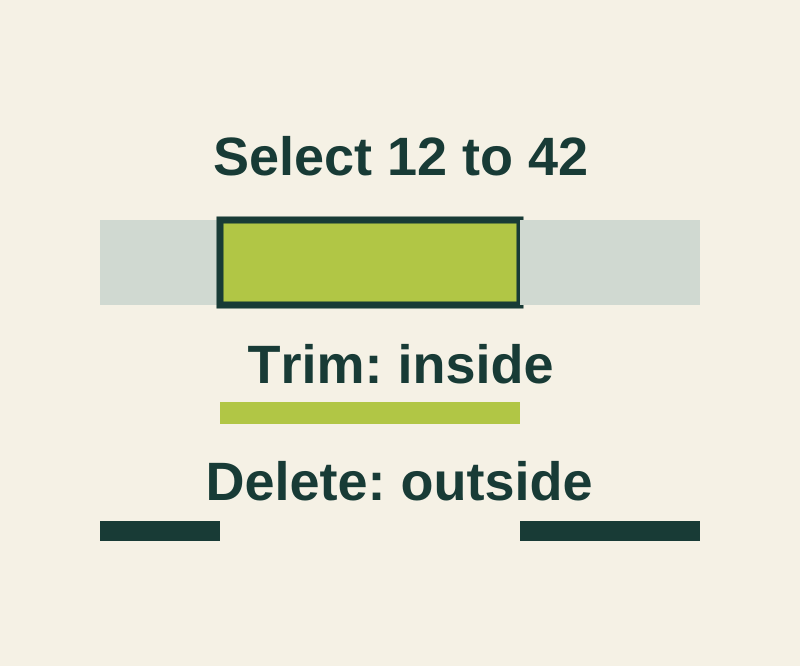
Keep the selected passage or remove it, then preserve the original with Save as New Recording.