SOURCE-CHECKED · EVERYDAY TECH
Chrome Reading mode: read articles and find missing text
Use Chrome Reading mode, check which text it leaves out, and select a missing paragraph from the original page. Includes an original practice article.
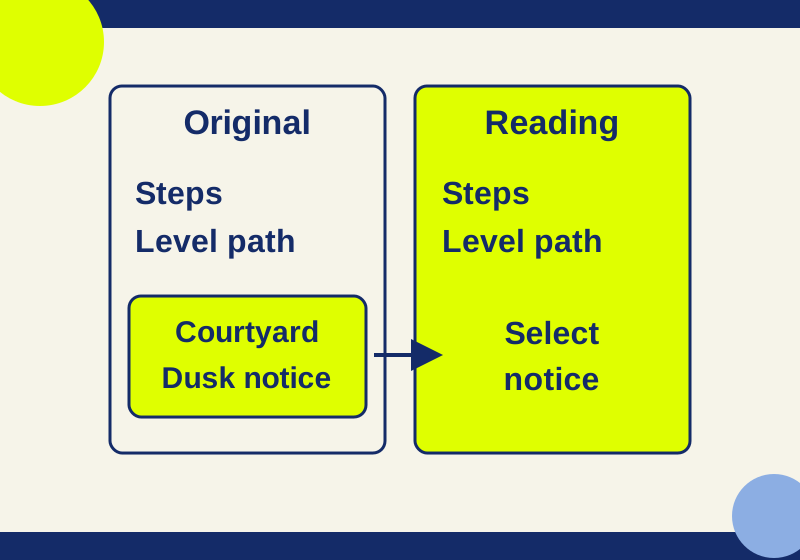
Chrome Reading mode can make a long page easier to read, but the text it shows may leave out a passage you need. If a notice, caption, or other detail seems missing, return to the original page and select the relevant text. Chrome’s Reading mode instructions recommend highlighting missing content on the original page.
On the practice page, Reading mode kept the main story, including a choice between an entrance with steps and a level path through a courtyard. It left out a separate notice that began, “SELECTION CHECKPOINT: The fictional courtyard closes at dusk.” Selecting that notice on the original page brought its paragraph into the reading view.
Open Reading mode
On a desktop webpage, right-click and choose Open in reading mode. Google also lists Alt+Shift+R for Windows, Linux, and ChromeOS, and Command+Option+R for Mac. Its help page describes a full-screen view and says you can choose Settings > View > Side panel; that preference is saved. Google Chrome Help
Keep the original page available when a detail matters. Reading mode gives you a view of the text it has picked up; the original lets you check that text against the page around it.
See what the practice page leaves out
The companion reading practice page contains a fictional article called “The library route: a reading practice article.” Its main text says that the river entrance has steps and the courtyard offers a level path. Those details make it possible to check whether Reading mode retained a condition that changes the meaning of the route.
When the page was opened through Chrome’s own Reading mode command, the reading view showed the title, the main headings, the article paragraphs, and a reference link labeled “Google’s Reading mode instructions.” It did not show the page navigation or the separate notice about the courtyard closing at dusk. The notice also explains that the exercise is fictional and gives no real hours.
That result is specific to this page. It does not establish that Reading mode drops every separate notice, or that it captures every paragraph on another site. The main story can look complete while a relevant paragraph remains on the original page.
Bring the missing paragraph into view
On the practice page, first read the main article in Reading mode and look for both route details: the steps at the river entrance and the level path through the courtyard. Then find the separate “SELECTION CHECKPOINT” notice on the original page. Select its whole paragraph as ordinary text.
In the recorded check, that selection changed the Reading mode view to the notice paragraph alone. The main article headings were no longer in that selected view. The paragraph appeared, but its surrounding story did not. Read the original page when you need both the notice and the route description together.
Select the complete notice so its explanation that the hours are fictional stays with it.
The same method is useful when a real page’s reading view seems to skip a sentence you came to find: locate the sentence on the original page, select enough surrounding text to retain its meaning, and check what Reading mode displays. If the information is in a map, form, or another part of the page you need to use, work from the original page. Google says Reading mode does not support every website or format, including maps and forms. Google Chrome Help
Adjust the reading text
Reading mode offers font size and settings for font, color, line height, and letter spacing. Those settings change the reading text, not the whole Chrome interface. Links are visible by default, so you can still identify the practice article’s reference to Google’s instructions. Google also documents a read-aloud control with speed and voice options. Google Chrome Help
These controls can change how you read the extracted text. They do not answer whether a passage was included. For that, compare the reading view with the original page at the point where the missing detail matters.
Sources and scope: Google Chrome Help was checked October 7, 2026. The observed extraction and selection results came from one locally served fictional practice page in Chrome 154.0.8037.93 on Windows. Read-aloud and image controls, other operating systems, and external articles were not tested.
KEEP GOING
More to explore.
TESTEDWeb research
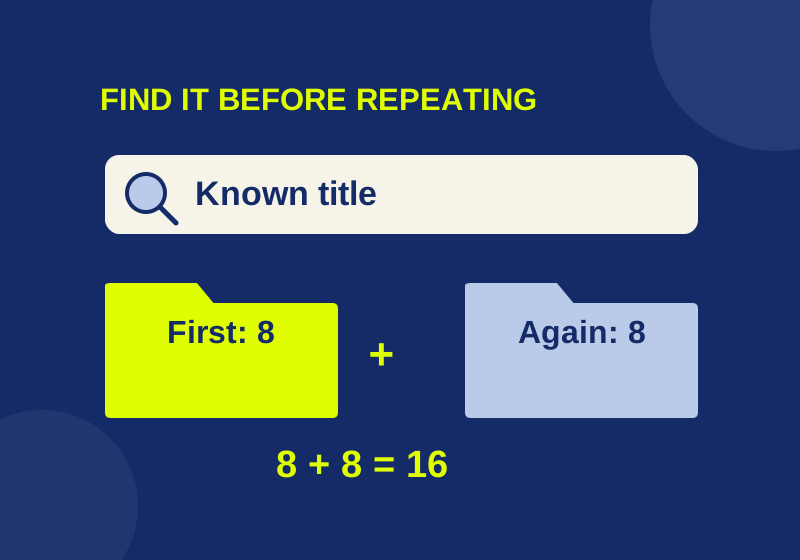
Chrome bookmarks imported but missing? Find the folder and avoid duplicates
An eight-link import became sixteen when repeated. Find the first collection before importing again.
SOURCE-CHECKEDEveryday tech
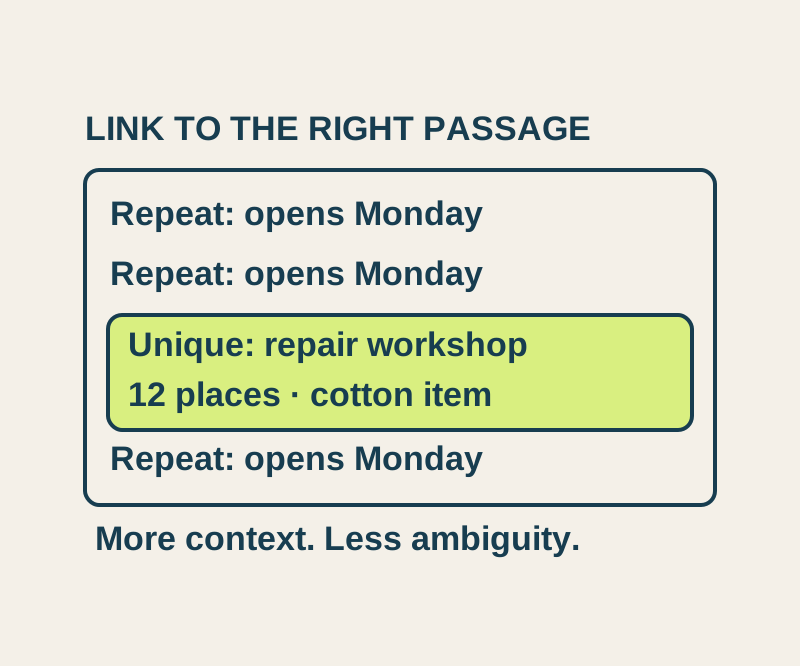
Chrome Copy link to highlight: share a passage and fix the wrong match
Send a precise passage, understand repeated matches, and try four real text-link outcomes in an original sample notice.