SOURCE-CHECKED · EVERYDAY TECH
Chrome Copy link to highlight: share a passage and fix the wrong match
Share selected text with Chrome’s Copy link to highlight, try unique and repeated text links, and use a section fallback when a sentence cannot be found.
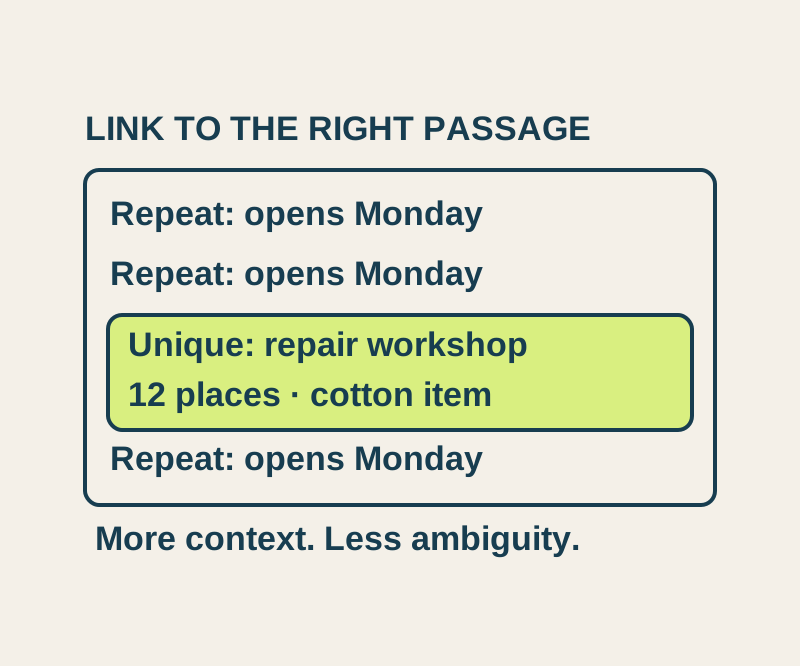
To point someone to a sentence deep in a long page, select the text in desktop Chrome, right-click it, choose Copy link to highlight, and paste the link into your message. The recipient can open the page at the selected passage when the link finds a match. Google’s Chrome instructions describe the selection and menu steps.
For example, a message about a workshop could say: “Repair workshop: bring one clean cotton item,” followed by the highlighted link and the sentence, “The repair workshop has twelve places, and each participant should bring one clean cotton item.” Including the sentence gives the recipient something to look for if the link does not land correctly.
Try a sentence that appears once
Open the practice notice and drag across the full repair workshop sentence. Right-click the selection, copy its link to highlight, then paste that freshly copied link into a new tab. This checks the link you actually made; the example links on the notice demonstrate how text links behave, but they do not test Chrome’s copy menu.
If Copy link to highlight is unavailable, Google says the feature may not work for the selected content. Try text in a visible paragraph instead of content presented as an image, in a canvas, or inside an embedded frame. If the menu still does not appear, share the ordinary page URL with the exact sentence. The recipient can use Chrome’s Find command, Ctrl+F, to locate it. Google also documents a right-click option to remove a highlight from the page.
Why a link can land on the wrong sentence
A highlight link identifies text in the page URL. According to MDN’s text fragment reference, a text fragment uses a #:~:text= directive with encoded text. Matching starts with the first occurrence. If the selected words appear several times, a link based on those words can point to an earlier copy. Selecting a longer, distinctive passage gives the match more to work with. Text fragments can also specify surrounding text as a prefix or suffix.
The practice notice repeats “Registration opens Monday.” three times. Its four existing example links show the main outcomes:
| Example link | Observed destination |
|---|---|
| Unique workshop sentence | Scrolled to and visibly highlighted that sentence |
| Repeated registration sentence | Highlighted the first of the three matches |
| Text absent from the notice | Opened at the top without a highlight |
Absent text with a #registration fallback |
Opened at the registration section |
An absent or unsupported text directive can be ignored. A link may also include an ordinary section fragment as a fallback, as the last example does. If you need a reliable instruction for a changing page, include a short quote or section name alongside the link: the link does not preserve the page’s text, and an edit may prevent a later match.
A highlight link does not grant access to the underlying page. Also check what you selected before sharing: the selected text is part of the URL string, so sensitive words can travel with the link.
Source note: The practice notice’s four links were opened in Chrome 154 at a 390 × 844 viewport. Chrome’s Copy link to highlight menu and clipboard output were not tested; those steps are from Google’s documentation.
KEEP GOING
More to explore.
SOURCE-CHECKEDEveryday tech
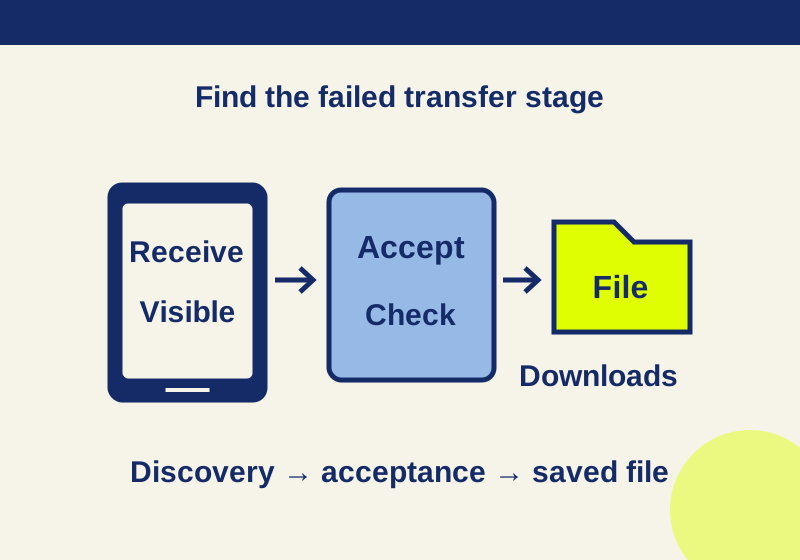
Android Quick Share not receiving? Fix discovery, acceptance, and missing files
Make your Android phone visible for a Quick Share transfer and find the received file afterward.
SOURCE-CHECKEDEveryday tech
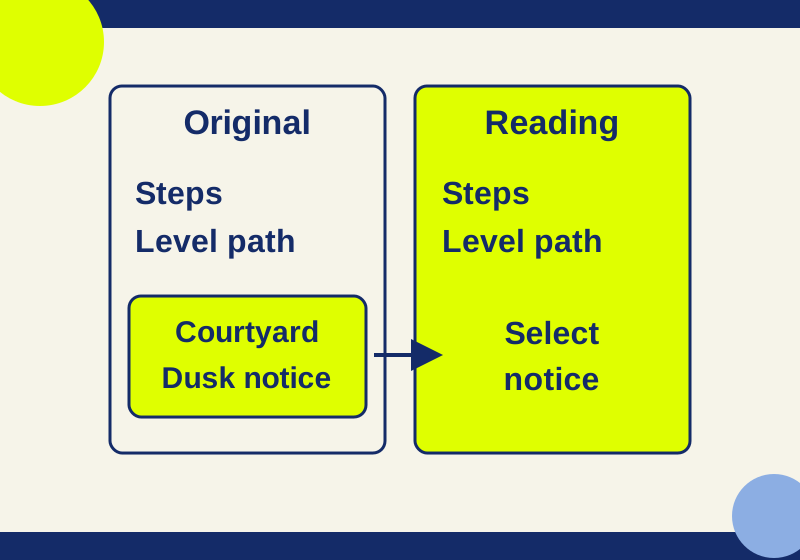
Chrome Reading mode: read articles and find missing text
Read an article in Chrome's native view, then check the paragraphs it may leave out.