SOURCE-CHECKED · EVERYDAY TECH
Android Quick Share not receiving? Fix discovery, acceptance, and missing files
Fix Android Quick Share by separating discovery, acceptance, and completed-file problems, with a harmless downloadable file for checking each step.
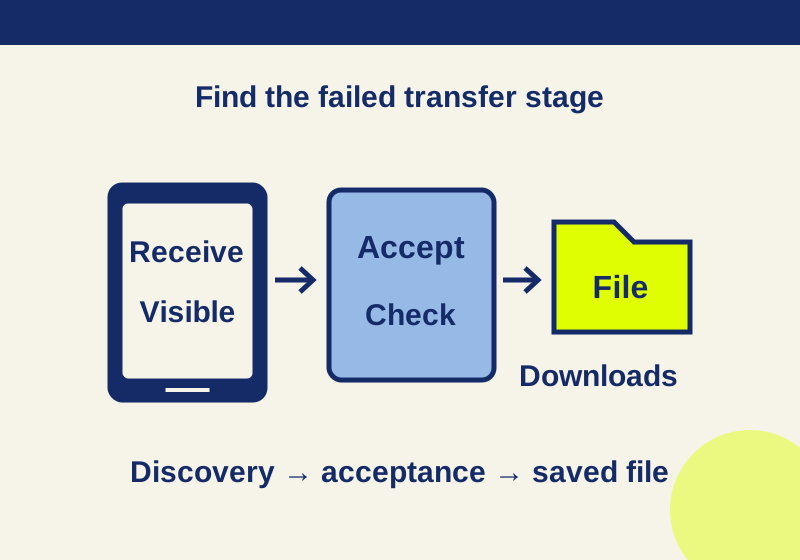
If another Android phone cannot find yours in Quick Share, start on the receiving phone: unlock it, turn on Bluetooth on both phones, then search Settings for Quick Share and open Receive. Keep that screen open while the sender looks for your phone. If your phone appears but nothing arrives, check whether the transfer is queued or waiting for acceptance. If the transfer finishes, look for the file in Files > Downloads > Quick Share.
Those are three different problems. Follow the section that matches what you can see.
The receiving phone does not appear
Bring the phones within about 30 cm of each other and confirm Bluetooth is on for both. On the receiving phone, unlock the screen and open Settings > Quick Share > Receive by searching Settings for Quick Share. Google says the phone is visible to anyone nearby while the Receive screen is open; leaving that screen ends this temporary visibility. Google’s Android receiving instructions describe these steps.
If you use a visibility setting instead of the Receive screen, check which setting you chose. Contacts requires the receiving phone’s screen to be on and unlocked. Your devices can remain visible even when the screen is off. Everyone for 10 minutes returns to the previous selection after 10 minutes. That timer is separate from the temporary visibility provided by keeping the Receive screen open. Google’s Quick Share guidance explains the visibility choices.
On Android 12 or lower, also turn on Location while troubleshooting discovery. If either phone is already handling another transfer, wait for it to finish before retrying. On models that do not support simultaneous transfers to multiple devices, a sender’s transfers may queue, so a delay does not necessarily mean the receiver is invisible.
If ordinary discovery still fails, the sender can choose Use QR code. On the receiving Android phone, scan it with the camera or Scan QR in Quick Settings. For Android QR receiving, keep both Wi-Fi and Bluetooth on. Seeing a device or scanning a code only establishes a way to start the transfer; check its later status before treating the file as delivered. Google’s Quick Share instructions cover the Android QR option.
Quick Share supports Android 6 and later, though Google notes that certain steps require Android 13 or later. Menus can also differ on Samsung phones running Android 10 with One UI 2.1. If the labels on your phone differ, use Settings search to find Quick Share rather than assuming a particular menu path.
The phone appears, but the request is waiting
Look at the relationship between the two phones before waiting for a popup. When your devices are signed in to the same Google Account, Quick Share accepts automatically; the absence of an Accept popup is not, by itself, a failure. Check the transfer status instead. When receiving from someone else, the popup identifies the sender and content so you can choose Accept or Decline. Google’s detailed Quick Share instructions describe same-account acceptance.
If the sender selected your phone but the request has not arrived, ask the sender to check whether another transfer is still underway or yours is queued. Keep the receiving phone nearby with the appropriate visibility setting active. Once a transfer starts, the sender can leave the sharing screen and it can continue; the notification shows its status. Use that status to distinguish a request that has not begun from a transfer that is still running. Google’s Quick Share guidance describes queueing and transfer notifications.
The transfer finished, but the file is missing
Open Files > Downloads > Quick Share on the receiving phone. Find the shared filename, then open the file and check its contents. If the practice file arrives but the original item is still missing, compare the name the sender selected with the name in the receiving folder. Ask the sender to open their selected item before resending it. Repeating a successful transfer of the wrong file will not resolve a selection mistake. Google identifies that folder as the default destination for received files. A completed transfer and a visible file are useful checks, but opening the file confirms that you found the item you expected. Do not rely on it appearing in a gallery. Google’s detailed Quick Share instructions give the default folder.
If there is no completed status yet, return to the waiting-request checks. If the sender cannot find the receiving phone at all, return to the visibility checks. This keeps a missing-file search from turning into unrelated connection resets.
A small file can pinpoint the failed step
Before retrying a private photo or a large group of files, download the plain-text Quick Share practice file on the sending phone and deliberately share that one file. It contains the marker HC-TRANSFER-7O0I1. After the 7, those characters are a capital O, a zero, a capital I, and a one. The file’s instructions ask you to use no personal data.
On the receiving phone, note whether the device appeared, whether a request arrived or was accepted automatically, whether the transfer showed completion, and whether you found the filename in Files > Downloads > Quick Share. Open the text file and compare its marker. Keep a screenshot or a short record of those results privately if you need to retry or explain the problem later. The downloaded text file is the item to share; its presence on the sender does not demonstrate that any transfer succeeded.
After the check, retry only the stage that failed. Once you are done receiving, leave the Receive screen and restore the Quick Share visibility choice you want to use.
Connections still seem stuck
If an unfinished transfer is present, cancel it before cycling airplane mode: turning airplane mode on and off interrupts connections. Then retry the small-file transfer with the phones close together. If the earlier checks and that retry still fail, reboot the phones as a last troubleshooting step. Google’s Quick Share troubleshooting guidance includes distance, connection, transfer, and restart checks.
Source note: The linked Google Android Help pages were read October 7, 2026. The three-stage diagnosis and practice-file procedure are HowCurio guidance; no physical phone transfer or received-file result was independently tested.
KEEP GOING
More to explore.
SOURCE-CHECKEDEveryday tech
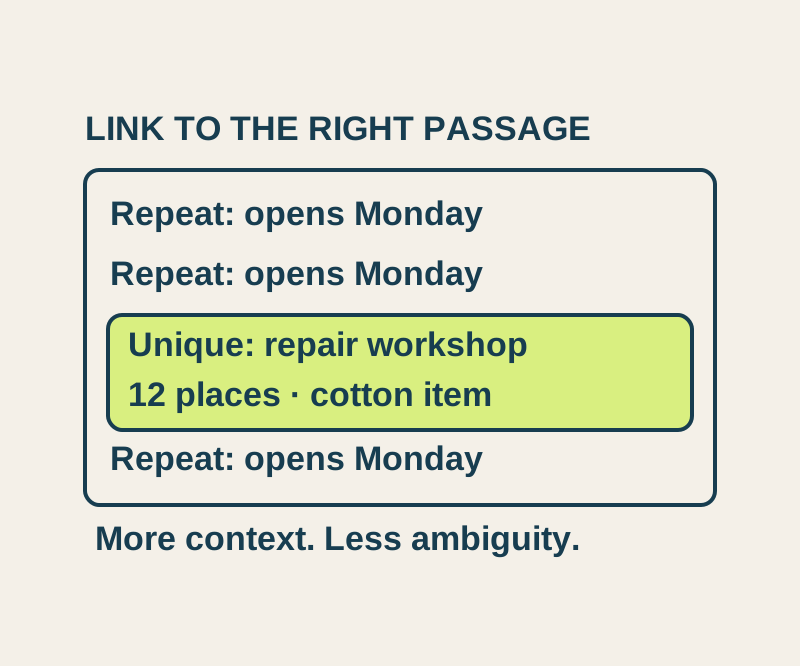
Chrome Copy link to highlight: share a passage and fix the wrong match
Send a precise passage, understand repeated matches, and try four real text-link outcomes in an original sample notice.
SOURCE-CHECKEDEveryday tech
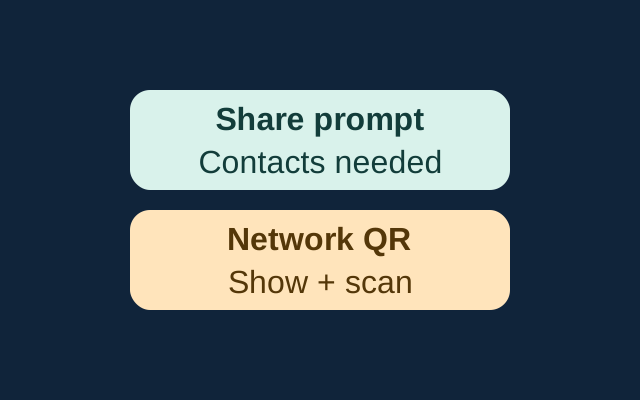
Share an iPhone Wi-Fi connection when the password prompt does not appear
Apple’s sharing prompt requires nearby, prepared devices and mutual Contacts entries. The iPhone guide also documents a network QR code that someone can scan to join.