SOURCE-CHECKED · EVERYDAY TECH
Share an iPhone Wi-Fi connection when the password prompt does not appear
Check Apple’s conditions for the sharing prompt, then find the network QR code on the connected iPhone.
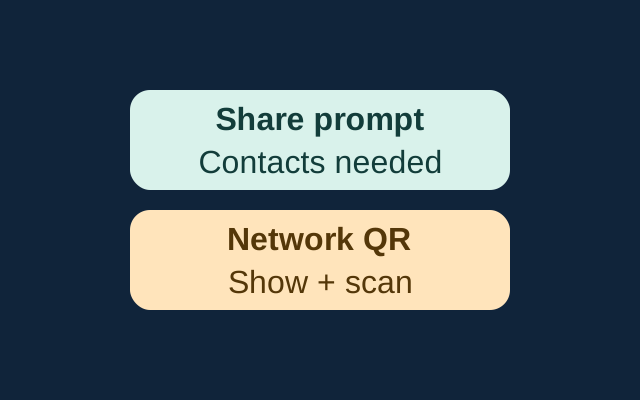
If someone selects the Wi-Fi network your iPhone is using and the Share Password prompt does not appear, check both people’s Contacts. Apple says each person must have the other’s Apple Account email address or phone number saved. Your iPhone can also show a network QR code for the other person to scan.
Check the prompt setup
For example, if a visitor has selected your network but you have not saved their Apple Account details, add them to Contacts and make sure the visitor has saved yours. Keep the devices close, with Wi-Fi and Bluetooth on, Personal Hotspot off, and each person signed in to their Apple Account. Both devices should have the latest applicable version of iOS, iPadOS, or macOS.
Keep your iPhone unlocked and connected to the network. Have the other person select that network in Wi-Fi settings on their iPhone, iPad, or Mac. If the prompt appears on your iPhone, tap Share Password, then Done. These are Apple’s steps for sharing a Wi-Fi password.
Show the network QR code
On your connected iPhone, open Passwords and tap Wi-Fi. The current network appears at the top; tap it, then tap Show Network QR Code. The other person can scan the code to join. Apple’s iPhone guide does not specify which devices can scan it or whether the prompt’s conditions also apply to this route.
If the prompt still fails
Apple suggests restarting both devices and trying again. If sharing still fails, the other person can enter the password manually. To find it on your iPhone, open Passwords, tap Wi-Fi, select the current network, and tap the Password field.
KEEP GOING
More to explore.
SOURCE-CHECKEDEveryday tech
Share one saved password through an iPhone Passwords group
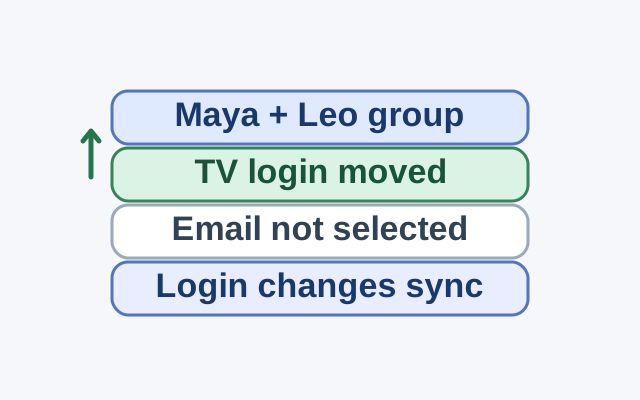
Group membership sets who shares access; selecting a credential and tapping Move sets what enters the group. Changes to a shared credential appear on everyone’s device.
SOURCE-CHECKEDEveryday tech
Android Quick Share not receiving? Fix discovery, acceptance, and missing files
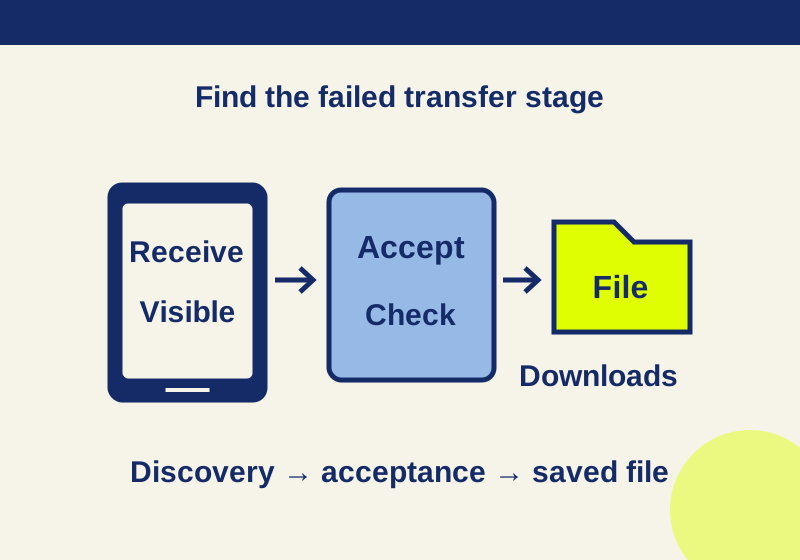
Make your Android phone visible for a Quick Share transfer and find the received file afterward.