SOURCE-CHECKED · EVERYDAY TECH
Share one saved password through an iPhone Passwords group
Choose who belongs to a shared Passwords group, then move only the saved credential those people should share.
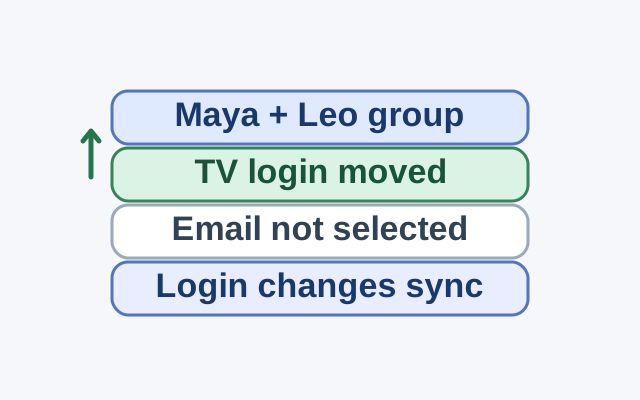
In the Passwords app, the people you add to a shared group can access the credentials moved into it. Choose the members first, then select the saved login you want to share.
Imagine Maya and Leo need a saved TV login, while your personal email password is also in Passwords. Add Maya and Leo to the group, then select the TV login when asked which passwords to move. Leave the email password unselected. If only Maya needs the TV login, create the group with Maya alone. Anyone in the group can add credentials, and a change to a shared credential appears on everyone’s device.
To create the group, open Passwords on your iPhone and tap New Shared Group. Name the group, tap Add People, and enter each person’s name, email address, or phone number. Tap Add, then Create. Select the password you want to share and tap Move. You can tap Close instead to create the group without sharing a password yet.
An invitee can open the invitation in Passwords > Group Invitations and tap Accept. Apple says you must be signed in to your Apple Account to create a group. Invitees must be in your contacts and have an iPhone with iOS 17, an iPad with iPadOS 17, or a Mac with macOS 14 or later.
Source: Apple’s iPhone guide.
KEEP GOING
More to explore.
SOURCE-CHECKEDEveryday tech
Share an iPhone Wi-Fi connection when the password prompt does not appear
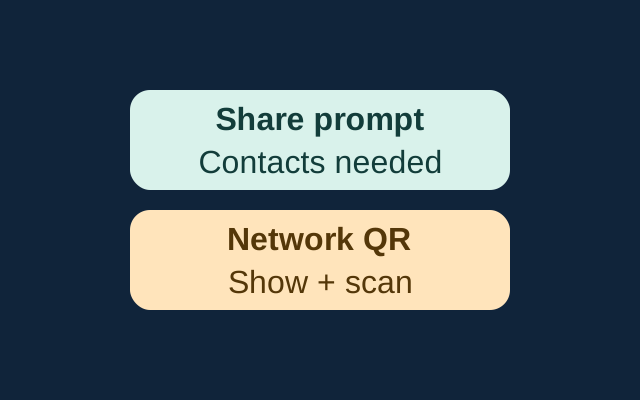
Apple’s sharing prompt requires nearby, prepared devices and mutual Contacts entries. The iPhone guide also documents a network QR code that someone can scan to join.
SOURCE-CHECKEDEveryday tech
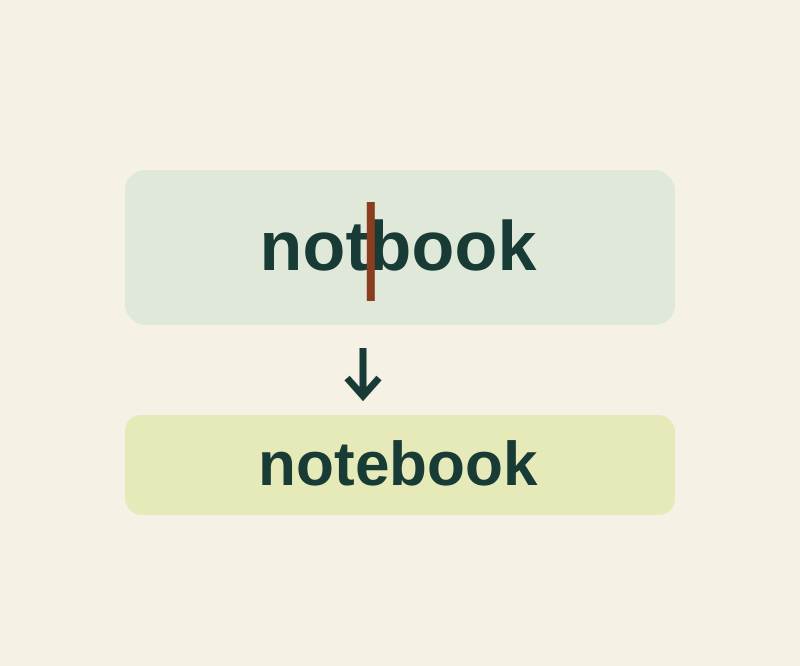
Use the iPhone keyboard as a trackpad to fix one character
Insert a missing letter, remove a repeated word or replace a color while keeping the surrounding text intact.