SOURCE-CHECKED · EVERYDAY TECH
Use the iPhone keyboard as a trackpad to fix one character
Hold the iPhone Space bar to place the cursor precisely, add a second finger to select text, and practice three edits without rewriting the sentence.
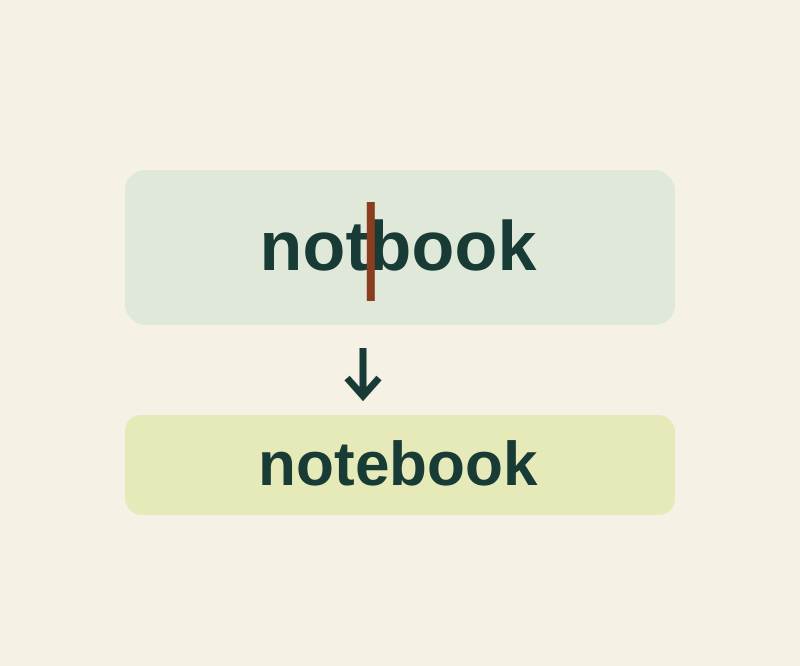
Touch and hold the space bar with one finger until the keyboard turns light gray and its characters disappear. Keep your finger down, then slide it around the keyboard to move the insertion point. Place that point exactly where the next character should go before you type.
For example, in “Please bring the blue notbook.”, place the insertion point between the t and b in “notbook” and type e. The result should be “Please bring the blue notebook.”, with “blue” and the period intact.
Select only what needs changing
To select text from the keyboard, keep your first finger down after positioning the insertion point. Touch and hold the keyboard with a second finger, then move the first finger to adjust the selection. Check the highlighted text before typing: typing replaces the selection, so an extra highlighted word or space will also be replaced.
For a small edit in the text itself, you can instead touch and hold the text to magnify the insertion point and drag it into place. Double-tap to select a word, or triple-tap to select a paragraph.
Practice three small edits
The cursor practice page offers three original exercises:
- Change “Please bring the blue notbook.” to “Please bring the blue notebook.”
- Change “Meet me at the the west entrance.” to “Meet me at the west entrance.” Remove one “the” and one space.
- Change “Leave the green folder on shelf B.” to “Leave the blue folder on shelf B.” Replace only
green.
Switching exercises loads each original sentence, and each exercise has a reset option. The page checks the complete final text, including spaces, capitalization, and punctuation; a blank entry prompts you to enter the edited sentence. It does not check which gesture you used.
Source: Apple’s iPhone text editing guide, checked October 12, 2026 KST. The phone instructions are source based; the feature was not tested on a physical iPhone.
KEEP GOING
More to explore.
SOURCE-CHECKEDEveryday tech
Share one saved password through an iPhone Passwords group
Group membership sets who shares access; selecting a credential and tapping Move sets what enters the group. Changes to a shared credential appear on everyone’s device.
SOURCE-CHECKEDEveryday tech
Gboard: paste only the address or link from a copied message
A copied invitation may contain five different things. Paste the intended field and check that the rest of the message stayed behind.