SOURCE-CHECKED · EVERYDAY TECH
Gboard: paste only the address or link from a copied message
Choose a useful part of copied text with Gboard, understand numerical dates and regional limits, and pin a selection you need again.
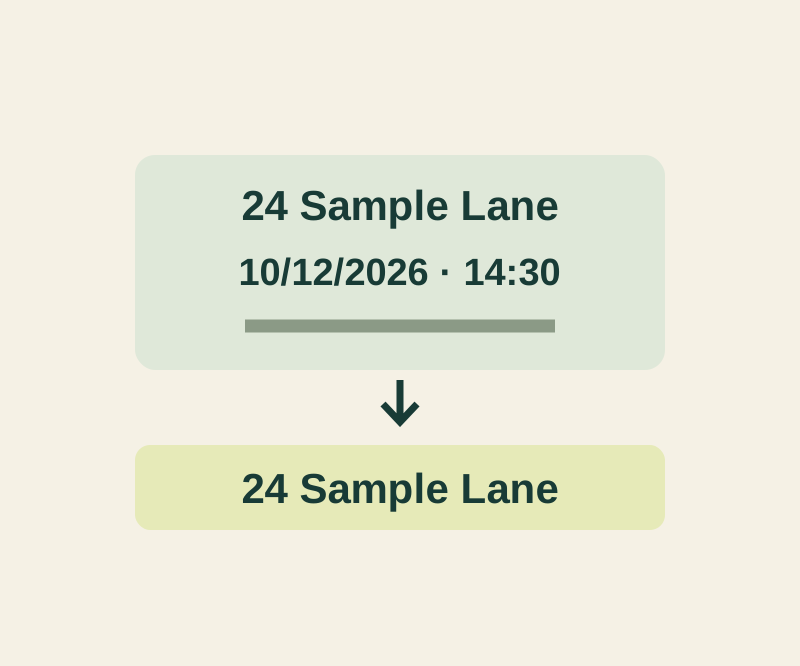
Gboard can offer individual pieces of information from a copied text block. You can choose an address, date, time, URL, or email address instead of pasting the whole message. Google also lists phone numbers and numbers as supported items.
Copy the message, then choose an item
- Copy the full message.
- Open the app where you want to paste and tap a text field.
- Swipe across the options at the top of Gboard, then tap the detected item you want to paste.
For example, copy this fictional message:
Meet at 24 Sample Lane on 10/12/2026 at 14:30. Details: https://example.com/workshop Contact: host@example.com
The separate items are 24 Sample Lane, 10/12/2026, 14:30, https://example.com/workshop, and host@example.com.
Gboard’s date detection requires a numerical format, such as 3/12/2021; it does not detect a date written as “March 12, 2021” for this feature. The example’s 10/12/2026 is ambiguous across date conventions. Confirm the intended date and spell out the month in a message you actually share.
Address, date, and time detection is available only in certain countries, regions, and languages. If the item does not appear, select the exact text in the original message, then copy and paste it manually.
Find a pasted item again
After pasting an item once, open Clipboard at the top of Gboard to find previously pasted information. You can pin a saved selection and find it under Pinned later. Clipboard history clears shortly after its last use except for pinned items, so reserve pinning for nonsensitive text you want to keep.
Try the example
The partial-paste practice page uses the message above. Its Select source control selects the text; use Copy yourself. Paste one item into the checker. It trims whitespace around your entry, but the whole invitation will fail a check for 24 Sample Lane. The page does not detect Gboard choices or pin clipboard items.
Source note: Google’s Gboard Help was checked October 12, 2026 KST. The phone instructions are source-based; the feature was not tested on a physical phone.
KEEP GOING
More to explore.
SOURCE-CHECKEDEveryday tech
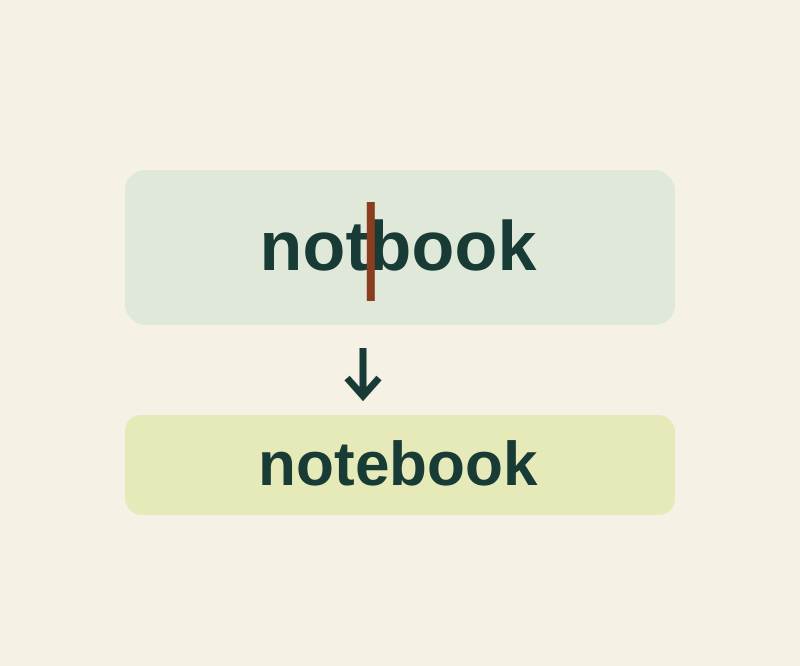
Use the iPhone keyboard as a trackpad to fix one character
Insert a missing letter, remove a repeated word or replace a color while keeping the surrounding text intact.
TESTEDEveryday tech
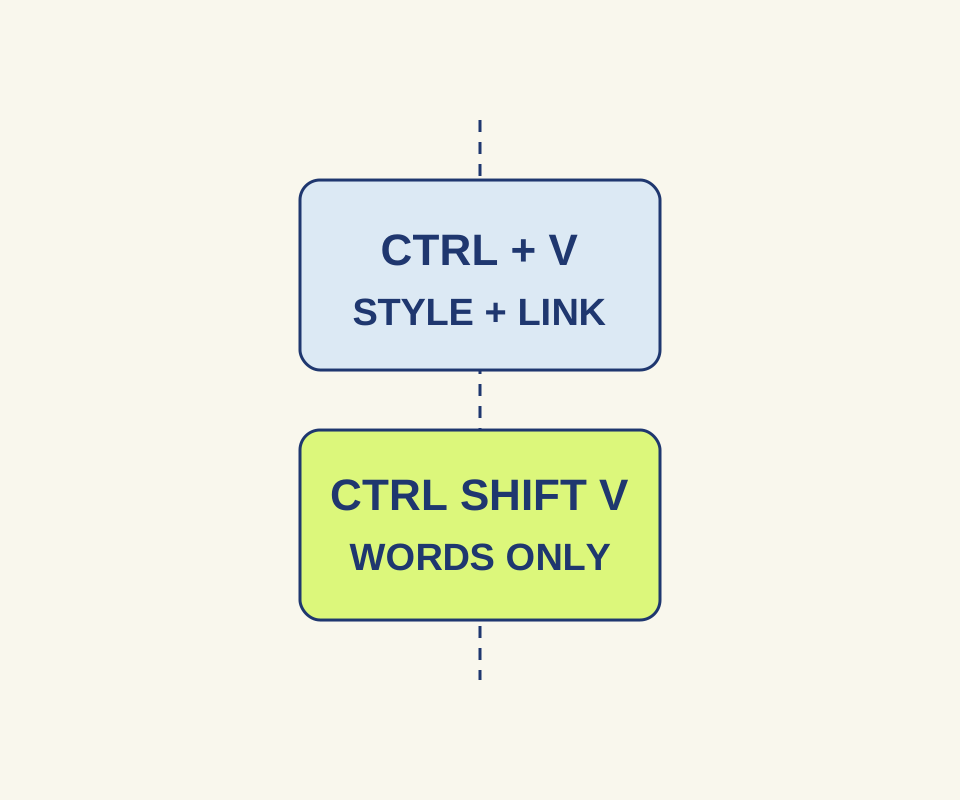
Paste webpage text without bringing its fonts, colors or hidden links
Plain-text paste kept the words in our Chrome exercise but removed the clickable Schedule link.