TESTED · EVERYDAY TECH
Chrome popup blocker: open the window you need without allowing every site
Allow one intended Chrome popup while keeping the default blocker, and compare a clicked window request with an original delayed-window exercise.
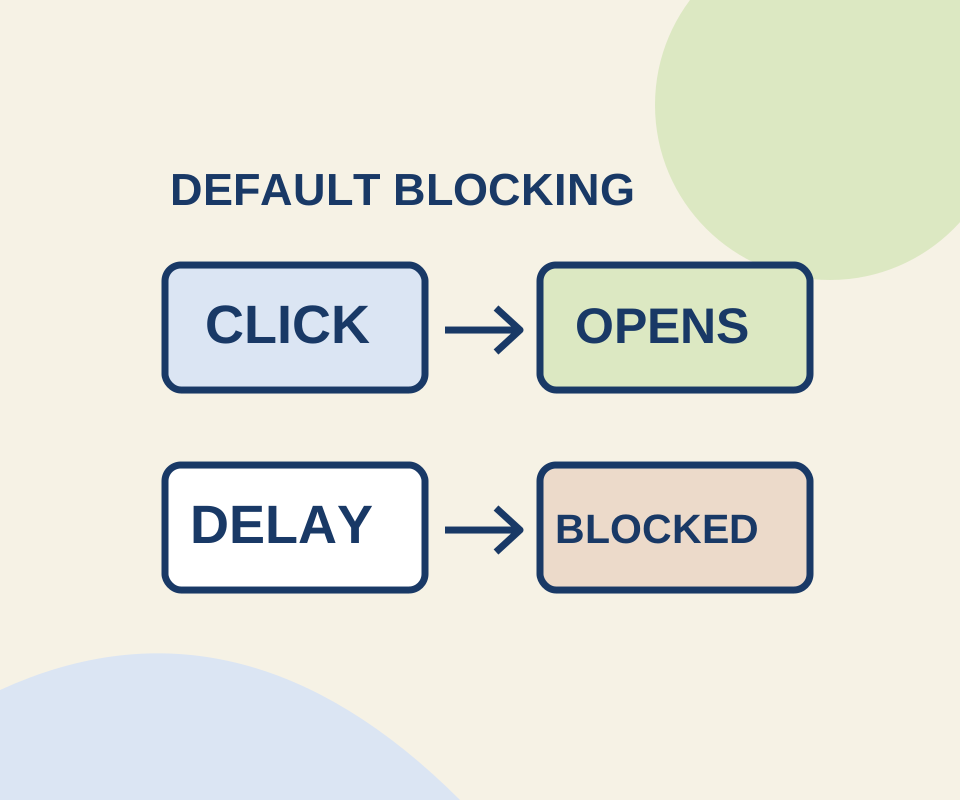
If Chrome blocks a window you intended to open, click the Pop-up blocked icon in the address bar and select the blocked link. If you need that site to open pop-ups again, choose Always allow pop-ups and redirects from [site], then Done. The exception applies to that site; Chrome’s default blocking rule can stay in place for others.
Try an intentional window
The popup practice page lets you compare two requests: Open result now requests a window when you click, while Try after seven seconds requests the same local result page after a delay. Compare the page’s reported window handle with what you see in Chrome: a blocked icon, a new window, or both.
Reset message and cancel pending attempt clears the message and cancels a waiting timer. It does not close windows already opened or change Chrome permissions. Clicking the delayed control again replaces its pending timer.
In one controlled Chrome trial, the immediate click opened one child window. The seven-second request returned no window handle and opened no additional child. After the page’s exact local site was added through Chrome’s permissions settings, the same delayed request returned a handle and opened a second child. Seven seconds is an exercise setting, not a universal Chrome cutoff; your result may differ.
Allow only the site you need
To enter the exception yourself, go to More > Settings > Privacy and security > Site settings > Pop-ups and redirects. Leave Don’t allow sites to send pop-ups or use redirects selected, then add the exact trusted site under Allowed to send pop-ups and use redirects. The direct settings page is chrome://settings/content/popups.
For a temporary task, find the site’s row in that allowed list and choose More > Remove afterward. If a school or workplace manages Chrome, the setting may be unavailable; these steps do not override administrator controls.
If no intended result page appears after allowing the site, the exception has not established that its link or service works. If the problem is ongoing website alerts rather than a window that should open, use the site notifications guide instead.
Source and test scope: Google Chrome Help supplies the settings steps. The window results above come from one isolated, headless Windows Chrome 154.0.8037.98 trial on October 12, 2026, with the popup-disabling automation switch removed and no personal accounts. A returned handle did not verify a remote destination, sign-in, or payment.
KEEP GOING
More to explore.
SOURCE-CHECKEDEveryday tech
Chrome tabs keep reloading? Check Memory Saver and site exceptions
Keep a useful site active while allowing other inactive tabs to release memory.
TESTEDEveryday tech
Reset one broken website in Chrome without clearing every site
A controlled site reset cleared one local site's cookie and storage while a second site kept both.