SOURCE-CHECKED · EVERYDAY TECH
Chrome tabs keep reloading? Check Memory Saver and site exceptions
Check Chrome Memory Saver when inactive tabs reload, add an exception for one site, and understand the limits of this setting.
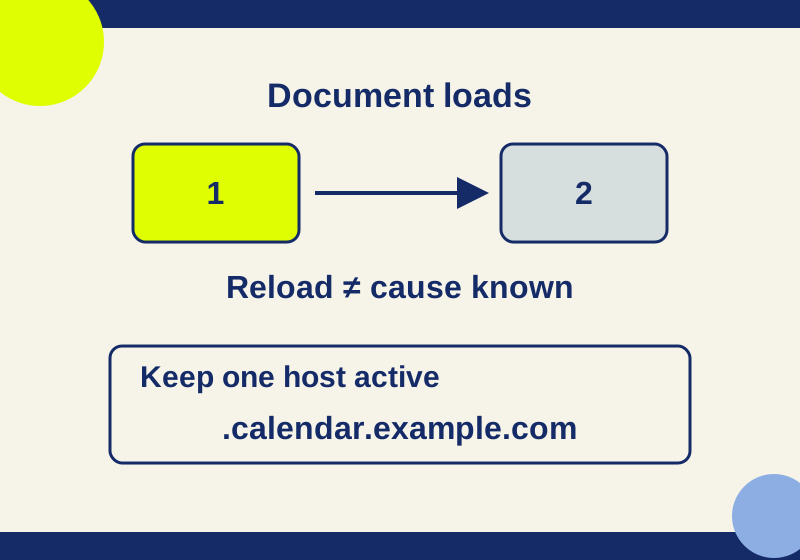
If a Chrome tab reloads when you return to it, Memory Saver is one setting to check. On desktop, Chrome can deactivate an inactive tab and reload it when you access it again. If that behavior is affecting a site you need to keep ready, you can add the site to Chrome’s “Always keep these sites active” list. Start with a rule for the specific host or subdirectory you need.
First, make sure the tab is actually reloading. A tab that disappeared because it was closed is a different problem. If you closed a tab or window, Chrome’s reopening shortcut is Ctrl+Shift+T on Windows and Linux, or Command+Shift+T on Mac. That shortcut helps recover a closed tab; it does not diagnose a tab that stayed open and loaded again.
Check a reload on a harmless page
The reload practice page gives you a simple way to see whether its document loaded again. It shows a count stored for that tab session and a UTC load time. Its “Reload this practice page” button provides a known manual reload for comparison.
Open the page in a tab and note its count. Press the reload button: a successful reload should raise the count because the page increments it on each document load. Then leave the practice tab open while you use other tabs and return to it later. There is no fixed waiting period that guarantees Memory Saver will deactivate it.
For each check, write down four things: the URL or host, the count before, the count after, and whether you manually refreshed or navigated. For example, a change from 1 to 2 after you pressed the page’s reload button confirms a manual document load. If the count rises when you return without manually refreshing or navigating, the page loaded again, but the counter cannot tell you what caused it. If the count stays the same, that visit does not show a reload; it does not prove the tab could never be deactivated.
Use this page before experimenting with a tab containing typed work. Chrome lists partially filled forms among the conditions that may prevent deactivation, but that is no guarantee for unsaved work. Save that work through the site’s normal method before changing settings.
Keep one site active
In desktop Chrome, open Settings > Performance > Memory Saver. Under “Always keep these sites active,” choose Add. “Add current sites” lets you select an open site; “Add sites manually” lets you enter a web address.
Use the smallest rule that covers the page you care about. Suppose the tab you want to keep active is at calendar.example.com. Adding .calendar.example.com targets that exact host. Entering calendar.example.com without the leading dot also covers its subdomains under Chrome’s documented pattern rules. These are illustrative addresses, not tested services.
example.com covers both example.com and subdomains such as mail.example.com. If only the bare host needs an exception, .example.com avoids including the mail subdomain.
| Manual entry | What the documented pattern covers |
|---|---|
example.com |
The bare host and its subdomains, including mail.example.com |
.example.com |
The bare host only |
.calendar.example.com |
That exact calendar host, excluding anything.calendar.example.com |
calendar.example.com |
The calendar host and its subdomains |
www.example.com/research |
The specified path on that host; the main page is outside that path |
https://* |
All HTTPS sites, much broader than a single-site exception |
Chrome documents the manual pattern as [scheme://][.]host[:port][/path][@query]. A leading dot changes the host match. A path can limit a rule to a subdirectory, and a query can narrow the match further. For instance, Chrome documents youtube.com/watch?v=* as a query pattern. It also documents that *oogle.com as a partial host and google.com/* as a path pattern are unsupported. Do not treat the field as an unrestricted wildcard search.
After adding an exception, return to the affected tab during normal use. Note whether it loads again and whether you refreshed or navigated. Change one setting at a time so that a different outcome has a useful comparison. The practice page can show another load, but applying an exception to the practice page does not establish that every other site will behave the same way.
If many inactive tabs reload
If the issue involves many tabs you do not need to keep active, review the Memory Saver level before adding many site exceptions. Chrome describes Moderate as deactivating tabs after a longer period of inactivity, Balanced as its recommended level, and Maximum as deactivating them sooner. Its instructions do not specify a fixed number of idle minutes for these levels.
Choose one level, use Chrome as usual, and compare what happens with the same kinds of tabs. An immediate result is not required: a tab may never be deactivated during your check. Chrome also lists active media, screen sharing, notifications, downloads, partially filled forms, pinned tabs, and connected USB or Bluetooth devices among conditions that may keep a tab active.
If a tab still behaves unexpectedly after a narrow exception, check whether the site itself refreshes its page or whether a navigation occurred. Those are possibilities to investigate, not conclusions supplied by the counter. A stable count on the practice page alongside a problem on one particular site points toward following up on that site’s behavior. Chrome’s desktop Memory Saver personalization steps do not apply to iOS or Android.
Sources and scope: The Memory Saver settings, levels, exceptions, and pattern rules above come from Google’s Chrome Memory Saver Help; the closed-tab shortcuts come from Google’s tab management Help. In an isolated unsigned Chrome 154.0.8037.93 profile on October 7, 2026, a manual press of the practice page’s reload button changed its count from 1 to 2. Automatic Memory Saver deactivation, exception application, and RAM savings were not tested. The practice counter is local to the tab session. A new tab or browser storage restrictions can affect it; use it to notice document loads, not to measure memory.
KEEP GOING
More to explore.
TESTEDEveryday tech
Chrome popup blocker: open the window you need without allowing every site
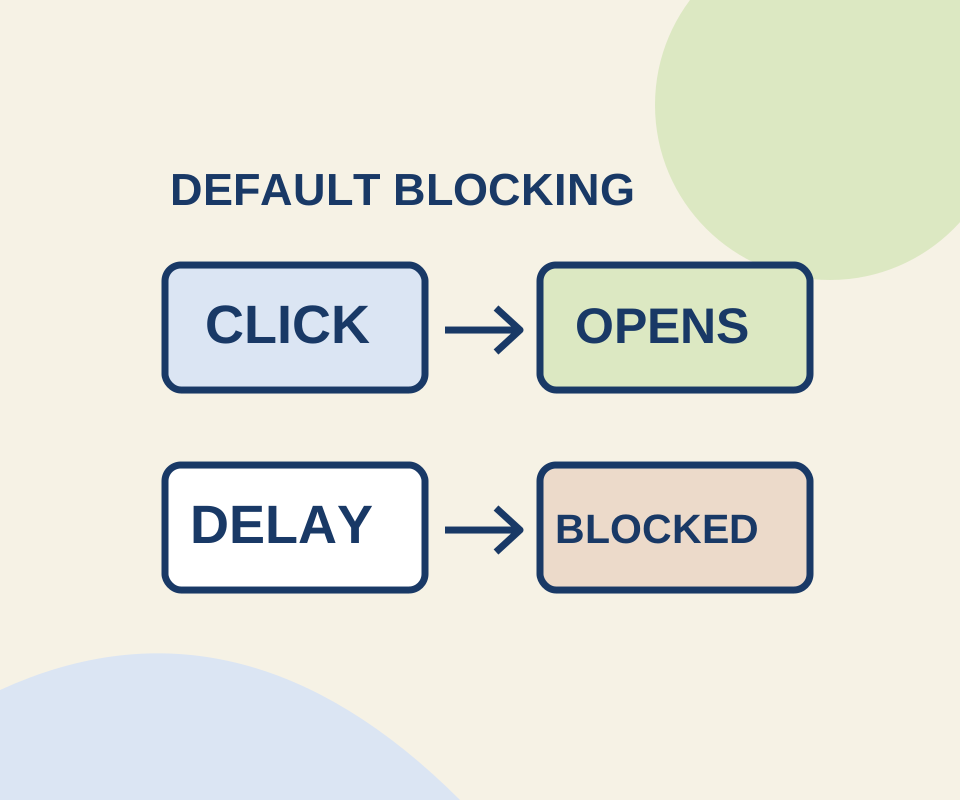
A direct click and a delayed request behaved differently in a controlled Chrome check. Use a site exception for the window you meant to open.
SOURCE-CHECKEDEveryday tech
Chrome zoom: enlarge one website and reset a saved size
Use the current menu percentage as your starting point, inspect the page after one enlargement, and remove an unwanted saved site size.