TESTED · EVERYDAY TECH
How to stop notifications from one website in Chrome
Block notification permission for one website in desktop Chrome while leaving other sites and the browser default setting alone.
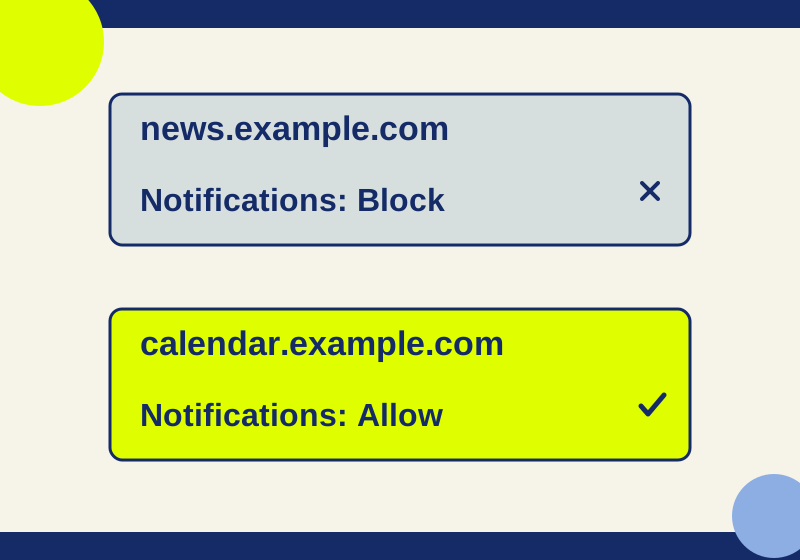
You can block a news website’s notifications in desktop Chrome while keeping a calendar website’s permission. The change belongs to the news site: you do not need to turn off Chrome notifications for every site.
Identify the site sending the alert
Check the website named as the notification’s sender before changing a setting. The page you happen to have open may be unrelated. If an alert claims that you must visit a “cleanup” or “security” page, you do not need to follow its link to change Chrome’s notification permission.
For example, suppose you want to stop alerts from https://news.example.com and keep alerts from https://calendar.example.com. Those are hypothetical addresses for two separate sites. Block the news address. Do not use a broad website pattern when the goal is to stop one host, and do not treat a story’s full page path as the site’s identity.
Block the site from its page
If you can visit the unwanted site in Chrome:
- Open the site.
- Select View site information beside its address.
- Find Notifications and choose Block from its dropdown.
This is the direct route when you know which site is responsible and are comfortable opening it. The change is to that site’s notification permission. Chrome’s default notification setting and the calendar site’s separate permission do not need to change.
Block the site in Settings
If the site is unreachable, or you prefer not to revisit it, open Chrome’s More menu and go to Settings > Privacy and security > Site settings > Notifications.
Look for the unwanted address among sites allowed to send notifications. If it is listed, change that site’s notification permission to Block. You can also use Add under Not allowed to send notifications: enter the exact site address, such as https://news.example.com, then select Add. Review the resulting blocked entry to make sure it names the site you intended.
The default setting on this page controls what happens for sites without their own exception. Changing that default would affect more than the one news site. Likewise, Pop-ups and redirects is a separate site setting; changing it is not the instruction for stopping website notifications.
Confirm the blocked entry
The useful success signal is the targeted site’s permission: Block on its site information panel, or its exact address under Not allowed to send notifications. Check that https://calendar.example.com still has its own allowed permission if you want calendar alerts.
Ask or a reset permission is different from an explicit Block. A site without an explicit grant may be able to ask for permission again. In a recorded isolated test, a synthetic page at http://127.0.0.1:1313 was allowed through Chrome’s UI, then added under Not allowed. After reloads, its Notification.permission value moved from default to granted to denied. That result confirms the permission change for the tested page; it does not establish whether a real alert will appear on a desktop.
An alert already visible in a notification pane is also a poor check of whether the site can send a new one. First verify the blocked site entry, then identify the sender of any later alert.
If an alert still appears
Read the sender label again and compare it with the blocked address. A different host needs its own permission change. Also check that you are using the same Chrome profile in which you set the block; a permission changed in one profile does not describe another profile’s settings.
Make sure the item is actually a website notification. A message drawn inside a webpage, a new tab or pop-up, and an email newsletter call for different actions. The appearance of one of those items does not show that Chrome ignored a notification block.
If you cannot find the control beside the address, use Settings > Privacy and security > Site settings > Notifications and inspect the site lists there. If a setting is unavailable or managed, an administrator is the appropriate person to ask about that control. For a support request, a concise description is enough: “I want to block notifications from https://news.example.com in this Chrome profile while keeping https://calendar.example.com allowed. The news site currently appears under [the permission shown in Settings].” Use the real address and permission you see, not the example values.
Windows also has notification controls for individual app senders, including whether to show banners. Those controls address the app’s notifications; Chrome’s site list lets you choose the particular website. If you want calendar alerts from Chrome, switching off the browser as a Windows sender would be a broader change than blocking the news origin. Microsoft’s notification settings explain the app controls.
If you want that site’s alerts again
Return to the site’s notification permission and change that site’s allowance. Then check its entry in Chrome’s Notifications settings. An allowed permission is a prerequisite for website notifications, not a promise that alerts will arrive: Chrome may remove permissions for unused or disruptive sites, quieter messaging can present a bell prompt, and private browsing does not show notifications.
Sources and scope: Chrome Help: block website notifications and Chrome Help: use notifications, checked October 7, 2026. The October 4 isolated Chrome 154.0.8037.93 record tested permission states on a synthetic local page; it sent no notifications and did not test push delivery or Windows banners.
KEEP GOING
More to explore.
SOURCE-CHECKEDEveryday tech
Chrome zoom: enlarge one website and reset a saved size
Use the current menu percentage as your starting point, inspect the page after one enlargement, and remove an unwanted saved site size.
SOURCE-CHECKEDEveryday tech
How to turn off one app's Windows 11 notifications without silencing everything
Silence the sender you meant to change, with a local preview of app, banner, sound and Notification Center controls.