SOURCE-CHECKED · EVERYDAY TECH
Windows Focus sessions: fit work and breaks into the time you have
Plan work blocks, manual breaks and spare time before starting Windows Focus, then check why Do not disturb may stay on afterward.
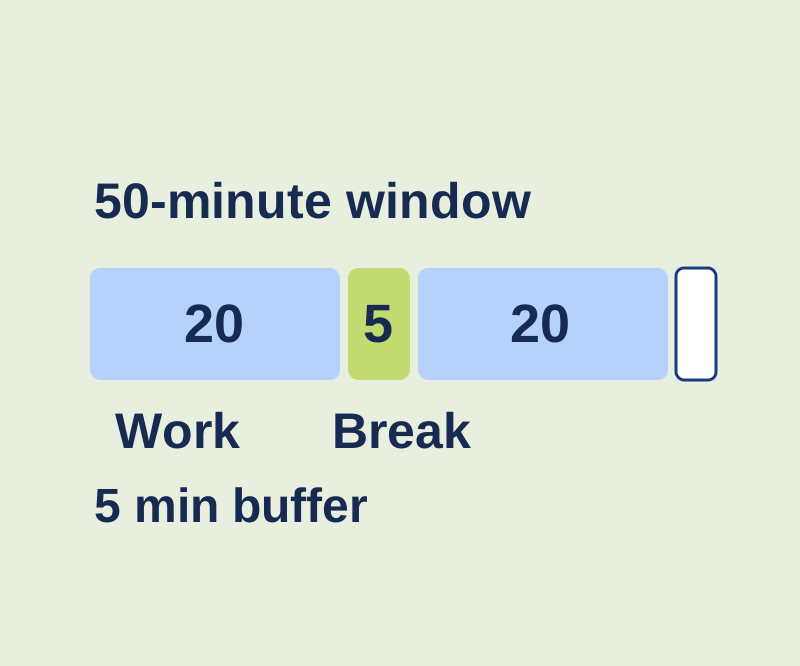
Windows Focus starts a timed period with fewer notification distractions. Before starting, fit your work blocks and breaks into the time available. A 50-minute window can hold two 20-minute sessions, a 5-minute break and 5 minutes left over.
Plan the window
Enter your available time, work block length, and break length in the Focus time planner. Use whole minutes. The planner fits as many complete work blocks as possible, places breaks only between blocks, and shows any time left over.
For example, enter 50 minutes available, 20 minutes per work block, and 5 minutes per break. The result is two work blocks: 40 minutes of work, one 5-minute break, and 5 minutes of buffer. With 45 minutes available, the same blocks and break fill the window exactly. With only 10 minutes available, no full 20-minute block fits.
These are planning examples, not Windows defaults or recommended work intervals. The planner does not change Windows settings or start sessions. Its break is one you take yourself. If you want Clock to manage breaks, inspect its own Focus sessions plan instead.
Start each work block
Press Win+N, choose a Focus duration, and start the session. You can also go to Settings > System > Focus > Start focus session. If you want to choose a duration and breaks in Clock, open Clock > Focus sessions. Focus requires the Clock app; if it is missing, follow Microsoft’s Focus instructions for the Microsoft Store route.
For the 50-minute example, start one 20-minute session, take a 5-minute break, then start a second 20-minute session. Pick a task that fits each block, such as reading one manual section and writing notes about it. You can end a Focus session early.
Check notifications afterward
By default, Focus shows a focus period, turns on Do not disturb, and suppresses app badges and flashing. You can adjust future Focus options under Settings > System > Focus. Do not disturb can still allow alarms, reminders, and selected priority apps; it does not promise to silence every sound or in-app window. Microsoft’s notification guide explains those exceptions.
When you finish, press Win+N to review notifications received during the session and check Do not disturb. If it was already on before Focus began, it stays on afterward. For an app you want to silence persistently, see the one-app notification guide.
Source note: Microsoft’s pages were checked October 11, 2026 KST. The planner page and its example arithmetic were browser verified. The Windows Focus controls were not independently tested.
KEEP GOING
More to explore.
SOURCE-CHECKEDEveryday tech
Dictate text with Windows Voice Access without triggering commands
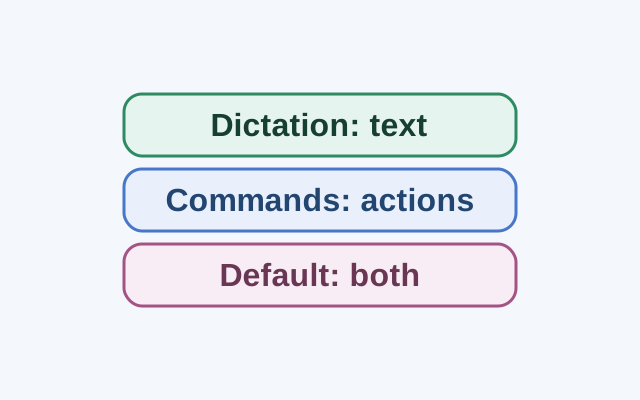
Dictation mode treats spoken input as text in an editable field. Commands mode is for actions; Default mode handles both commands and dictation.
SOURCE-CHECKEDEveryday tech
Have Edge read the part of a webpage you need
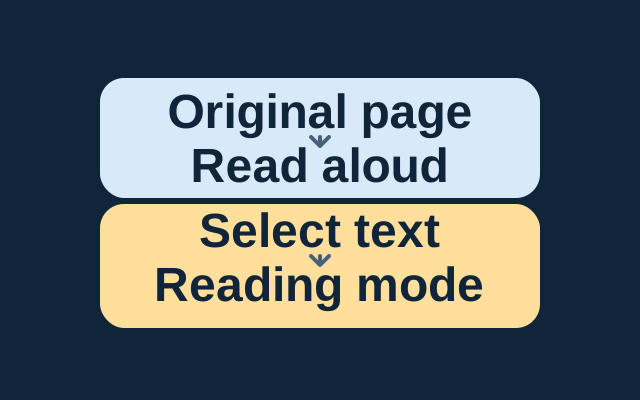
Edge can read a webpage aloud in its original layout. For a passage, select the text and open it in Reading mode before starting Read aloud.