SOURCE-CHECKED · EVERYDAY TECH
Dictate text with Windows Voice Access without triggering commands
Choose the Windows Voice Access mode that turns speech into text in an editable field, and know when to switch back.
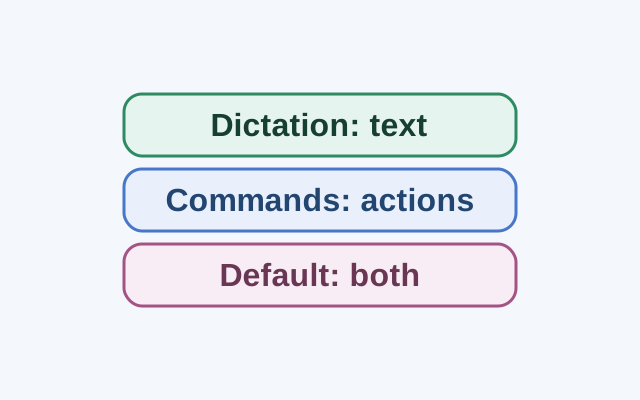
To enter words that sound like a command, place the cursor in an editable field. While Voice Access is listening, say “Dictation mode.” Microsoft says this mode treats spoken input as text for the field.
Voice Access is available in Windows 11 version 22H2 and later. Open it from Settings > Accessibility > Speech, and complete microphone setup if prompted. The Voice Access bar appears at the top of the screen.
When to switch modes
Say “Commands mode” when you want to perform actions without dictating. Say “Default mode” when you want to use commands and dictation together. The bar displays a label for Dictation or Commands mode; Default mode has no specific mode message.
If speech has no effect, check the microphone state separately. In Sleep, say “Voice access wake up” to resume listening. If the microphone is off, click the microphone button. Changing modes does not turn the microphone on.
These controls are documented in Microsoft’s Voice Access overview and getting-started guide.
KEEP GOING
More to explore.

TESTEDEveryday tech
Open an RTF file after WordPad disappears, and keep its formatting
A small book club RTF, its converted DOCX and a PDF reference show what to preserve when opening an old rich-text document.
SOURCE-CHECKEDEveryday tech
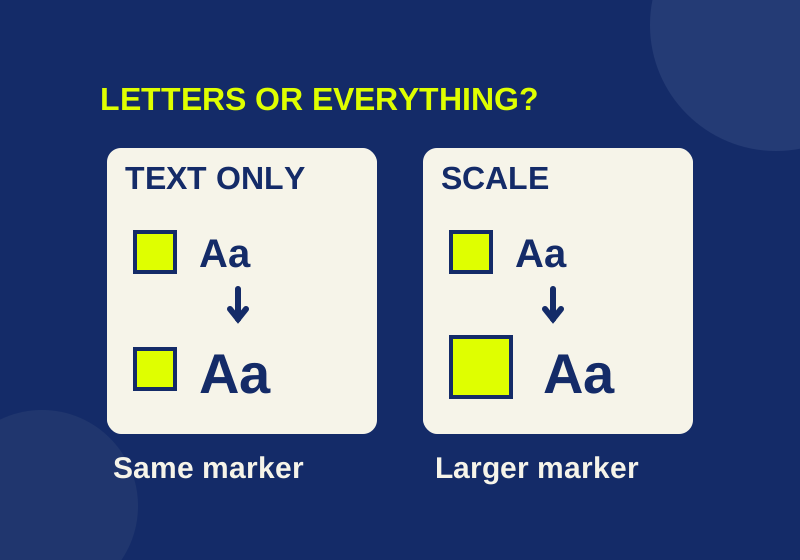
How to make text bigger in Windows 11 without enlarging everything
See how larger letters differ from larger controls, then compare the result in the Windows apps you use.