SOURCE-CHECKED · EVERYDAY TECH
Have Edge read the part of a webpage you need
Choose between listening on the original page and opening selected text in Edge’s Reading mode.
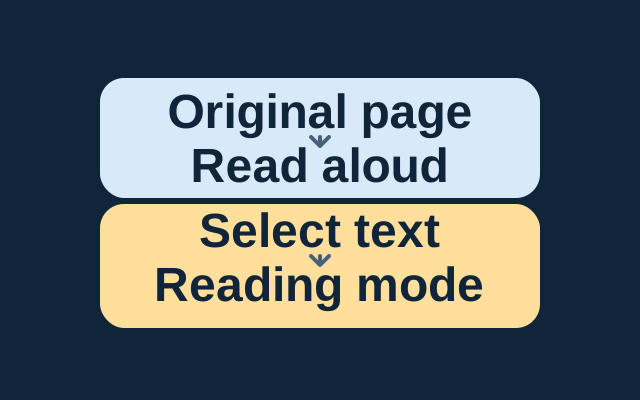
Edge can read a webpage while its original layout stays in view. For a particular passage, you can move the selected text into Reading mode’s simpler layout before listening.
Listen on the original page
Right-click the open webpage and choose Read aloud. If you don’t see that command, open Settings and more > More tools > Read aloud. Microsoft’s Edge accessibility guide also documents Ctrl+Shift+U as the Windows shortcut to start or stop playback.
Listen to selected text
Select the passage, right-click it, and choose Open selection in Reading mode. Then choose Read aloud on the Reading mode toolbar. For a whole supported page, use the Reading mode button in the address bar or press F9 before choosing Read aloud. The address-bar button appears only on supported pages.
Control playback
The Read aloud ribbon lets you play or pause, move to the previous or next paragraph, and open Voice options to change the voice or speed. These Reading mode steps and controls come from Microsoft’s Reading mode guide. They are documented instructions, not results of a hands-on test.
KEEP GOING
More to explore.
SOURCE-CHECKEDEveryday tech
How to translate a webpage or selected text in Chrome
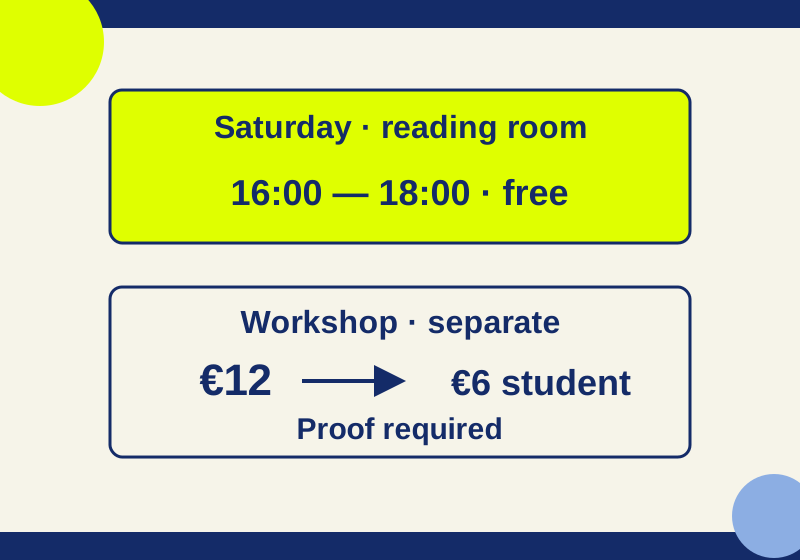
Translate the page for context, then inspect an important passage with its heading and exception rows still in view.
SOURCE-CHECKEDEveryday tech
Take a full-page iPhone screenshot and check what you actually saved
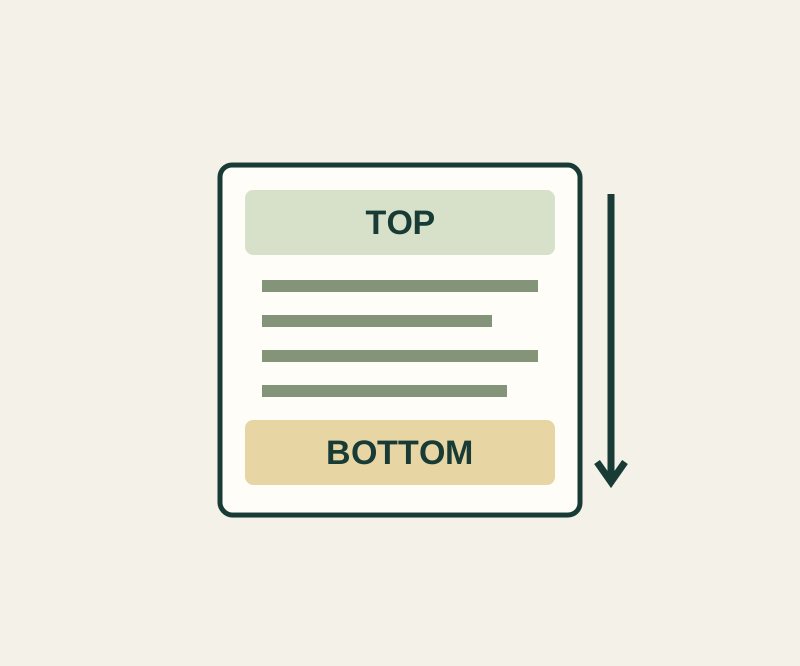
A normal screenshot can miss the entrance note or final contact. Check the saved file from top to bottom.