SOURCE-CHECKED · EVERYDAY TECH
Take a full-page iPhone screenshot and check what you actually saved
Capture a long Safari page, inspect the right-hand preview, save an image or PDF using the documented controls, and verify both ends on a practice page.
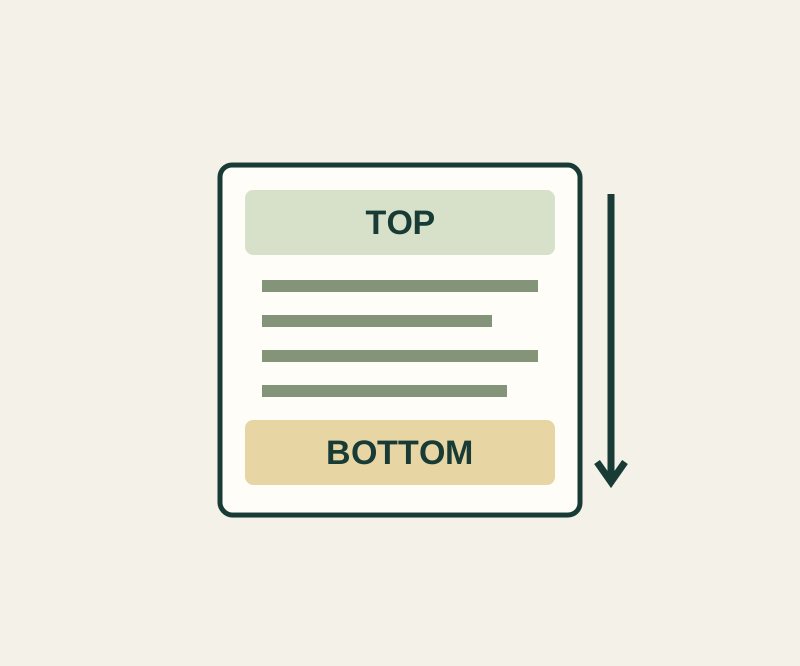
On a long Safari webpage that offers Full Page, you can capture more than the visible screen. Before sharing it, open the saved image or PDF and check that it includes the details you need.
Capture the page
On an iPhone with Face ID, press the Side and Volume Up buttons together, then release them quickly. On a model with a Home button, press Side and Home; older models use Top and Home. If a screenshot thumbnail appears, tap it. Otherwise, continue in the capture editor that opens. The thumbnail or editor behavior varies by iOS version and capture settings. Apple’s screenshot instructions; iOS 27 guide.
Tap Full Page, then drag a finger along the preview on the right to inspect the page from top to bottom. You can use the Crop button and its handles if you need a shorter capture. Apple’s iOS 26 guide lists the checkmark save button, followed by Save to Photos for an image or Save PDF to Files and a location. Choose the corresponding option offered in your capture editor. These format choices come from Apple’s iOS 26 guide. The current iOS 27 guide describes saving through the save button but does not list these format choices. Check the options your version actually shows. Full Page is not available in every app or website.
Check the saved extent
For a concrete practice page, open The lantern-room open day in Safari. It is a fictional event with invented hours and no real address or booking. Take a regular screenshot for comparison, then use Full Page if offered. Inspect the right-hand preview before saving, and open the saved item from the Photos or Files location you chose.
Look for TOP MARKER: LANTERN-13 and BOTTOM MARKER: END-73 in the saved item. Also check that it includes both arrival times, 09:50 and 13:50, the green door beside a courtyard rather than the glass door facing the road, and the statement that the event is fictional. The page lists 10:00 and 14:00 sessions lasting 50 minutes, plus a pencil and plain paper to bring. Its contact address, lantern@example.com, is a placeholder.
If you crop this exercise capture before sending it, keep the fictional-event label alongside the practical details. For a real page, check the specific information the recipient needs, such as an appointment time, entrance, address, or cancellation terms, in the file you actually saved.
Source note: Apple’s linked instructions were checked October 13, 2026 KST. The practice page supplies the example; no physical iPhone capture was tested for this article.
KEEP GOING
More to explore.
SOURCE-CHECKEDEveryday tech
Firefox full-page screenshots: save the bottom without shrinking the useful part
A full-page PNG can include the bottom of a long page, but a selected region is easier to read when someone needs one detail.
SOURCE-CHECKEDEveryday tech
Link iPhone Notes into a plan you can actually navigate
Keep the plan short and the details reachable with a complete three-note example and four deliberate links.