SOURCE-CHECKED · EVERYDAY TECH
Firefox full-page screenshots: save the bottom without shrinking the useful part
Capture a whole Firefox page, a visible view or one region, then compare original PNG examples to choose a readable image.
Firefox can save an entire webpage as a PNG or capture just the section you need. After downloading a full-page image, open it and check that the content you wanted near the bottom is actually there. A tall image can contain everything and still be hard to read when displayed as a small thumbnail.
Capture the page or a section
On an ordinary webpage, right-click an empty area and choose Take Screenshot. You can also press Ctrl+Shift+S on Windows or Linux, or Command+Shift+S on Mac. Firefox’s screenshot controls offer Save full page and Save visible in the upper right.
For a smaller capture, drag across a region or hover to select an area automatically, then adjust the selection handles if needed. Choose Download to save a PNG in Firefox’s default download location. Copy puts the capture on the clipboard instead; Esc cancels. These are Mozilla’s instructions for Firefox Screenshots.
Firefox’s page screenshot captures webpage content. If you need the browser window or an operating-system message in the image, use a window screenshot instead.
Check the bottom of a full-page image
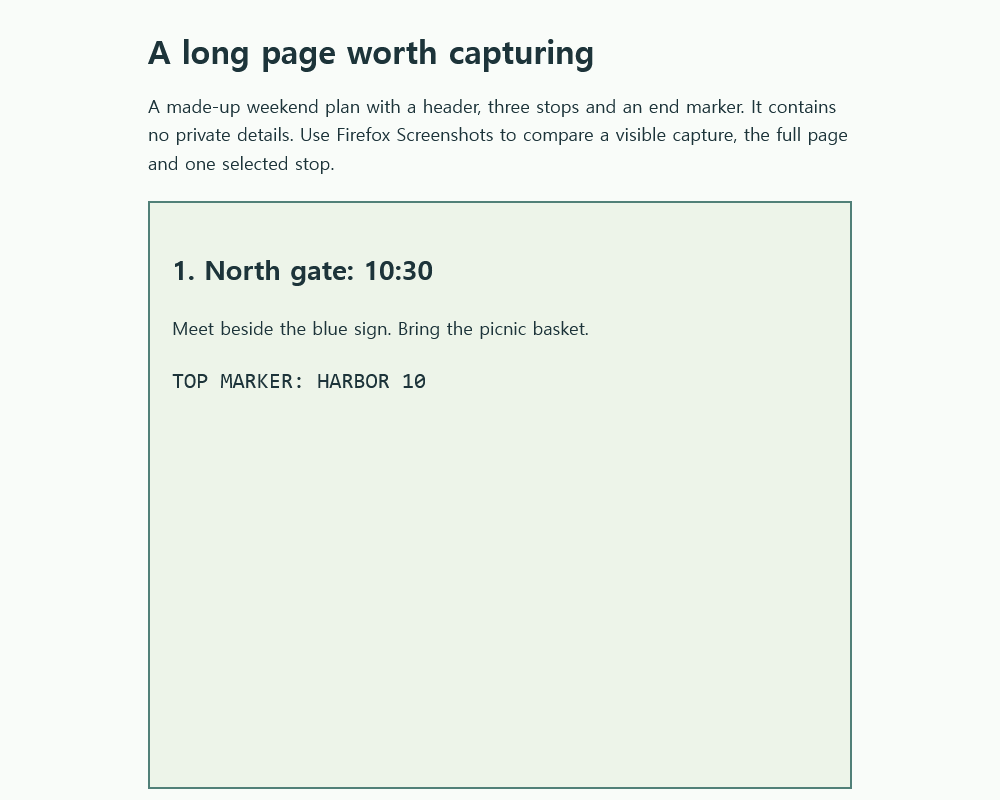
The original weekend-plan page is a long page you can capture yourself. Its first stop, North gate at 10:30, appears near the top. West shelter at 12:00 is farther down, and East pier at 14:15 is followed by END OF PAGE.
In the recorded captures, the visible-area image is 1000 × 800 pixels and stops before the middle stop. The full-page PNG is 1000 × 2097 pixels and includes the bottom. For a page with a known last item, open the downloaded image and look for that item at its bottom. On a page that changes or keeps adding content, check for the particular content you meant to save rather than assuming any capture contains a final endpoint.
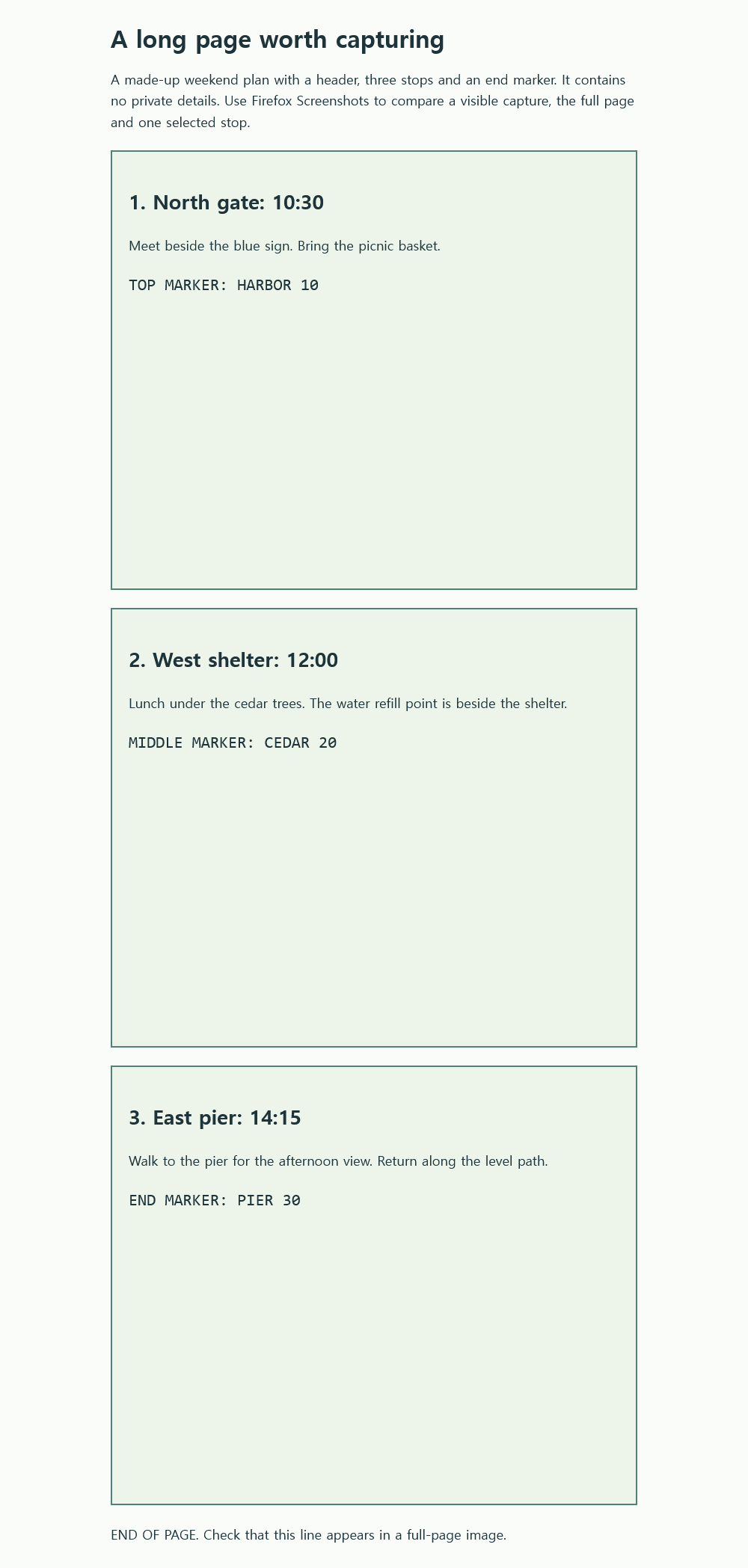
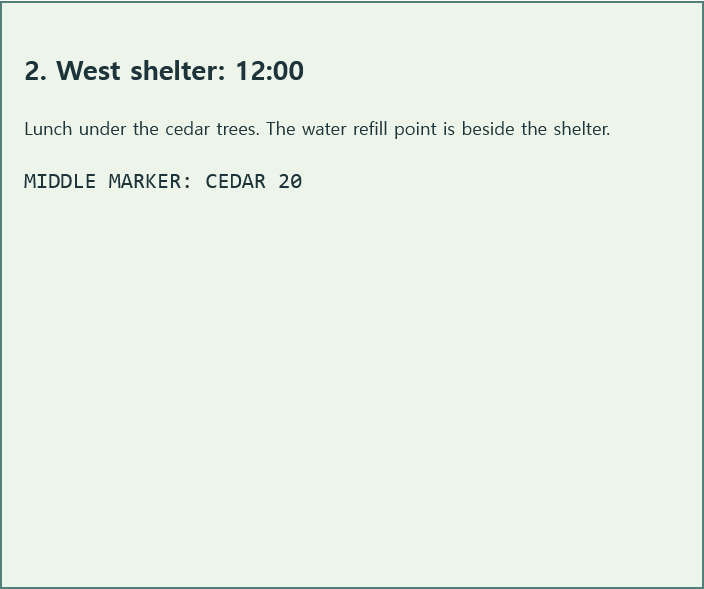
Full-page capture also changes how you may want to share the result. If the 1000-pixel-wide sample image is displayed at 320 pixels wide, it is scaled to 32% of its original width; text that was 18 pixels high would appear about 5.76 pixels high at that scale. Open or zoom the original PNG to read it, or capture one relevant section when the recipient only needs that part. The second-stop section image illustrates a focused capture without requiring someone to scan the entire page.
Source note: The controls above come from Mozilla’s Firefox documentation checked October 14, 2026. The linked images are captures of an original sample page made with a Firefox 141.0 browser automation API; they demonstrate page extent, not a test of Firefox’s native Screenshots controls.
KEEP GOING
More to explore.
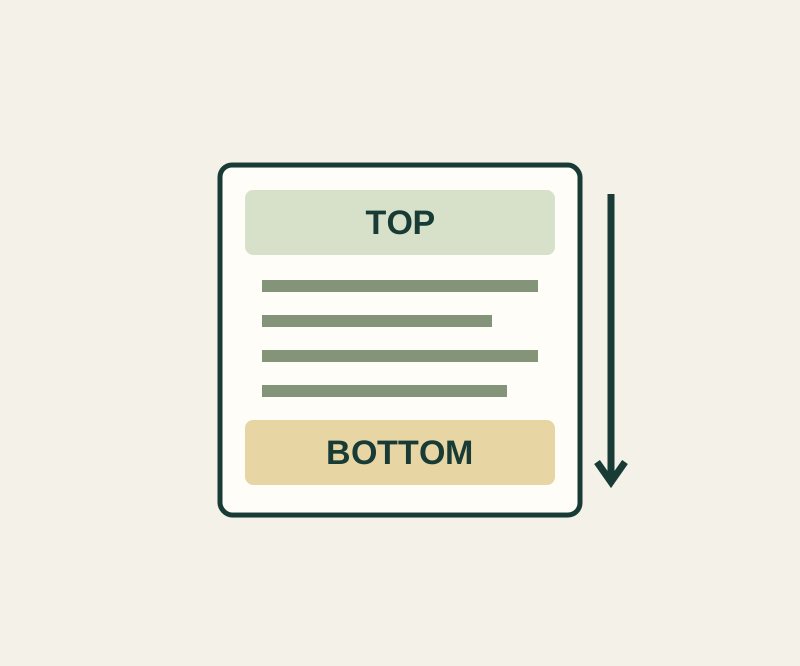
SOURCE-CHECKEDEveryday tech
Take a full-page iPhone screenshot and check what you actually saved
A normal screenshot can miss the entrance note or final contact. Check the saved file from top to bottom.
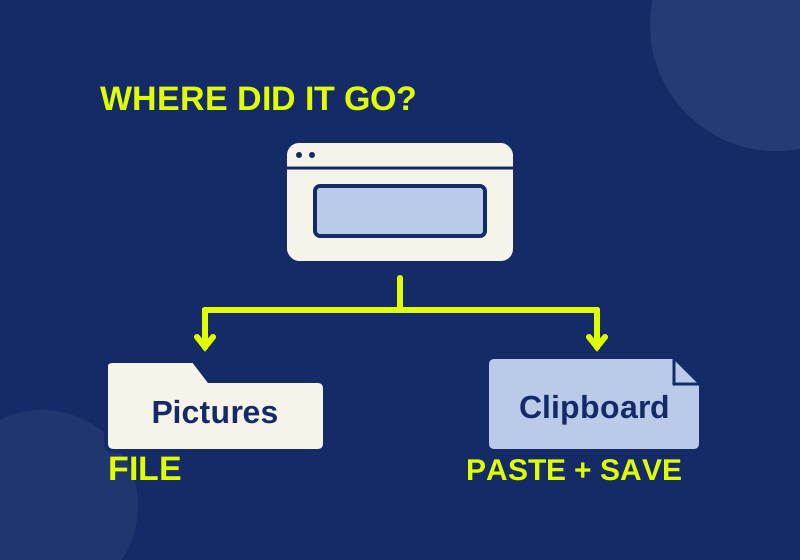
SOURCE-CHECKEDEveryday tech
Where Windows 11 screenshots go: saved files and clipboard copies
Locate a saved screenshot or turn a clipboard capture into a file you can attach.