SOURCE-CHECKED · EVERYDAY TECH
Link iPhone Notes into a plan you can actually navigate
Connect a weekend plan to packing and meeting notes, add return links, and choose title-based or custom link labels that survive changes.
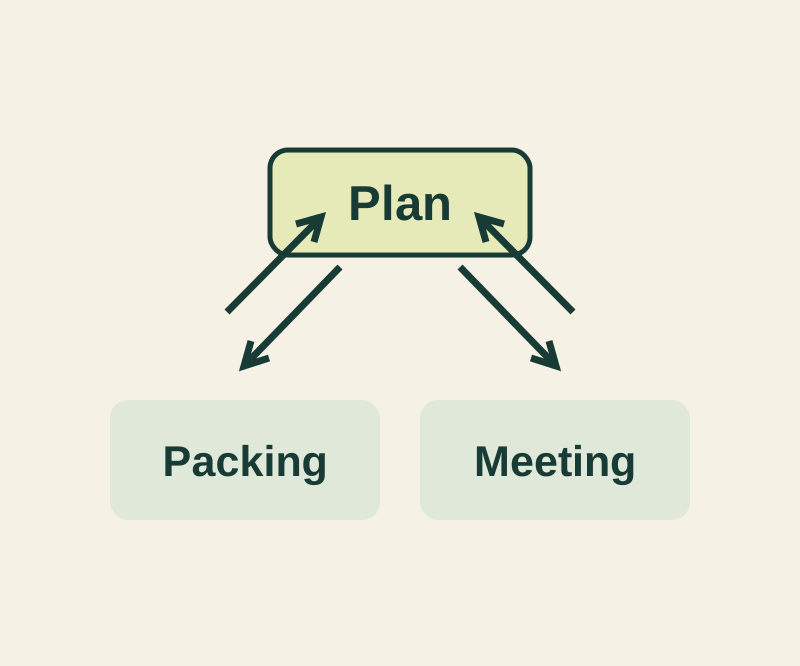
A single Apple Notes note can serve as a hub for a personal plan. Link it to separate notes for details, then add a link back from each detail note so you can move around the plan.
Make three notes
Create all three notes before adding links. The first line of each note becomes its title.
- Weekend plan: Add lines for “Packing list” and “Meeting details.” These are the places you’ll turn into links.
- Packing list: Add water bottle, reusable picnic container, and light jacket. Add a “Weekend plan” line for the return link.
- Meeting details: Add fields for verified entrance, date, time and time zone, and contact method. Fill them with your own confirmed details. Add a “Weekend plan” line for the return link.
The three-note packet has complete text for each note and buttons to select it. Use your own Copy command. Paste the text into your own Notes and remove the instruction lines when you’re ready.
Connect the notes
In Weekend plan, select “Packing list” or place the insertion point where you want its link. Tap the Forward button, choose Add Link, type the existing target note’s title, select that note, and tap Done. You can use the note title as the link text or enter a different label. Repeat for Meeting details.
For a quicker title link, type >>, start entering “Packing list,” and choose the actual note from the suggestions. Use the same method for the other links. Add a link from Packing list back to Weekend plan, then one from Meeting details back to Weekend plan. Those return links require their own steps; creating a link from the hub does not create them.
If you rename Packing list to Saturday packing, a link using the note title updates its displayed name automatically. A custom label such as “Before leaving” describes the link’s purpose. Check that the label still makes sense after changing the note. To change or remove a link, touch and hold it.
Sources: Apple’s Add links and Create and format notes guides, checked October 12, 2026 KST. The original packet was checked in a browser; these Notes steps were not tested on a physical iPhone.
KEEP GOING
More to explore.
SOURCE-CHECKEDEveryday tech
Take a full-page iPhone screenshot and check what you actually saved
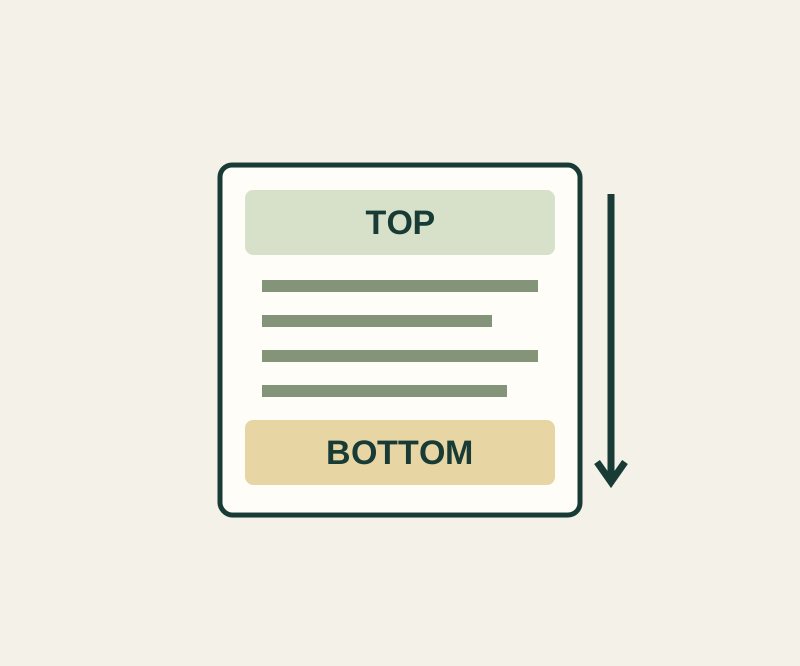
A normal screenshot can miss the entrance note or final contact. Check the saved file from top to bottom.
SOURCE-CHECKEDEveryday Tech
How to use iPhone text replacement, with shortcuts you can copy
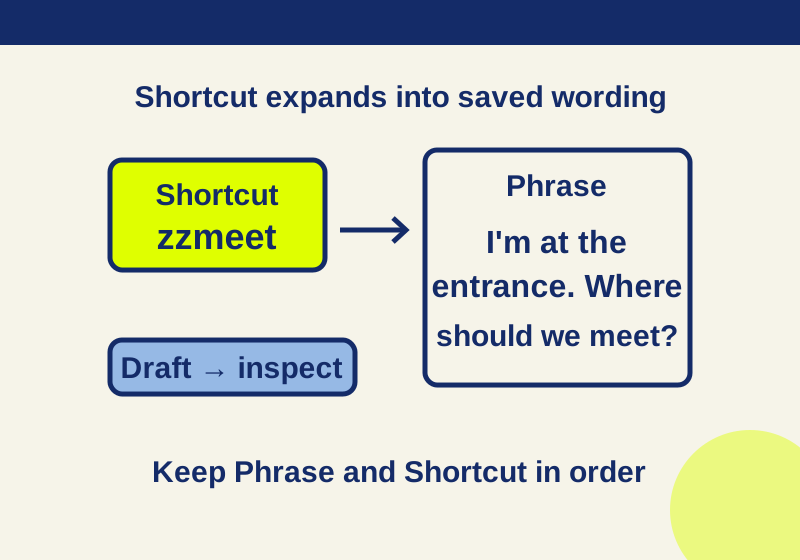
Build a useful set of saved replies, email text, and everyday requests while keeping Phrase, Shortcut, auto-correction, and dictionary reset distinct.