SOURCE-CHECKED · EVERYDAY TECH
How to use iPhone text replacement, with shortcuts you can copy
Set up iPhone text replacement with 16 copyable shortcuts, avoid trigger collisions, protect unusual names, and remove the wrong saved reply.
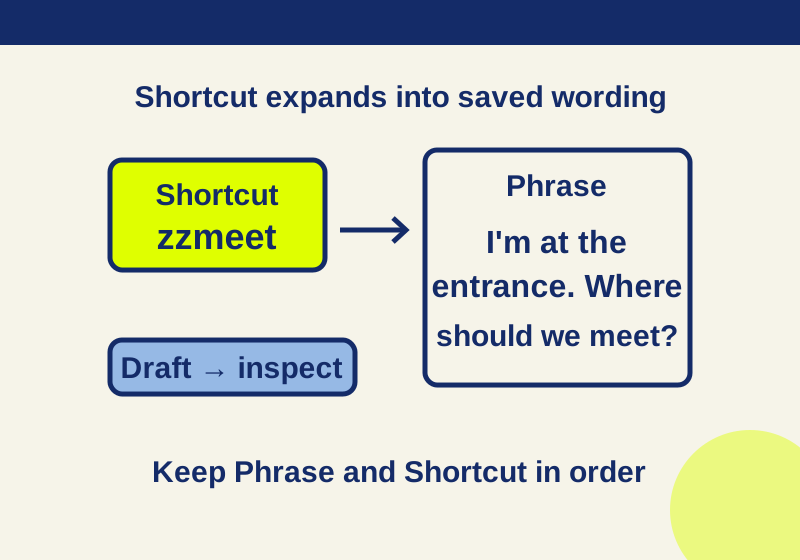
iPhone Text Replacement turns a short trigger into text you have saved. Put the message or email address in Phrase and the letters you want to type in Shortcut. When you enter the shortcut in a text field, iPhone replaces it with your phrase.
This is useful for a reply whose wording stays much the same: asking for an attachment, telling someone you are outside, or sharing an email address. The 16 pairs below are original examples you can add yourself. Choose the ones that fit your conversations and personalize their wording before saving.
Add your first shortcut
Open Settings, then General, Keyboard, and Text Replacement. Tap Add. In Phrase, enter:
I'm at the entrance. Where should we meet?
In Shortcut, enter zzmeet, then tap Save. Apple’s setup instructions document this path.
Try zzmeet in an ordinary draft and inspect the resulting text before sending. You are checking the saved wording as well as how the text field you use handles it.
You can also start from an open text field. Hold the Emoji or Switch Keyboard key, choose Keyboard Settings, then Text Replacement, and tap Add. Apple’s iOS 27 guide describes this route. Use the Settings route if it is easier to find on your phone.
Messages for meeting up
The zz prefix is an optional naming convention for these examples. It helps distinguish a trigger from an ordinary word; Apple does not require that prefix.
| Shortcut | Phrase |
|---|---|
zzlate |
I’m running a little late. I’ll message you when I arrive. |
zzmeet |
I’m at the entrance. Where should we meet? |
zzeta |
I’m on my way. I’ll send an arrival time when I have one. |
zzdoor |
I’m outside. Could you let me know which entrance to use? |
zzhome |
I got home safely. Thanks for today! |
zzpickup |
I’m here for the pickup. Where should I wait? |
These phrases leave changing details out of the saved text. For example, zzeta does not promise a particular arrival time. If you save “I’ll be there in ten minutes,” read that sentence each time you use it: a fixed phrase cannot know whether ten minutes is accurate today.
Replies and file requests
| Shortcut | Phrase |
|---|---|
zzcall |
I can’t talk right now. Please send me a message. |
zzbusy |
I’m in the middle of something. I’ll reply when I’m free. |
zzthanks |
Thanks for sending this. I’ll take a look and get back to you. |
zzfile |
Could you send the file as an attachment? |
zzlink |
Could you send the link again? I can’t find it in the conversation. |
zzconfirm |
Thanks, that works for me. Please send the location when you can. |
Edit the tone before saving if the wording is too formal for you. “Can you resend the link?” might be enough for a friend. Keeping a phrase close to what you normally write makes it easier to review quickly when it appears in a conversation.
Contact details and everyday requests
| Shortcut | Phrase |
|---|---|
zzmail |
hello@reader.example |
zzreceipt |
Could you email me a copy of the receipt? |
zzaccess |
Could you confirm whether there is a step-free entrance? |
zzspell |
My name is spelled [your name]. |
Replace hello@reader.example with your actual address before saving. If you share separate work and personal addresses, assign different triggers, such as zzmailwork and zzmailpersonal. Check which address belongs to each trigger so you can choose deliberately.
Replace [your name] before saving zzspell. The brackets mark a place for you to edit this example. Text Replacement stores your chosen wording; it will not fill that placeholder with a name for you.
Choose triggers that do not collide with your writing
A shortcut such as mail is easy to remember, but it is also a word you may want to write normally. If you assign it to your address, that assignment can become inconvenient in ordinary sentences. A distinctive trigger such as zzmail avoids choosing that ordinary word.
Use a naming pattern you can remember. The examples use zz followed by the purpose of the phrase, so zzreceipt describes its request and zzpickup describes its situation. You can choose another prefix. Before adding many entries, try a few in drafts where you normally write and decide whether their names are comfortable to type.
Check a replacement that produces the wrong text
Return to Settings, General, Keyboard, Text Replacement and inspect the saved pair. Phrase should contain the text you want to appear. Shortcut should contain the trigger you plan to type.
If you put zzmeet in Phrase and the full meeting message in Shortcut, you have reversed those roles. Compare the trigger you entered with the saved Shortcut as well. A correct phrase attached to a different trigger will not represent the pair you intended to create.
To remove an unwanted or obsolete entry, open Text Replacement, tap Edit, tap the Remove button beside it, then Delete and Done. You can add a new entry with the wording you want. This documented delete-and-add route also works when a saved request or email address is out of date.
Keep an unusual word from being replaced
A changed word can also come from Auto-Correction. Apple describes it as using the keyboard dictionary to check spelling and correct misspellings. Predictive text suggests words or phrases you might type next. A saved Text Replacement pair is a different thing to inspect when an entire familiar reply appears.
For a name or word you want to preserve, Apple’s guide gives a specific option: add that word or phrase in Phrase and leave Shortcut blank. You might use it for an unusual surname that keeps being changed. An empty Shortcut in this case is intentional; it is different from the trigger you create for a longer saved reply.
Sync the dictionary or remove one entry
To enable the dictionary synchronization in Apple’s iOS 27 guide, open Settings, your name, iCloud, See All, iCloud Drive, then turn on Sync this iPhone.
For one unwanted replacement, use the deletion steps above. Reset Keyboard Dictionary has a broader consequence: Apple says it deletes all custom words and shortcuts and returns the dictionary to its default state.
If you need that full reset, the documented path is Settings, General, Transfer or Reset iPhone, Reset, then Reset Keyboard Dictionary. Enter your passcode and tap Reset Dictionary. Read the consequence before confirming, especially if you have built a library of saved replies.
Setup and removal follow Apple Support; the alternate setup route, blank Shortcut, synchronization, and reset follow the linked iOS 27 guide. The shortcut library is original example text. Physical iPhone keyboard operation was not tested.
KEEP GOING
More to explore.
SOURCE-CHECKEDEveryday tech
Copy text from an iPhone photo with Live Text, and catch the mistakes before you paste
Turn useful lines in a photo or paused tutorial into text you can edit in Notes.
SOURCE-CHECKEDEveryday tech
Link iPhone Notes into a plan you can actually navigate
Keep the plan short and the details reachable with a complete three-note example and four deliberate links.