SOURCE-CHECKED · EVERYDAY TECH
Copy text from an iPhone photo with Live Text, and catch the mistakes before you paste
Copy photo or paused-video text with iPhone Live Text, diagnose missing controls, and check letters, digits, times, and amounts against a downloadable practice card.
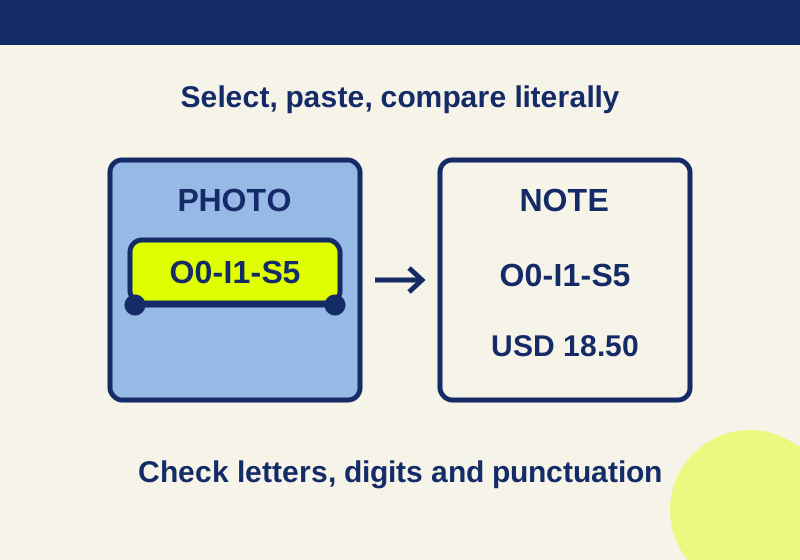
To copy a line from a photo, open the image, tap Detect Text, touch and hold the words you want, adjust the selection handles, then tap Copy Text. The iOS 26 iPhone User Guide gives the same sequence for a paused video. Paste the result somewhere you can read it before using it, especially if the line contains a time, amount, or reference number.
Live Text is available on iPhone XS, iPhone XR, and later models with iOS 15 or later. Using it with video requires iOS 16 or later. Apple also lists Photos, Safari, Camera, and Quick Look as places where Live Text can work; supported languages and regions vary. Apple’s Live Text support page uses Copy for the final command, while the iOS 26 guide calls it Copy Text.
Detect Text is missing
If you cannot find Live Text anywhere, check your iPhone model and iOS version against Apple’s requirements above. Then look under Settings > General > Language & Region > Live Text. If the setting or feature still does not appear, check Apple’s supported language and region information rather than assuming that a particular photo is the problem.
If Detect Text is missing for just one image, try a different image with large, clear printed words. That comparison can help you tell whether the trouble is limited to the original picture. For text you can photograph again, try even light, a straighter view, and a closer shot in which the words remain readable. Those are practical ways to give yourself a clearer source to inspect; they do not establish that Live Text will recognize every character.
For a video, pause on the frame containing the line you need before looking for Detect Text. Copying text from a paused frame is different from obtaining a transcript of the whole video.
Copy selects more than you need
Touch and hold a word in the target line, then move the selection handles until they cover only the text you intend to paste. If a receipt selection includes the store heading when you only need the amount, shorten the selection and try again. If you need both an event date and time, include both when they appear in the image.
Do not depend on an all-text selection to preserve the grouping you had in mind. Paste it first and inspect what was included. You can edit the pasted text after checking it against the image; the original image remains your reference.
The pasted line looks right, but a character is wrong
Readable text still needs a literal comparison when a single character matters. A reference such as O0-I1-S5 mixes letters and digits that can look similar: capital O and zero, capital I and one, and S and five. Check each character against the image before entering the reference into a form.
Use the same care with punctuation in a time or amount. In 10:05 AM, the colon and AM carry meaning. In USD 18.50, the decimal point separates dollars from cents. If either looks uncertain in the pasted result, enlarge or revisit the source image and correct the text manually. These are things to check, not predictions that Live Text will make a particular error.
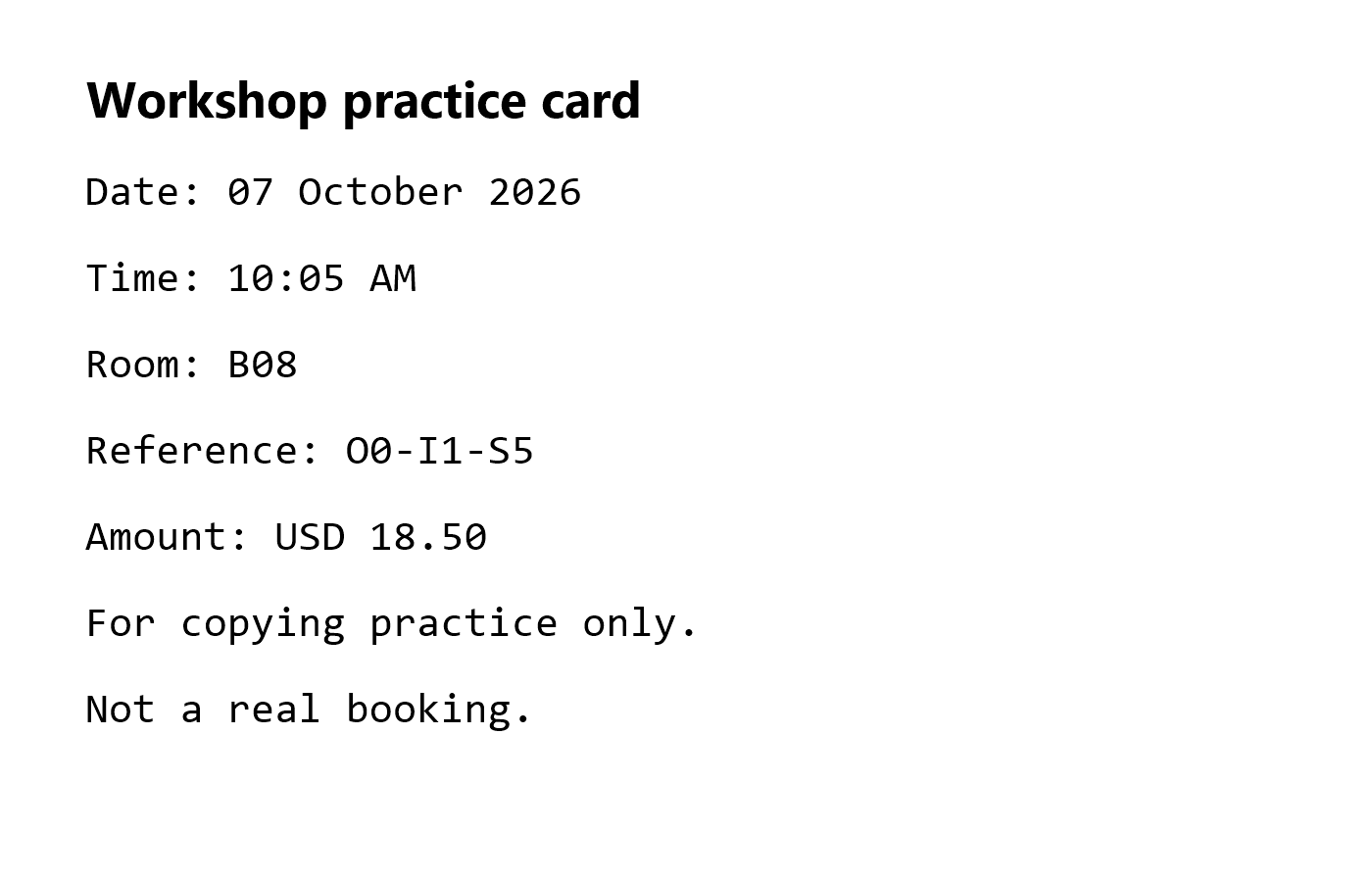
This fictional card provides exact text for a practice comparison. It is not a booking, a bill, or an example of iPhone output:
Workshop practice card
Date: 07 October 2026
Time: 10:05 AM
Room: B08
Reference: O0-I1-S5
Amount: USD 18.50
For copying practice only. Not a real booking.
Download the original practice PNG and save it to Photos using the image-saving control available in your browser. Open that saved picture in Photos and try selecting only the Reference line. Paste it into Notes and compare it character by character with Reference: O0-I1-S5 above. Compare your copied text with the literal answer file. After the Reference line, select Room separately: the expected value is B08, with a zero between B and 8. Then compare the amount, including its currency and decimal point. These are original fictional practice materials, not a screenshot or an OCR result.
A receipt or event needs more context
For a receipt amount, select the amount and its currency label if both are present. For an event, a time alone may be ambiguous: include the date and time zone when the source actually provides them. If the image does not show a date or time zone, do not add one from memory and present it as copied text.
In a paused tutorial video, target the specific command or line you need, then compare the paste with that frame. A copied line can lose meaning when the surrounding instruction explains where to use it, so return to the frame before acting on it.
Live Text may also offer quick actions, such as calling a number, getting directions, or converting currency, depending on the detected content. Apple describes these actions separately from copying text. If you meant to copy a number for checking, choose the text selection and copy command first. Verify the digits against the source before using an action tied to them.
Source note: Apple’s linked support pages were read October 7, 2026. The comparison steps and fictional card are editorial practice material. No physical iPhone, recognition result, or OCR accuracy was tested for this article.
KEEP GOING
More to explore.
SOURCE-CHECKEDEveryday tech
Copy iPhone photo edits to a batch without treating every shot alike
A window-lit sequence can share a starting edit; night, sunlight and stage shots need separate judgments.
SOURCE-CHECKEDEveryday Tech
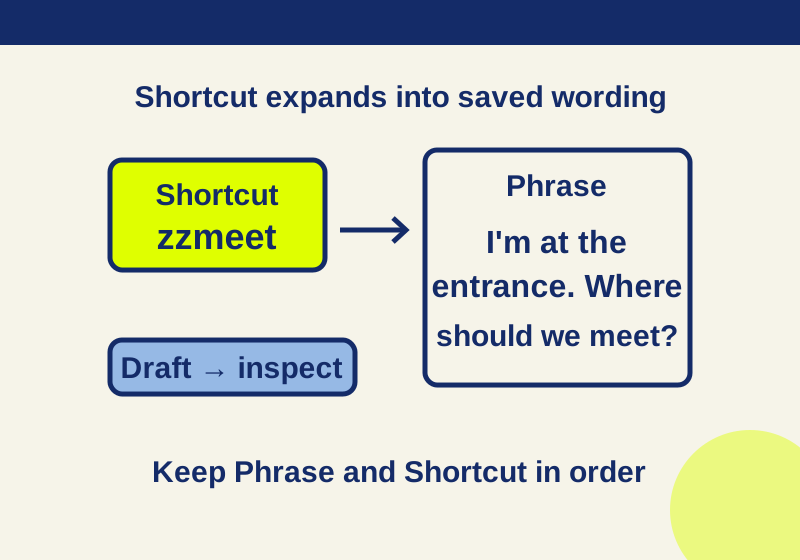
How to use iPhone text replacement, with shortcuts you can copy
Build a useful set of saved replies, email text, and everyday requests while keeping Phrase, Shortcut, auto-correction, and dictionary reset distinct.