SOURCE-CHECKED · EVERYDAY TECH
Copy iPhone photo edits to a batch without treating every shot alike
Copy and paste edits in iPhone Photos, choose a sensible first batch, inspect a recipient before expanding it, and revert a saved edit when needed.
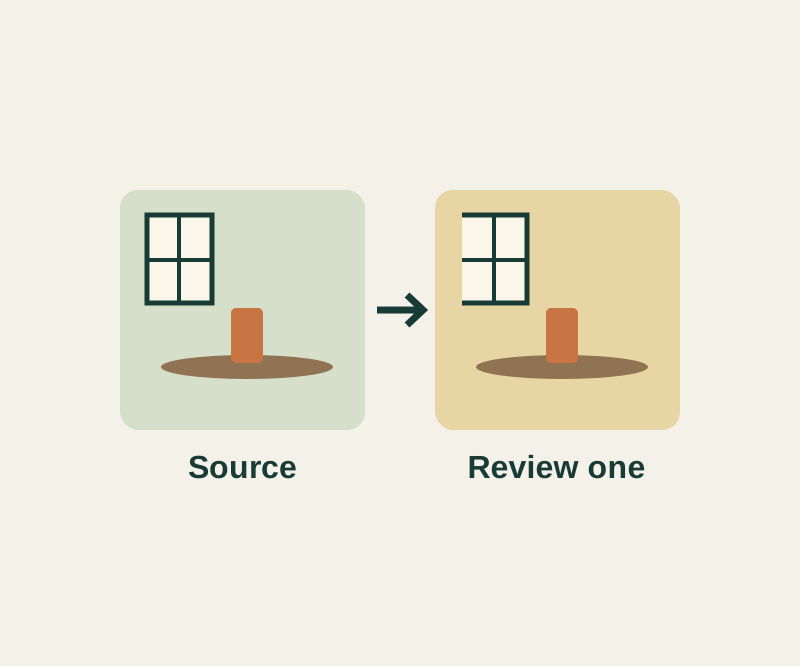
Copy an edit from one iPhone photo, paste it onto a comparable shot, and inspect that result before selecting more recipients. Photos can reuse the edit, but different lighting and framing still call for separate judgment.
Copy and paste an edit
In Photos, open a photo or video you’ve edited. Tap More > Copy Edits, turn off any edits you don’t want to reuse, then tap Copy. Go back and select the recipients, or open one recipient. Tap More > Paste Edits. These steps come from Apple’s iPhone Photos guide.
Photos automatically adjusts the white balance and exposure of edited recipients for a better match. That does not mean the photos will have identical numerical settings or look identical. Check each recipient’s image content before extending the batch.
Try one comparable shot first
Suppose photo A shows a mug on a table beside a window and a pale wall. Photo B shows the same window from closer to the table edge. Copy A’s edit to B first. Inspect the pale wall’s color, the mug’s edge, and detail in the table. If the edit suits B, photo C, a vertical view of that same window, is a reasonable next candidate to inspect.
A night café with warm lamps and a face in shadow, a sunlit park, and a blue-lit stage belong in separate decisions. Their lighting differs from the window scene and from one another. The blue stage light, for example, may be intentional; applying a correction meant to make every frame neutral could erase that intent. Grouping by scene gives a copied edit a useful starting point without assuming it works across the whole library.
The six-frame photo batch study lets you work through that sequence with original geometric drawings, not actual photos or iPhone screenshots. Its editable source, recipient, inspection, and observed-note fields let you record your own judgment. A blank observed note triggers a warning; the exercise supplies no result on your behalf. Its reset/reload control starts the exercise over.
Compare or revert
While editing, use Undo or Redo at the top, or tap the image to compare it with the original. After saving, open the photo, tap More > Revert to Original to remove the saved edits from that photo. Revert is not a way to remove only the pasted portion while keeping other saved edits. Apple also says edits made with iCloud Photos are saved across devices. See Apple’s undo and revert instructions.
Source note: Apple’s guides were checked October 13, 2026 KST. The six-frame study is an illustrated exercise; no physical iPhone trial or resulting photo edit was recorded.
KEEP GOING
More to explore.
SOURCE-CHECKEDEveryday tech
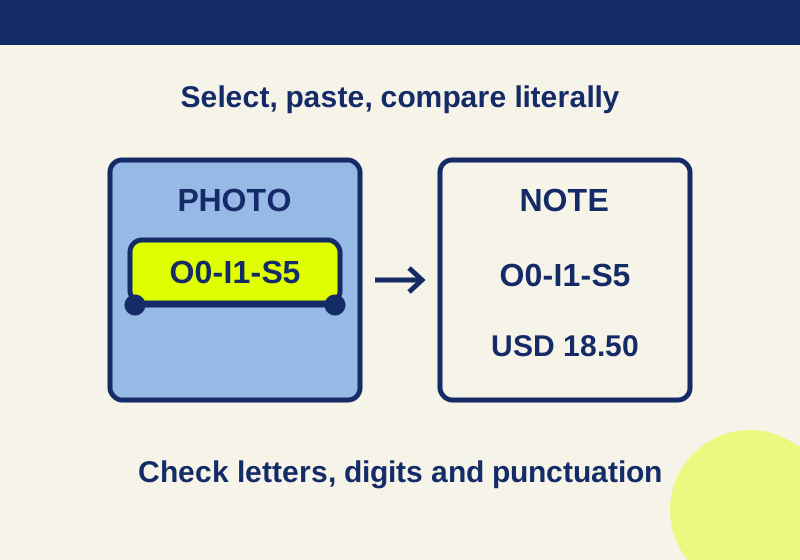
Copy text from an iPhone photo with Live Text, and catch the mistakes before you paste
Turn useful lines in a photo or paused tutorial into text you can edit in Notes.
SOURCE-CHECKEDBusiness documents
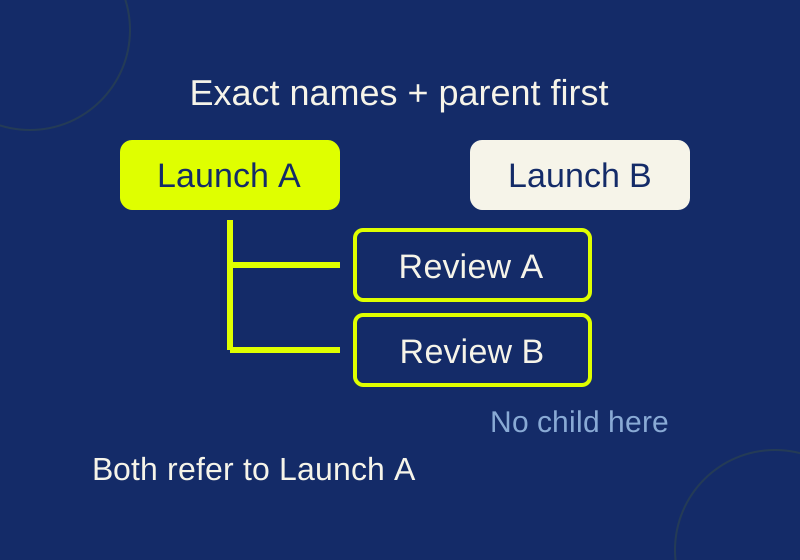
Asana CSV subtasks: fix duplicate parent names before import
See exactly how repeated parent names and CSV row order change subtask relationships, then try the local checker.