TESTED · EVERYDAY TECH
Why Date created can be later than Date modified in Windows
Understand why a copied Windows file can have a newer creation date and older modification date, with a real NTFS copy, rename and edit observation.
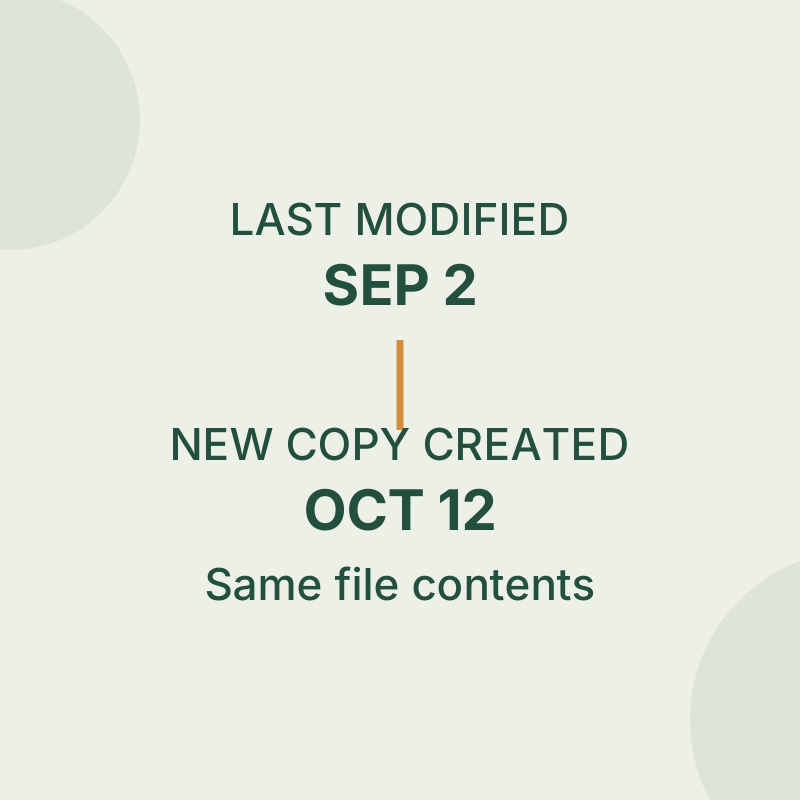
A file copied to a new location can have a new creation date while keeping an older modification date. That combination does not, by itself, mean the file’s contents changed.
“Date created” refers to the file at its current location. “Date modified” reflects its last write time. In one isolated NTFS test, a 54-byte file with a deliberately set September 2026 last write time was copied with PowerShell’s Copy-Item to a new path. The copy’s creation time was October 11, 2026, at 23:06 UTC, while its last write time remained September 2 at 10:30 UTC. The original and copy had the same SHA-256 hash.
The September dates were set for the test; they do not establish when the sample was originally authored. The result also describes that specific NTFS and Copy-Item test, not every copy, sync, or ZIP tool.
Check the two dates
In File Explorer, open the file’s Properties and compare Created with Modified. For a read-only PowerShell view, run:
Get-Item -LiteralPath '.\sample.txt' | Select-Object Name,CreationTime,LastWriteTime,Length
Change the path to the file you want to inspect. Windows stores NTFS file times in UTC and converts them for local display, so a UTC test record and the dates shown on your computer may fall on different calendar days.
If you are looking for the file edited most recently, Modified is usually the more relevant column to inspect. It does not prove who wrote the file or which copy is the latest version. File times can be changed without changing file contents.
Try it with a sample
Download the plain-text sample into a new private folder and follow the practice README. Inspect its dates, make a copy to a new path, then inspect both files. Compare what you see with the sanitized test record.
The downloaded file may receive dates of its own. Do not expect its properties to reproduce the September dates set on the original test fixture. Focus on what the dates say about each file in your folder.
The recorded test also checked two other actions: a simple rename within the same folder preserved both dates and the content, while appending text increased the file from 54 to 83 bytes, changed its hash, and gave it a current last write time. If contents matter, a file hash comparison provides a separate check that the two dates cannot provide.
Sources: Microsoft’s file-time documentation, Get-Item documentation, and Copy-Item documentation support the instructions and explanation. The linked observation record covers one native PowerShell 7.6.5 NTFS test; no File Explorer, cloud sync, or ZIP behavior was tested.
KEEP GOING
More to explore.
SOURCE-CHECKEDEveryday tech
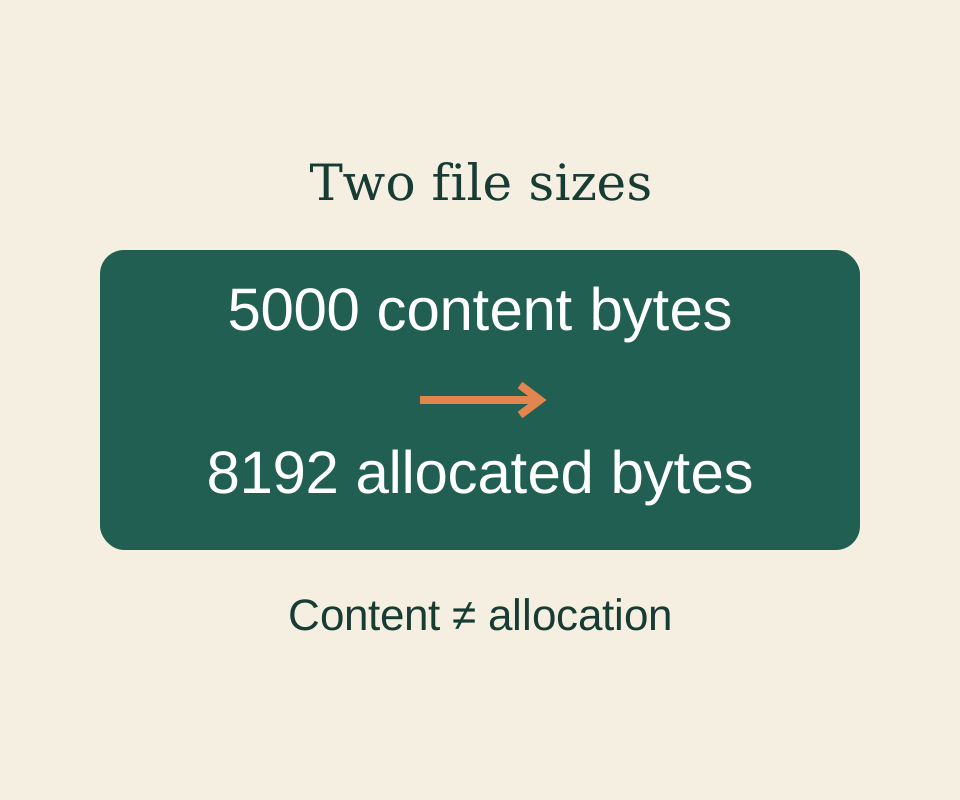
Windows Size vs Size on disk: why the numbers do not match
A 5000-byte file can have 8192 bytes allocated. Read the two measurements and account for each file separately.
SOURCE-CHECKEDEveryday tech
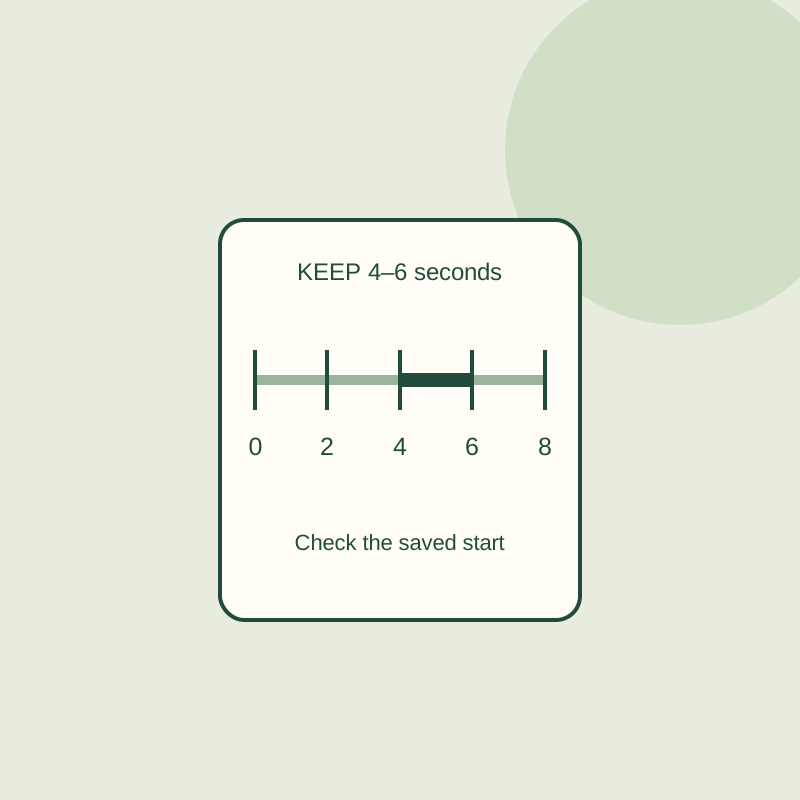
Trim a video with LosslessCut: why the saved clip can start too early
Keeping compressed video avoids another encode, but cut points can move. An eight-second practice clip shows the difference between a segment and its saved boundary.