SOURCE-CHECKED · EVERYDAY TECH
Trim a video with LosslessCut: why the saved clip can start too early
Cut unwanted footage with LosslessCut, export the segment you mean to keep, and understand early starts using real keyframe and stream-copy examples.
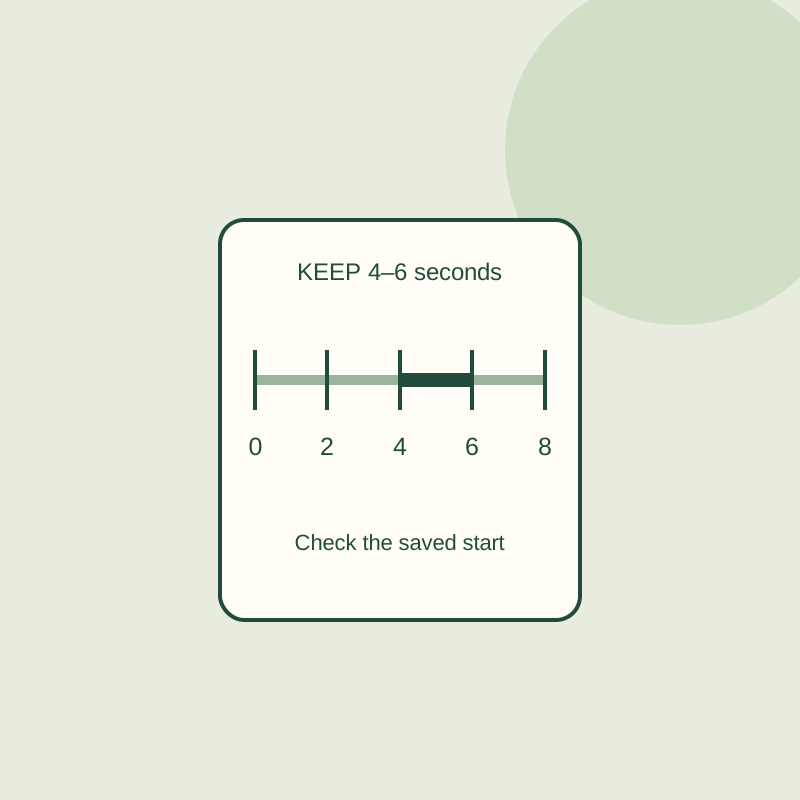
To keep a segment in LosslessCut, mark the part you want to export, then inspect the saved clip. A start marker at 3.2 seconds does not necessarily mean the exported video begins there: a cut without re-encoding can include an earlier keyframe.
Mark the part to keep
Open the original video with Ctrl+O. Move the playhead to the desired start and press I, then move to the end and press O. Check both ends of the selected segment before exporting. In LosslessCut, the segment normally means the portion to keep; the advanced Yin Yang inversion control reverses that selection.
Open Export (or press E), review the summary, and confirm the export. Choose Separate files when you want one clip, and save it under a new name or in a different folder so you can compare it with the original. If you need particular audio or subtitles, check the Tracks panel: exports include most audio, video, and subtitle tracks by default. These steps follow the LosslessCut documentation.
Why an earlier frame can appear
A keyframe is a picture that can be decoded independently; pictures between keyframes may depend on neighboring pictures. That makes a cut at an arbitrary frame difficult when the video is copied without re-encoding. The LosslessCut manual says the start cut is not accurate, and its troubleshooting guide says it usually rounds to the nearest previous keyframe, though that is not true in every case.
A practice video makes the distinction concrete. The eight-second source clip is a 640 × 360, 30 fps moving test pattern with frame numbers. Its recorded keyframes are at 0, 2, 4, and 6 seconds.
In a controlled FFmpeg stream-copy example, a request to keep two seconds starting at 4.0 seconds produced 62 copied packets, a duration of 2.066667 seconds, and a first copied packet from source time 4.0. A request to start at 3.2 seconds for two seconds produced 98 copied packets, a duration of 3.266667 seconds, and a first copied packet from source time 2.0. Every copied video packet matched a source packet by SHA-256. The complete file hashes changed with the containers. See the aligned example, the before-keyframe example, and the test notes. FFmpeg’s stream-copy documentation explains the copying operation.
Try marking 4 and 6 seconds with I and O, then check the first and last visible frames, audio, and duration of your own export. You can also try the practice CSV, which contains the line 4,6,Practice keep segment, using LosslessCut’s documented start-seconds, end-seconds, label format. Its import through the GUI was not tested.
If the boundary must be exact
Inspect the actual exported file, especially when an unwanted frame appears near the start. LosslessCut’s keyframe cut works for many common files, but its troubleshooting guide describes other modes for files that need them. Smart Cut is experimental and may re-encode a boundary. It does not work with many files, so check its actual output rather than treating the option as a guarantee of exact cuts.
If even one earlier frame contains private or sensitive material, treat a lossless trim as insufficient until the output has been checked. Use a frame-accurate editor with re-encoding when that frame must be excluded, then inspect its output too.
LosslessCut instructions follow its linked documentation. The supplied output clips were made with FFmpeg stream copy to demonstrate keyframe limits; they are not LosslessCut exports or predictions for every video.
KEEP GOING
More to explore.

TESTEDEveryday tech
Why Date created can be later than Date modified in Windows
Inspect the copy operation before treating a newer creation date as a newer edit.
SOURCE-CHECKEDEveryday tech
Chrome Secure DNS: why a custom provider can stop a site loading
Automatic Secure DNS can fall back to an unencrypted lookup. A custom provider follows a different rule, so record the original setting before changing it.