SOURCE-CHECKED · EVERYDAY TECH
Windows Size vs Size on disk: why the numbers do not match
Understand file content size and allocated disk space using real Windows file measurements, a block allocation model, and exceptions for sparse and small files.
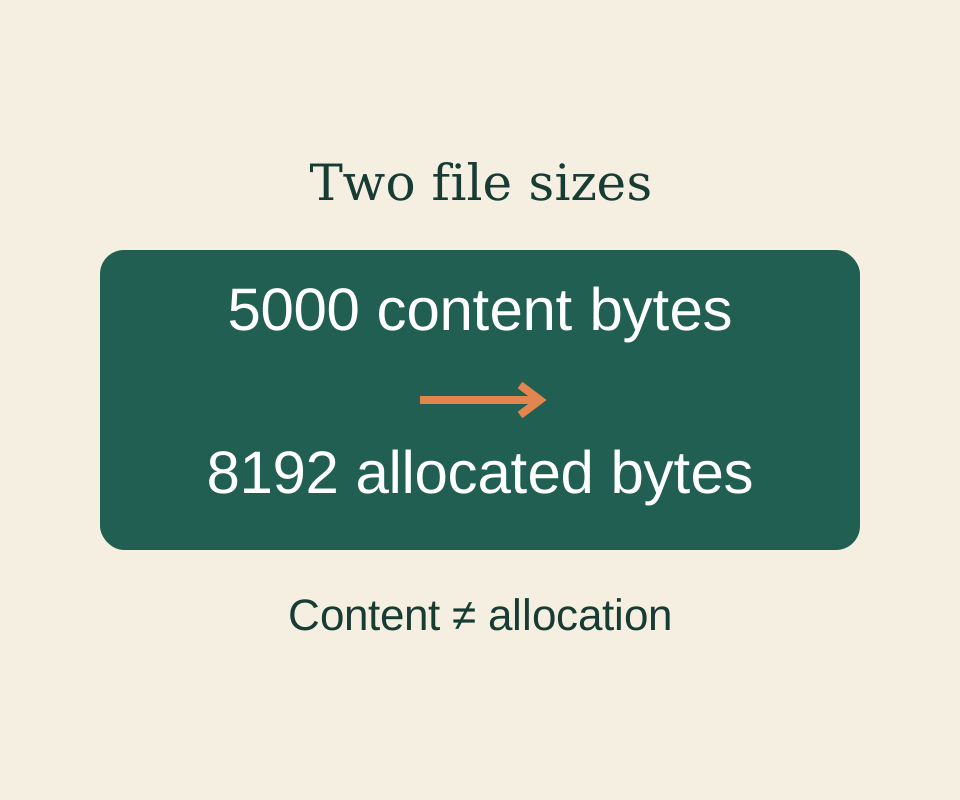
In a file’s Properties window, Size tells you how many bytes of content the file has. Size on disk reflects storage allocated for it. A difference between those numbers alone does not show that a copy is corrupted or that a USB drive is full.
Windows distinguishes the end of a file’s content from its allocated space in its file information definitions. Its file streams documentation also explains that reserved space and bytes actually used can differ.
Why Size on disk can be larger
An ordinary file may need another allocation unit as soon as its content outgrows the units already assigned to it. In a local Windows test using native file information, a 4,096-byte file had 4,096 bytes allocated. At 4,097 bytes, allocation rose to 8,192 bytes; a 5,000-byte file also had 8,192 bytes allocated. A 9,000-byte file had 12,288 bytes allocated.
For a 5,000-byte file with a 4,096-byte allocation unit, the simple model is two units, or 8,192 bytes, leaving 3,192 bytes within that allocation unused. Apply that rounding to each file when estimating space for many small files. In the model, two 5,000-byte files total 10,000 bytes of content but 16,384 bytes of allocation. One 10,000-byte file would take 12,288 bytes. Those combined-file figures are calculations, not results from a copy test.
Use the allocation model to change the file size, allocation unit and number of files. With two 5,000-byte files and 4,096-byte units, it calculates 6,384 bytes of unused block space. This model excludes filesystem metadata and the exceptions below.
Allocation units can vary by volume. Microsoft’s NTFSInfo description identifies allocation-unit information as a property of an NTFS volume. The source drive’s Size on disk is therefore a poor assumption for what a destination drive will need.
Why it can be smaller
The simple rounding model does not cover every file. Compression and sparse files can use less allocated space than their logical content size, as described in Microsoft’s file streams documentation. For sparse files, large zero-filled ranges may need no allocation. Some very small NTFS files can also keep their data within a file system metadata record, an exception described in this Sysinternals article. A small file should not automatically be assigned one full allocation unit in a calculation.
Check the copy before drawing a conclusion
Right-click the file, open Properties, and look under General for Size and Size on disk. For a local copy, compare the content sizes and check relevant file attributes, including whether compression or sparseness is involved. Use Size when you need the content byte count, such as an expected upload size. For storage planning, check free space and allocation on the destination drive rather than applying the source drive’s allocation unit.
Source note: The four allocation figures above came from a 2026-10-09 local test of ordinary, uncompressed files on one NTFS volume, read with the native FileStandardInfo API. The Properties steps are based on documentation; that test did not exercise File Explorer, folder totals, or another drive.
KEEP GOING
More to explore.
TESTEDEveryday tech
Why Date created can be later than Date modified in Windows
Inspect the copy operation before treating a newer creation date as a newer edit.
SOURCE-CHECKEDEveryday tech
What Windows Storage Sense deletes, and what to check first
Review the file states and your actual space shortfall before relying on automatic cleanup.