SOURCE-CHECKED · EVERYDAY TECH
What Windows Storage Sense deletes, and what to check first
See which files Windows Storage Sense removes, distinguish cloud release from deletion, and calculate whether your reviewed cleanup will meet the space you need.
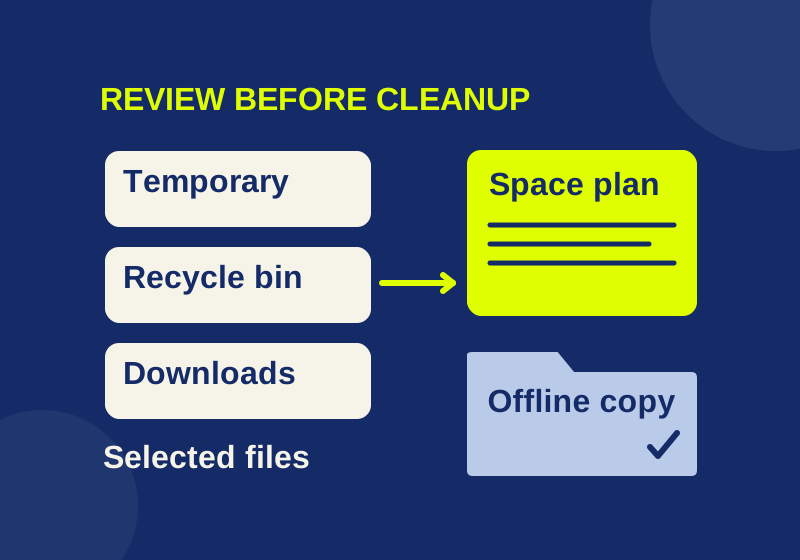
Storage Sense can clear temporary files and remove items that have spent a set amount of time in the Recycle Bin. Depending on your settings, it can also act on Downloads and locally available cloud files. Before turning it on or changing a rule, check which files you would lose access to and whether the likely space gain would be enough for your next task.
The reviewed storage plan lets you work through that decision with amounts you enter yourself. It adds only the cleanup categories you select, then compares the planned free space with the amount you need. It does not scan your PC or predict how much Windows will actually recover.
What Storage Sense can clear
Storage Sense works on the system drive, and its settings are per user. Its cleanup includes temporary files and Recycle Bin items under the rules you have set. A file’s time in the Recycle Bin is different from the age rule for an unopened file in Downloads, so check those settings separately. Do not assume an old download is disposable just because it meets an age rule. Microsoft’s Storage Sense guide describes these categories and their settings.
Downloads deserve a manual review before you enable automatic cleanup for that folder. Move files you need into an organized, backed-up location. If you have not decided what may be removed, choose Never for Downloads cleanup until you have reviewed it. Also open the Recycle Bin first if it may contain something you want to restore.
Cloud files need a different decision. Storage Sense can make locally available cloud content online-only, which releases its local copy without permanently deleting the cloud file. Content marked Always keep on this device is exempt from that action. If you need a cloud file offline, mark it to stay on the device, allow it to download, and open it while you still have a connection. A cloud filename can remain visible after its contents leave the local drive. If the next task needs those contents offline, keep that file out of your proposed release amount.
Inspect your own Downloads and cloud settings instead of relying on a claimed Windows-wide default. Microsoft’s guidance includes both general opt-in language and a 30-day OneDrive default for Windows 11 version 22H2. Storage Sense also requires the user to be signed in and online for more than ten minutes; a plan based on its rules is not evidence that a cleanup has already happened. Microsoft’s Storage Sense guide has the applicable details.
Check the drive and the amount you need
Start in This PC and identify the drive that is short of space. Freeing room on the system drive will not fix a full second drive. Then review Windows’ Storage categories, Temporary files, and Cleanup recommendations to see what is taking space. Inspect each proposed category before selecting it. Microsoft’s drive-space guide covers those review options.
For the amount you need, use the requirement shown by the installer, download, or other task you are trying to complete. There is no fixed percentage to enter. If that task will create additional working files, allow room for those too. The calculator’s example below uses 18 GB as an illustrative requirement, not as a Windows update threshold.
Enter all six amounts in the reviewed storage plan using the same drive and the same unit:
- Free space now and the space required for the next task.
- Temporary files and Recycle Bin items you have agreed to remove.
- Downloads you have manually selected for removal.
- Local cloud copies that could be released when offline access is not needed.
Keep the categories separate. If a file appears in a Temporary files view and is also in Downloads, count it once. A blank field means the amount is unknown; enter zero only after reviewing a category and finding nothing you intend to release. The page requires finite, nonnegative amounts. Its figures are estimates you supply, not measurements of reclaimable storage.
For cloud copies, estimate the local space actually occupied, not the full logical size of every filename in the folder. An online-only placeholder is not another full copy you can release. If you cannot establish a local amount, leave it unknown or exclude that category. Do not use a file’s Date modified or Date created column to decide whether it meets Storage Sense’s documented unopened-time rule; those dates describe different events.
The calculator adds selected temporary files, bin items, and Downloads. Cloud copies are added only when offline access is not required. That planned release is added to current free space, and any remaining gap is shown as a shortfall.
For a worked example, enter fictional values of 4 GB free, 18 GB needed, 1.5 GB of temporary files, 0.5 GB from the bin, 2 GB of manually reviewed Downloads, and 9 GB of releasable local cloud copies. With offline access needed, the page excluded the cloud copies: 4 GB planned release, 8 GB planned free, and a 10 GB gap. When cloud release was allowed, it showed 13 GB planned release, 17 GB planned free, and a 1 GB gap. Neither plan reaches 18 GB. The 2 GB of Downloads in this example represents a deliberate removal choice, not a forecast of what Storage Sense will delete automatically.
If the plan still falls short
A shortfall tells you to find another reviewed source of space, not to select an unfamiliar folder simply to make the numbers work. Return to Temporary files and Cleanup recommendations and inspect individual categories. If those do not provide enough room, consider uninstalling an app you no longer use or moving personal files. For a different full drive, review files or install locations on that drive separately. Microsoft’s drive-space guide lists those options.
Treat Previous Windows installation as its own decision. Removing it removes the ability to roll back to the previous Windows installation, so do not include it in an agreed cleanup amount unless you have considered that consequence.
Even a plan that meets the target is arithmetic, not a guarantee of recovered space. Category estimates may overlap, displayed amounts may be rounded, and other activity can write to the drive. After cleanup, check the drive’s actual free space again and confirm that the task you needed room for can proceed.
Source note: Microsoft’s linked guidance was checked October 7, 2026 KST. The browser check covered the offline calculator’s interaction logic and its 320, 390, and 1440 pixel layouts. No Windows setting was changed or Windows cleanup measured.
KEEP GOING
More to explore.
SOURCE-CHECKEDEveryday tech
Remove an old Windows passkey without losing account access
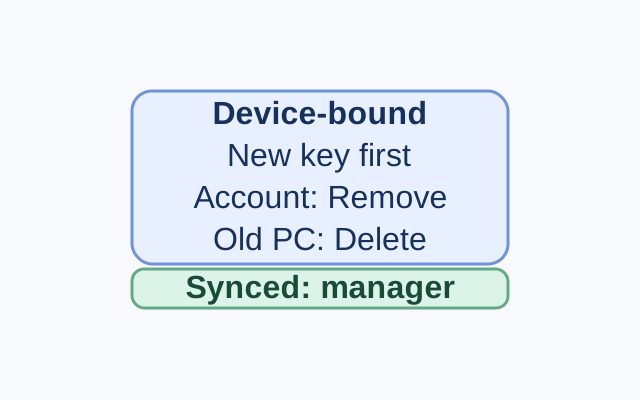
An old Windows device may hold a passkey locally, while a synced credential manager can make its passkey available on a new device. A Microsoft account may also list the passkey as a sign-in method. Each location has a different management control.
SOURCE-CHECKEDEveryday tech
Set a Windows hotspot connection as metered—and understand what pauses
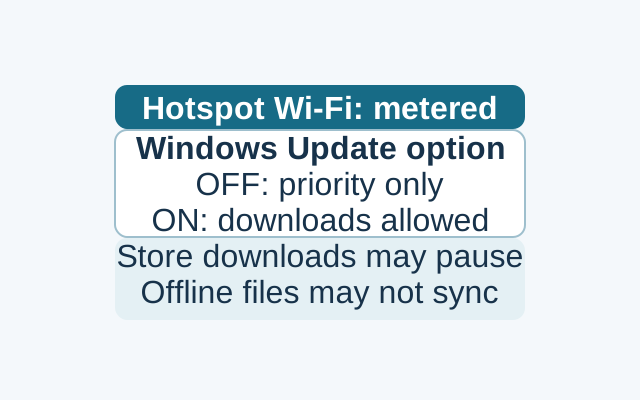
A metered Wi-Fi setting reduces background data use, but priority updates may still download and some syncing may pause. Windows Update has a separate option to allow downloads over metered connections.