SOURCE-CHECKED · EVERYDAY TECH
Set a Windows hotspot connection as metered—and understand what pauses
Set limited-data hotspot Wi-Fi as metered on Windows 11, then distinguish the network setting from the separate Windows Update download option.
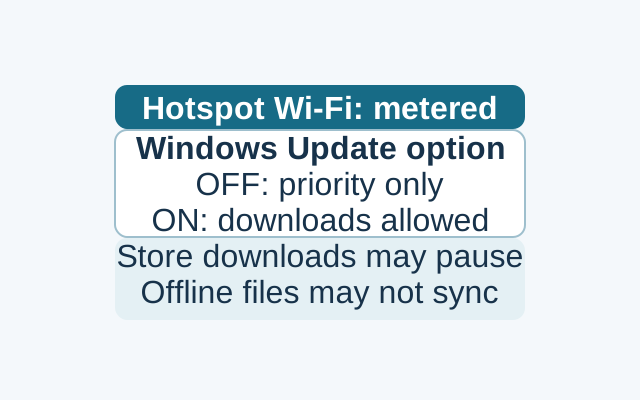
On your PC, open Settings > Network & internet > Wi-Fi, select the hotspot network you’re connected to, and turn on Metered connection. Windows will try to reduce data use on that connection.
Your PC reaches the phone through Wi-Fi, so use the Wi-Fi setting. Microsoft says Windows normally treats Wi-Fi as non-metered, while cellular connections are metered by default.
Allow Windows Update downloads while staying metered
If you need Windows Update to download over the hotspot, leave Metered connection on. Then open Settings > Windows Update > Advanced options and turn on Download updates over metered connections. The first setting marks the network as metered; the second allows Windows Update downloads over it. The update option does not control Store downloads or offline-file syncing.
What may pause
With the update option off, Microsoft says Windows Update downloads only priority updates on a metered connection. Microsoft Store downloads might pause, and offline files might not sync automatically. A priority update downloading while an offline file remains unchanged fits that guidance, though the unchanged file alone does not explain why it failed to sync. A metered connection can still use data.
Source: Microsoft Support’s metered connections in Windows guidance. These are documented steps and possible effects; no device or app test was performed.
KEEP GOING
More to explore.
SOURCE-CHECKEDEveryday tech
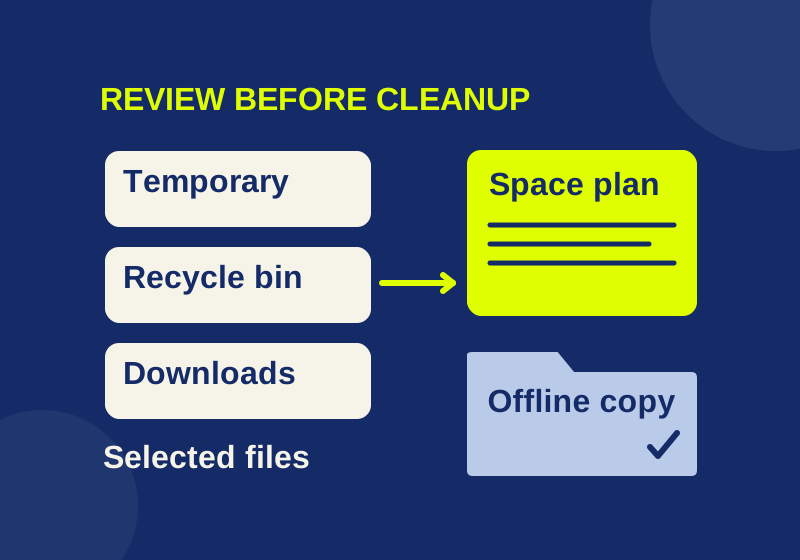
What Windows Storage Sense deletes, and what to check first
Review the file states and your actual space shortfall before relying on automatic cleanup.
SOURCE-CHECKEDEveryday tech
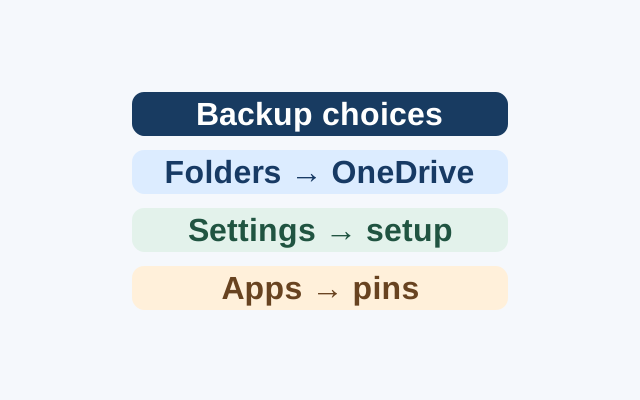
Windows Backup on a new PC: what comes back?
Selected folders become available through OneDrive. Supported preferences can return during Windows setup, while apps return as pins that may lead to restoration or an installer.