SOURCE-CHECKED · EVERYDAY TECH
Remove an old Windows passkey without losing account access
Find where an old passkey is saved, arrange replacement access, and use the removal control for that location.
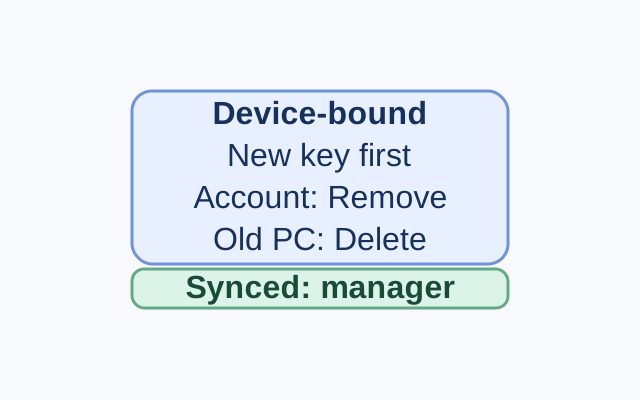
First, check where the passkey is saved. A device-bound passkey stays on the old laptop; a passkey in a synced credential manager can be available on a new device. Your Microsoft account dashboard shows the location of a listed passkey. Windows Settings shows passkeys saved locally on the PC you’re using. Microsoft explains the two storage types.
Passkey saved on the old laptop
For a personal Microsoft account, open Advanced Security Options and expand the old passkey entry to check where it was saved. If it was saved on the old laptop, create and save a new passkey before removing the old one, and retain usable sign-in information. Removing all security information from a personal account restricts changes to its security settings and billing information for 30 days.
Select Remove on the old passkey’s account entry. If you still have the old laptop, open Settings > Accounts > Passkeys on that laptop and select Delete passkey beside its local entry. The replacement PC cannot delete a passkey stored only on the old laptop. If that laptop is unavailable, you can remove the account entry, but cannot complete the local deletion there.
Passkey saved in a synced manager
If the account entry names a synced credential manager, sign in to that manager on the new device. A device change alone does not require a new passkey. Manage an unwanted passkey through the provider that stores it.
For a work or school account, check Security info. Microsoft instructs users to remove the passkey there and delete it where it was saved. Your organization may limit the available options.
KEEP GOING
More to explore.
SOURCE-CHECKEDEveryday tech
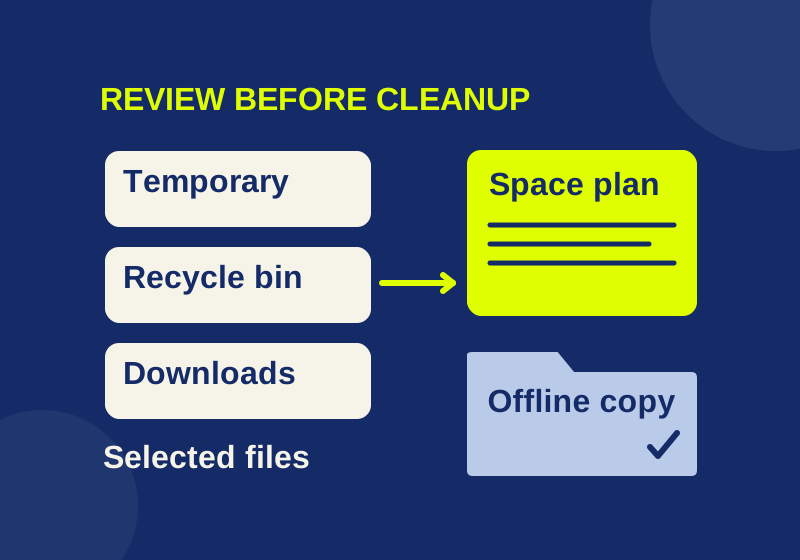
What Windows Storage Sense deletes, and what to check first
Review the file states and your actual space shortfall before relying on automatic cleanup.
SOURCE-CHECKEDEveryday tech
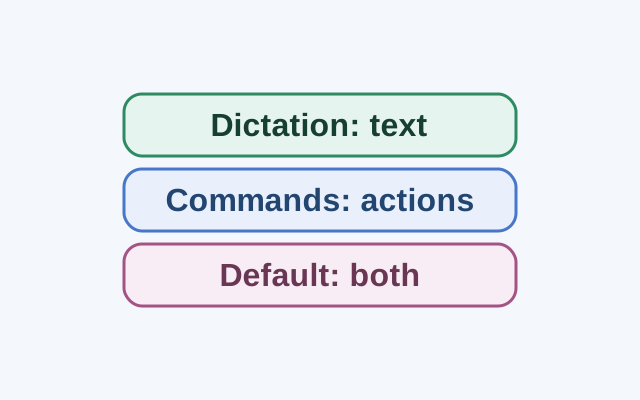
Dictate text with Windows Voice Access without triggering commands
Dictation mode treats spoken input as text in an editable field. Commands mode is for actions; Default mode handles both commands and dictation.