TESTED · EVERYDAY TECH
How to check a file checksum in Windows with PowerShell
Compare a file with its publisher’s SHA-256 checksum in PowerShell and use three original sample files to see why renaming and editing produce different results.
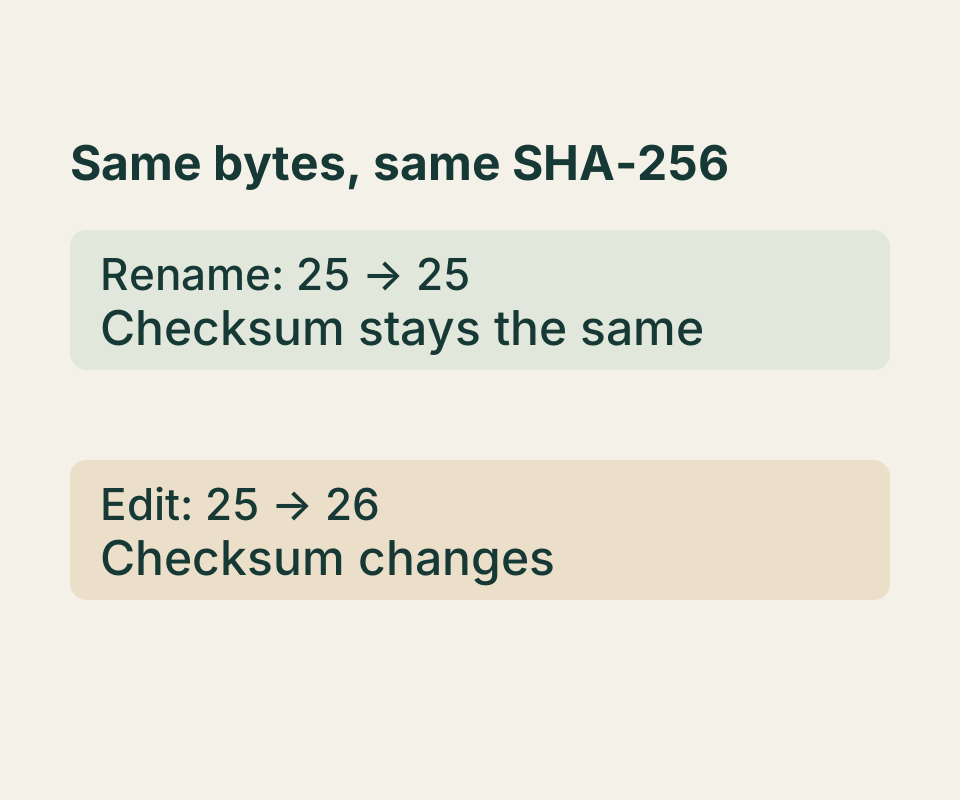
Open Windows PowerShell from Start and run Get-FileHash on the file you downloaded:
Get-FileHash -LiteralPath 'C:\Users\YourName\Downloads\example.iso' -Algorithm SHA256Replace the path with your file’s actual path. You do not need to run PowerShell as an administrator if your account can access the file. The Hash value in the output is the file’s calculated SHA-256 checksum. Compare it with the SHA-256 value published for that exact file version and architecture.
-LiteralPath treats the path as written, without interpreting wildcard characters. The hash is calculated from the file’s contents, not its name or file type.
Compare the two values
You can compare the 64-character values by eye, or have PowerShell do it. The following example uses a downloadable text file, sample-original.txt, and its recorded checksum. Save the file in Downloads, then replace YourName with your Windows user name:
Set-Location -LiteralPath 'C:\Users\YourName\Downloads'
$expected = '1B0848B0190C2D59639EF1F3CCF4D578E635E942869ADD701F84A3B663ECD9F2'
$actual = (Get-FileHash -LiteralPath '.\sample-original.txt' -Algorithm SHA256).Hash
$actual -eq $expected
The comparison returns True when the values match and False when they differ. PowerShell’s -eq string comparison is case-insensitive by default, so letter case in a hexadecimal checksum does not affect this comparison.
For a real download, replace both the filename and $expected value. Get the expected checksum from a trusted publisher source for the same download, and make sure it is labeled SHA-256. Comparing a downloaded file with a checksum supplied only alongside that same untrusted download does not establish who published it.
What a match or mismatch tells you
In the recorded PowerShell test, sample-original.txt and sample-renamed.txt produced the same SHA-256 value shown above. They contained the same text, despite having different names. In sample-changed.txt, changing Amount: 25 to Amount: 26 produced a different value:
C29E49A98A1ED7D86C55BD959B8A7C89DF9BB43CFEBEB84019D6D048E702F8B9A mismatch tells you the calculated value differs from the expected one; it does not identify the cause. Check that you selected the intended file and have the checksum for its version, architecture, and algorithm. A changed or damaged download could also account for different bytes. Do not edit a file before checking its published checksum: even a text editor’s change to line endings or byte-order marks may change the result.
If PowerShell cannot find a relative path such as .\sample-original.txt, run Get-Location to see the current folder. Then move to the folder containing the file with Set-Location, or use its full path with Get-FileHash.
A matching checksum establishes that the two SHA-256 values agree. It does not, by itself, authenticate the publisher or guarantee that the file is safe.
Source note: Commands and path behavior follow Microsoft’s Get-FileHash and Get-Location documentation. The reported native PowerShell test covered only the three linked text fixtures; it did not test publisher authentication or malicious files.
KEEP GOING
More to explore.
SOURCE-CHECKEDEveryday tech
How to schedule Windows 11 Night light and check an orange screen
Schedule warmer display colors and use one fixed reference image to investigate an unexpected tint.
TESTEDEveryday tech
How to unzip files in Windows 11 and keep your changes
Use a real practice ZIP to extract, edit, and send the right version of your files.