TESTED · EVERYDAY TECH
How to unzip files in Windows 11 and keep your changes
Extract a Windows 11 ZIP, check its folders, and package your edited copies. Practice with a real four-file archive and verified before-and-after results.
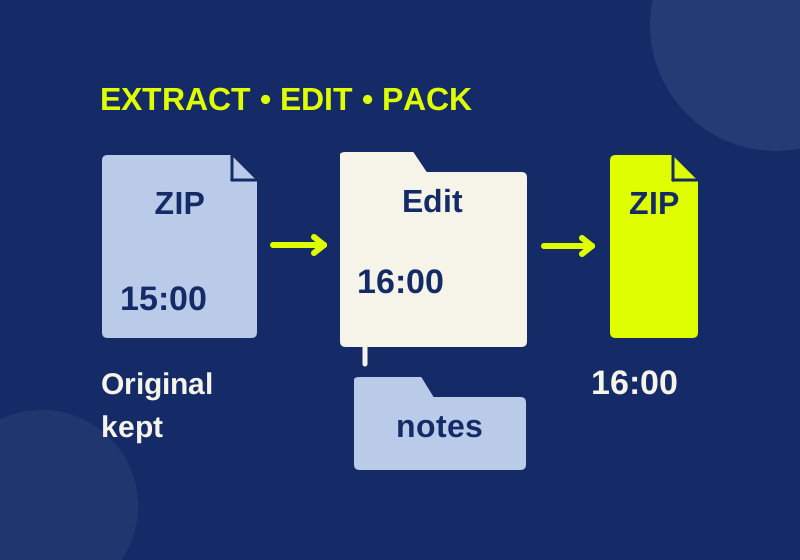
To unzip everything in Windows 11, right-click the ZIP in File Explorer and choose Extract All. Work on the files in the destination folder. If you need to send your edits, make a new ZIP from those edited copies: changing an extracted file leaves the original archive unchanged.
Download the four-file practice ZIP to follow the example. It contains ordinary text files with fictional event details. The expected file list gives you a separate reference while you unpack it.
Check the folder layout before editing
The pack contains an agenda starting at 15:00, a small supply-cost CSV, and two files named README.txt. One README describes the whole pack; the other describes its notes folder. They have different contents.
After extracting into zip-practice-extracted, you should have these paths:
zip-practice-extracted/
├── README.txt
├── agenda.txt
├── costs.csv
└── notes/
    └── README.txt
The two READMEs belong at different paths. Keep the notes folder instead of dragging its contents into the top-level folder. Putting both READMEs together would give two files the same name in the same location.
In costs.csv, the header is item,quantity,unit_cost. Its sample rows are paper_pack,2,6 and pencil_box,1,4. You can read it as plain text; you don’t need a spreadsheet app to check that this file came out of the ZIP.
Extract the whole ZIP or just one file
Find zip-practice-pack.zip in File Explorer, right-click it, and choose Extract All. Use a new destination named zip-practice-extracted, then open that ordinary folder. Microsoft documents this method for the full archive and dragging a file or folder out for a partial extraction. Microsoft’s ZIP instructions
At the top level, look for three files and a folder named notes. Open notes to find the fourth file. Counting only the three top-level files would make this complete extraction look incomplete.
If you only need the agenda, opening the ZIP and dragging agenda.txt to another folder is enough. That gives you a copy of one file. It does not provide the separate notes or cost information that the full pack contains.
Use the full extraction for the exercise below. Keeping all four files together lets you check both the saved edit and the folder structure when you make a new archive.
Change 15:00 to 16:00, then reopen the original
Open zip-practice-extracted\agenda.txt in Notepad. Change Start: 15:00 to Start: 16:00 and save. Confirm that you’re editing the file inside the extracted folder by checking its location in File Explorer.
Now extract the original zip-practice-pack.zip into a second empty folder named zip-practice-fresh. Compare:
zip-practice-extracted\agenda.txt: the saved edit should sayStart: 16:00.zip-practice-fresh\agenda.txt: the original ZIP should still produceStart: 15:00.
The PowerShell round trip with this pack produced those results. Editing the extracted agenda left the original ZIP’s SHA-256 hash unchanged. A second extraction still contained 15:00.
If you attach the original ZIP to a message, its recipient gets the original agenda. Renaming that ZIP would change its filename, but would not place your edited agenda inside it. To share the 16:00 version, package the edited folder into a new archive.
A fresh destination keeps this comparison clear. If you mix a new extraction with an earlier edited folder, you have to work out which file came from which operation before you can tell whether the archive contains your changes.
Make a new ZIP containing your edit
For the File Explorer method, right-click the edited folder and use Show more options > Send to > Compressed (zipped) folder. Windows creates the ZIP in the same location; rename it so you can distinguish it from your download. Microsoft’s ZIP creation steps
If you prefer a command with an explicit file layout, open PowerShell in the folder containing zip-practice-extracted and run:
Compress-Archive -Path '.\zip-practice-extracted\*' -DestinationPath '.\my-edited-pack.zip'The wildcard selects the contents of the extracted folder. The resulting archive has the three top-level files and notes\README.txt, without another enclosing zip-practice-extracted folder. Its destination is outside the folder being packed. Microsoft’s Compress-Archive reference
This command’s sample round trip extracted four files into a new folder, and the new agenda.txt contained Start: 16:00. Before sending your own edited ZIP, extract it into a fresh location and open the agenda there. That checks the file inside the attachment you plan to send, rather than the working copy beside it.
Compress-Archive ignores hidden files and has a 2 GB limit for an individual file. The command is suitable for this small visible-file example; those limits matter if you expand it into a backup workflow. Microsoft’s documented limits
Extract with PowerShell
From the folder containing the downloaded ZIP, use:
Expand-Archive -LiteralPath '.\zip-practice-pack.zip' -DestinationPath '.\zip-practice-extracted'Choose an unused destination for this example. -LiteralPath treats the archive filename literally; -DestinationPath names the extracted folder. Microsoft’s Expand-Archive reference
The four extracted files in the initial PowerShell test had the same paths and SHA-256 hashes as their source files. That comparison checked their bytes, including the two distinct READMEs. It did not depend on an app displaying the text in a particular way.
Why this ZIP is bigger than its files
The four sample files total 441 bytes. Their ZIP is 797 bytes. For this tiny bundle, archive overhead adds more space than compression saves. The benefit is carrying the four files and their folder layout in one attachment; this measurement does not predict the result for your photos or larger documents. Microsoft notes that JPEG images are already highly compressed, so zipping a photo collection may make little difference to its total size.
Microsoft says Windows 11 version 24H2 supports ZIP, RAR, 7z, and TAR, but does not support operations on encrypted archives. A password-protected archive can need a compatible separate app. This exercise uses an ordinary, unencrypted ZIP. Microsoft’s format and encryption guidance
The file comparisons and archive round trips used PowerShell 7.6.5 on Windows with Archive module 1.2.6. File Explorer menu instructions were checked against Microsoft’s documentation; no File Explorer UI, encrypted-archive, or other-format trial was performed.
KEEP GOING
More to explore.
TESTEDEveryday tech
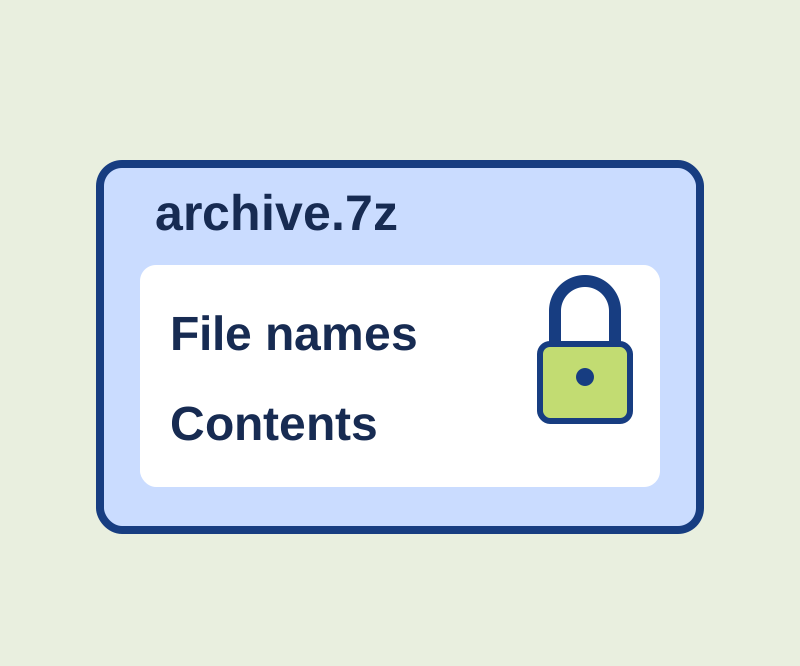
7-Zip password protection: hide file names as well as contents
See why an archive password can leave names visible, with two encrypted examples you can compare.
SOURCE-CHECKEDEveryday tech
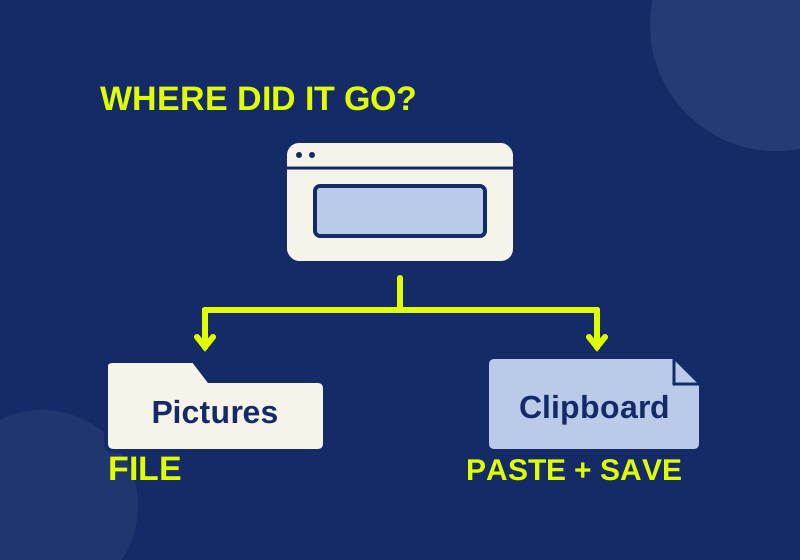
Where Windows 11 screenshots go: saved files and clipboard copies
Locate a saved screenshot or turn a clipboard capture into a file you can attach.