TESTED · EVERYDAY TECH
7-Zip password protection: hide file names as well as contents
Compare two real password-protected 7z archives, hide internal file names with header encryption, and reopen the files before sharing.
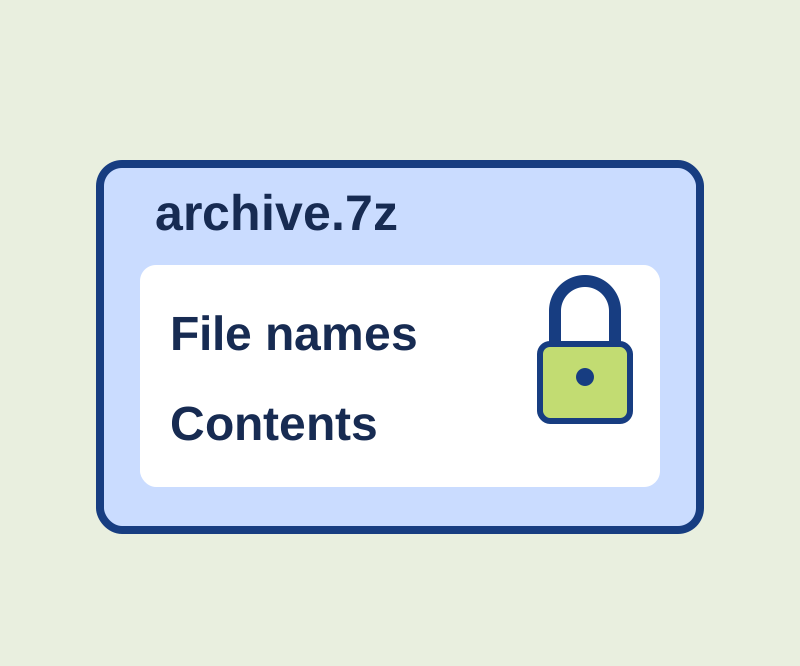
A 7z archive can require a password to read its files while still showing their names. If the names themselves are sensitive, turn on Encrypt file names when you create the archive. The setting encrypts the archive headers as well as the file data. Without it, names, sizes, timestamps, and attributes remain visible. 7-Zip’s bundled help describes both settings.
What the two archives reveal
A Windows test used two fictional files, postcard-addresses.txt (48 bytes) and trip-costs.csv (39 bytes). Both archives used the same password. Only the filename encryption setting changed.
| Attempt | Internal file names shown? | Result |
|---|---|---|
List visible-names.7z with a wrong password |
Yes, both names | Listing completed |
List hidden-names.7z with a wrong password |
No | The encrypted archive could not be opened |
List hidden-names.7z with the right password |
Yes, both names | Listing completed |
With the right password, the hidden archive also passed a contents test. Extraction produced both files byte for byte identical to the originals. A contents test with a wrong password failed. The test used standalone Windows 7za 26.04. The File Manager instructions below follow its bundled help.
Compare the two examples
Download the archive practice inputs, the visible-name example, and the hidden-name example. The practice readme is available alongside them. The demonstration password is Maple-Postcards-47!. It is public: do not reuse it for a private archive.
Compare what each encrypted example shows before entering the password, then use the password to inspect its files. If the app appears to remember the password between attempts, close and reopen it for a fresh comparison. Seeing a file list after entering a password checks the names; test, extract, and open the files too before sharing an archive.
Create an archive with hidden names
7-Zip is free to use, including in commercial organizations. Its bundled help gives this File Manager route: extract the two practice files, select them in 7-Zip File Manager, and choose Add. Set the archive format to 7z and give the new archive a neutral name outside the input folder. Enter and reenter your own password, select Encrypt file names, and leave Delete files after compression off before saving. That deletion option removes the originals. 7-Zip’s official download page provides the publisher download and bundled help.
Filename encryption hides names inside the archive. The outer archive filename remains visible, and creating or extracting an archive does not rename or remove your separate copies of the files. 7z uses AES-256 with password-based key derivation, so choose a password you do not use elsewhere.
A recipient needs 7-Zip or another compatible archiver. Microsoft says Windows 11 does not support operations on encrypted archives. For ordinary, unencrypted ZIP files, see how to unzip files in Windows.
Source note: Official pages and bundled 7-Zip 26.04 help were checked October 11, 2026 KST. The recorded test covered native 7z console operations only; ZIP compatibility, File Manager behavior, and file delivery were not tested.
KEEP GOING
More to explore.
TESTEDEveryday tech
How to unzip files in Windows 11 and keep your changes
Use a real practice ZIP to extract, edit, and send the right version of your files.
TESTEDEveryday tech
Why Date created can be later than Date modified in Windows
Inspect the copy operation before treating a newer creation date as a newer edit.