SOURCE-CHECKED · EVERYDAY TECH
How to schedule Windows 11 Night light and check an orange screen
Set Windows 11 Night light hours, compare the tint with a neutral display card, and separate schedule problems from other color settings.
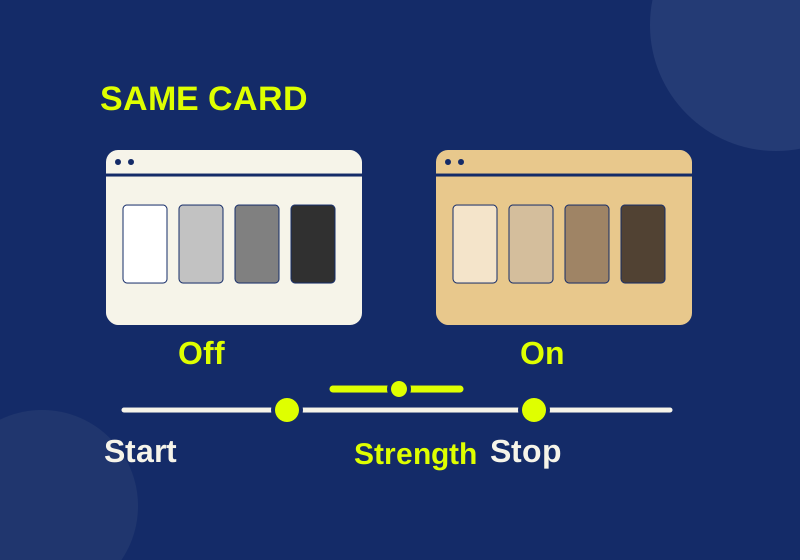
In Windows 11, open Settings > System > Display > Night light to set a schedule and adjust Strength. If the screen looks unexpectedly orange, compare the same neutral image with Night light on and off. That helps you tell whether Night light is affecting the display before you investigate the schedule or other color settings.
Set your Night light hours
Turn on Schedule night light, then choose Sunset to sunrise or Set hours. With Set hours, enter a start time for when you want Night light on and a stop time for when you want it off. Adjust Strength to choose how pronounced the warmer appearance is. There is no single setting you need to copy. Microsoft’s display instructions describe these controls.
Sunset to sunrise needs location services. You can review the device setting under Settings > Privacy & security > Location; an organization may manage that control. If you prefer to choose the times yourself, use Set hours. Microsoft explains the location setting and the sunset requirement.
Before changing anything, note whether Night light is on, which schedule mode is selected, and the current Strength. You can then return to your preferred setup after checking the tint.
Compare the same image on your screen
Open the neutral display card in one viewer on the physical screen you want to check. Keep the card in place, with the same brightness and room lighting, while you switch Night light manually off and on.
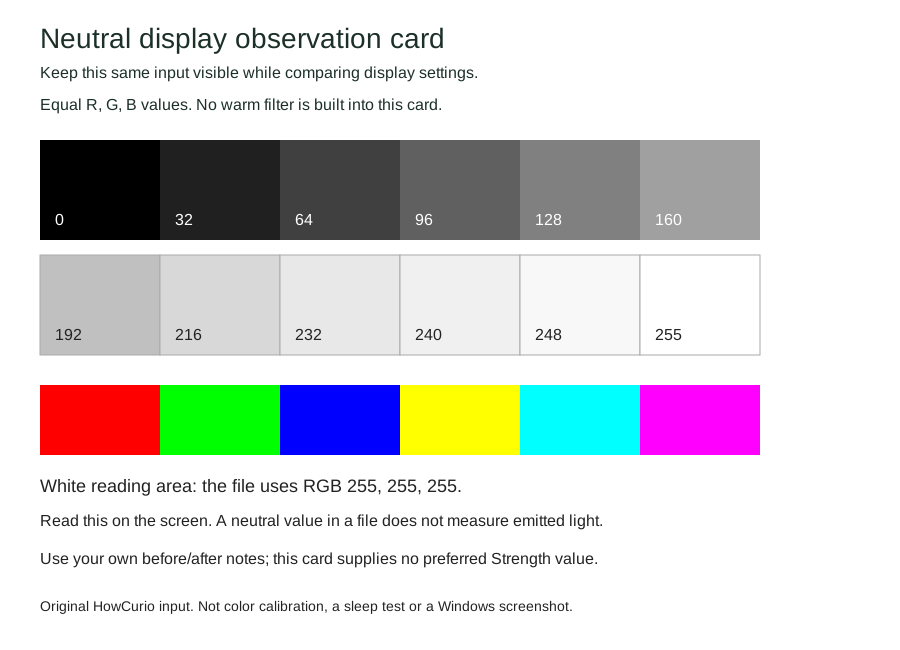
The card gives you a fixed white area, 12 neutral patches, and six pure color patches. In each neutral patch, red, green, and blue have the same value: 0, 32, 64, 96, 128, 160, 192, 216, 232, 240, 248, or 255. Watch how the white area and neutral patches appear to you when you toggle Night light. The card is a comparison input, not a color calibration or reading comfort test.
If the difference is slight, try a higher Strength before deciding that the manual toggle has no visible effect. If you see a clear change, you’ve established that the manual control affects what you see; you haven’t yet checked whether the schedule turns it on and off at the intended times. Choose a Strength you prefer, then look at the app you actually read in. The card alone cannot tell you what setting you’ll prefer there.
If you use two screens, display the same card on each and note which screen shows the change. A difference between screens does not, by itself, identify a hardware problem. If an external monitor has no Windows brightness slider, its brightness may be controlled with the monitor’s buttons, according to Microsoft’s display guidance.
Check the next scheduled change
After setting your hours, observe the screen just before and after your next scheduled start or stop time while the computer is awake. Keep the card open so changing page content doesn’t confuse the comparison. Check Night light’s current state in Settings after the boundary, too; yesterday’s screen color cannot confirm what today’s schedule did.
If manual on and off makes a visible difference but the expected scheduled change does not happen, check that Schedule night light is enabled, the intended mode is selected, and your Set hours times are correct. For Sunset to sunrise, check the location setting described above. You can choose Set hours if you want a schedule based on times you enter.
If the tint remains with Night light off
Keep the card open and inspect Settings > Accessibility > Color filters. An active filter changes visible colors, including pictures and video. Note which filter is enabled before considering a change, especially if you use it to distinguish colors. A filter can explain a remaining difference even after Night light is off. Microsoft’s color filter guidance explains their effect.
Also check Settings > Personalization > Colors > Choose your mode if the concern is a dark interface rather than a warm-looking white area. Light, Dark, and Custom change the Windows color mode; some apps have their own theme settings or do not support dark mode. Microsoft documents those options.
If the Night light control is grayed out, Microsoft notes that some display drivers, including DisplayLink and Basic Display, do not support it, and that updating the display driver may be needed. An update is not a guaranteed fix. When judging photo or design colors, use a view without the warm tint, then restore the schedule you prefer.
The Windows steps follow the linked Microsoft documentation, checked October 7, 2026. The original neutral card supplies a fixed visual input. It cannot measure emitted light, color accuracy or sleep effects. Night light’s behavior and schedule have not been independently tested here.
KEEP GOING
More to explore.
SOURCE-CHECKEDEveryday tech
PowerToys Screen Ruler: measure a window gap without guessing its edges
Measure crisp edges first, then diagnose shadows, scaling and live capture.
SOURCE-CHECKEDEveryday tech
Dictate text with Windows Voice Access without triggering commands
Dictation mode treats spoken input as text in an editable field. Commands mode is for actions; Default mode handles both commands and dictation.