SOURCE-CHECKED · EVERYDAY TECH
PowerToys Screen Ruler: measure a window gap without guessing its edges
Measure bounds and gaps with PowerToys Screen Ruler, use the current shortcut, and compare crisp reference shapes without confusing CSS and screen pixels.
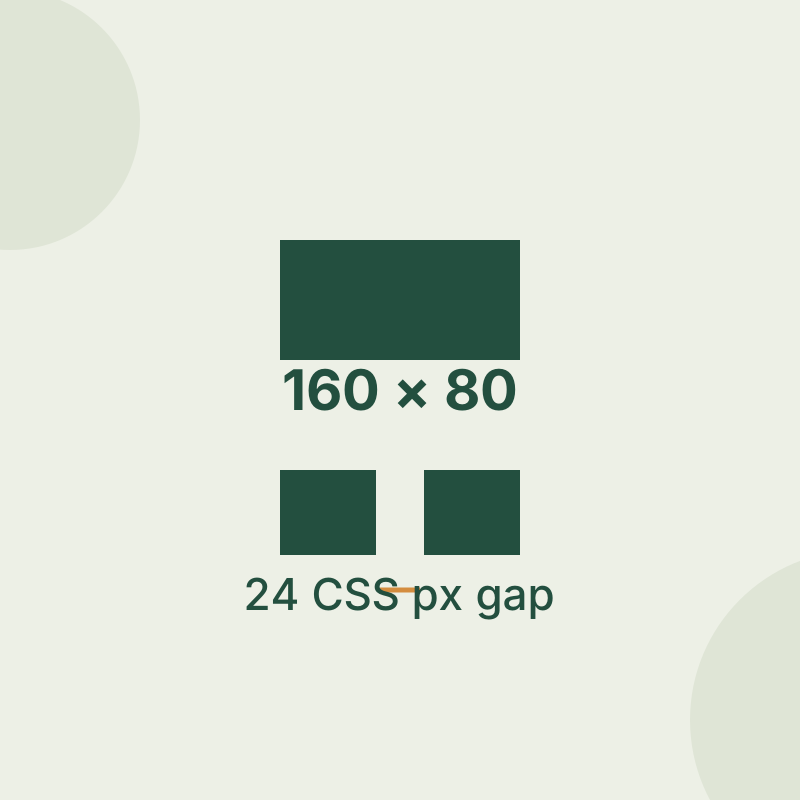
PowerToys Screen Ruler lets you inspect a rectangular area or the space between visible edges on a Windows screen. Browser zoom and display scaling can make a web page’s CSS dimensions differ from the screen pixels the tool measures.
Measure bounds and spacing
Open Screen Ruler with Win+Ctrl+Shift+M. Microsoft lists this as the current default shortcut and says you can change it in PowerToys.
Choose Bounds and click and drag across the rectangle you want to measure. Holding Shift keeps measurement boxes visible until you cancel. For a gap between two windows, choose Horizontal to inspect its width. Vertical measures vertical spacing, while Spacing measures both directions. The toolbar shortcuts are Ctrl+1 for Bounds, Ctrl+2 for Spacing, Ctrl+3 for Horizontal, and Ctrl+4 for Vertical. A primary mouse click copies a measurement; Esc closes Screen Ruler.
Try a known CSS layout
Open the Screen Ruler practice board. It provides a crisp 160 × 80 CSS-pixel rectangle and two 72 × 80 CSS-pixel blocks separated by a 24 CSS-pixel gap.
Start by dragging Bounds across the rectangle’s visible edges. Then use Horizontal to inspect the gap between the blocks. This gives you known CSS dimensions to compare with Screen Ruler’s readings before you measure a less obvious window gap. Do not expect the readings to equal the CSS numbers at every zoom or display scaling setting. A browser’s devicePixelRatio readout can help explain the difference, but it does not calibrate your monitor as a physical ruler.
Adjust difficult edges
If Screen Ruler follows a shadow or gradient instead of the edge you intended, adjust its edge-detection tolerance. The setting ranges from 0 to 255. Higher values allow more variation and can extend a detected line through gradients or shadows. Scrolling the wheel up raises the tolerance by 15 units per tick; scrolling down lowers it.
With Continuous capture off, Screen Ruler uses one snapshot. Turning it on attempts real-time capture and uses more resources. Screen Ruler also offers inches, centimeters, and millimeters, but those units should not be taken as an independently verified physical measurement of an object.
Source note: Controls and settings follow Microsoft’s Screen Ruler documentation. The linked practice board is an original CSS exercise. No native Screen Ruler GUI trial was recorded for this article.
KEEP GOING
More to explore.
SOURCE-CHECKEDEveryday tech
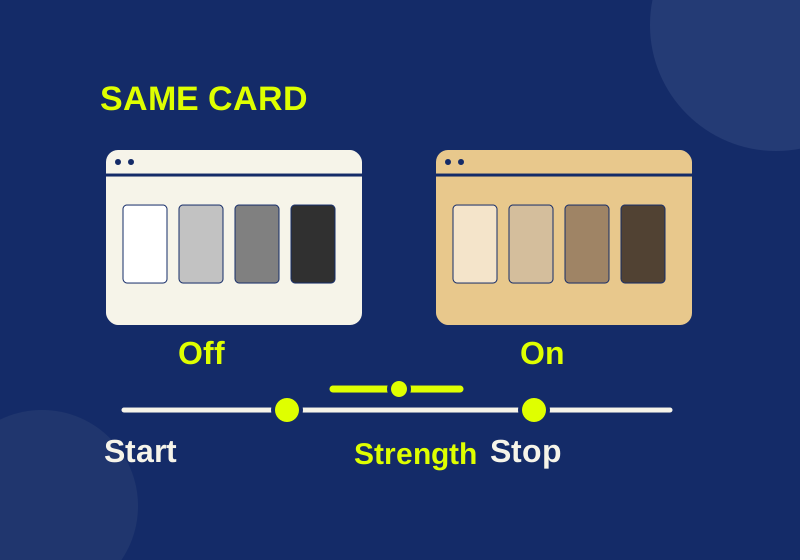
How to schedule Windows 11 Night light and check an orange screen
Schedule warmer display colors and use one fixed reference image to investigate an unexpected tint.
SOURCE-CHECKEDEveryday tech
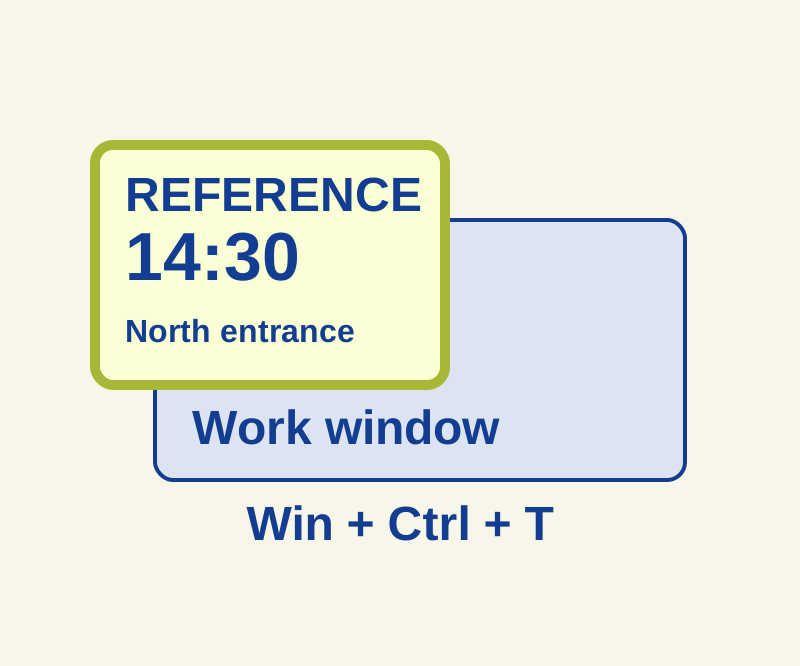
Keep a Windows reference window visible with PowerToys Always On Top
Keep a small reference visible and diagnose why a pinned window disappears.