SOURCE-CHECKED · EVERYDAY TECH
Schedule an iPhone text with Send Later, and change it before it sends
Schedule an iPhone message up to 14 days ahead, recognize the pending bubble, and edit, reschedule or cancel it while you are online.
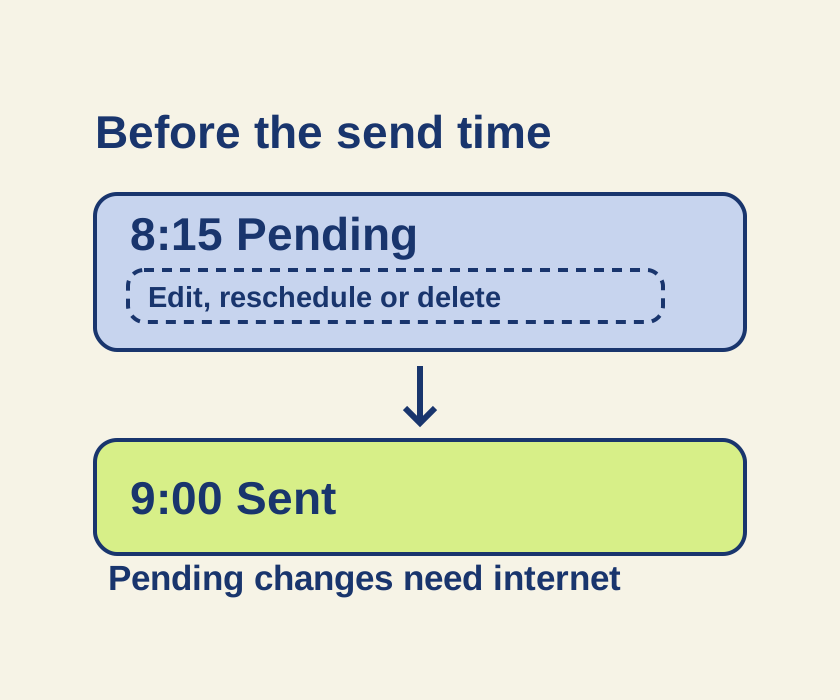
You can schedule an iMessage for up to 14 days ahead, then edit, reschedule, send, or delete it while it is pending. The recipient can use any device. In Messages, open the conversation and check that Send Later appears in its Add (+) menu.
Schedule the message
In Messages, open the conversation, tap Add (+) > Send Later, and choose a date and time within the next 14 days. Type your message and tap Send. The text field has a dashed border while you compose; after you send, the pending message appears at the bottom of the conversation with a date above it and a dashed outline around its bubble. Typing without tapping Send does not queue it.
Change a pickup plan
Suppose you arrange a Saturday equipment pickup on Thursday night and schedule this text for Friday at 9:00 a.m.:
For Saturday’s pickup, please meet at the east entrance at 10:30 a.m. I will bring the folding cart.
The named day and entrance keep the plan clear when the recipient opens the text later. If you learn at 8:15 a.m. Friday that Saturday’s pickup has moved to 11:00 a.m., touch and hold the pending bubble, tap Edit, change the text to “11:00 a.m.,” then tap Send Edit. Change the pending message itself so the old time is not still queued alongside a separate correction.
If the pickup is canceled, touch and hold the bubble and tap Delete to cancel delivery. If the message needs to go out now, tap Edit beside its date > Send Message, then check that it no longer has a pending dashed outline. To keep the text but change its scheduled time, tap Edit beside the date > Edit Time, choose the new time, and tap away to save.
Apple says a message already queued will be delivered even if all your devices are offline. You need to be online to edit, reschedule, or delete it.
A birthday outside the scheduling window
A birthday message also has to fit the 14-day window. For a birthday farther away, set a personal reminder to return and queue the message closer to the date. For changes to a message that has already been delivered, see how to edit or unsend an iPhone message.
Source note: These are Apple’s documented Send Later steps; Apple’s September 2024 video dates the feature’s introduction to iOS 18. Phone operation was not independently tested for this article.
KEEP GOING
More to explore.
SOURCE-CHECKEDApps & the web
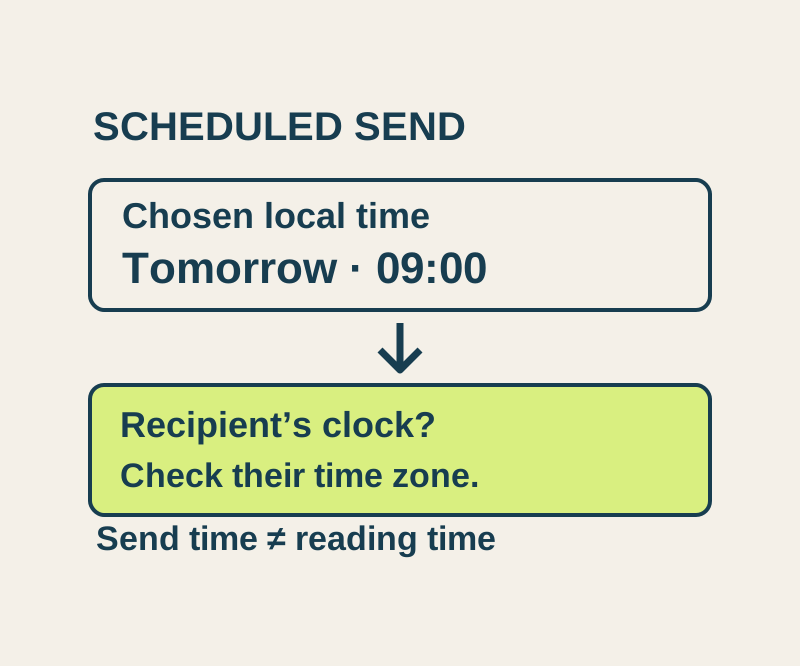
Gmail schedule send: choose Monday morning in the right time zone
Use the actual recipient date and time, understand Scheduled versus Drafts, and check a worked New York, London and Seoul example.
SOURCE-CHECKEDEveryday tech
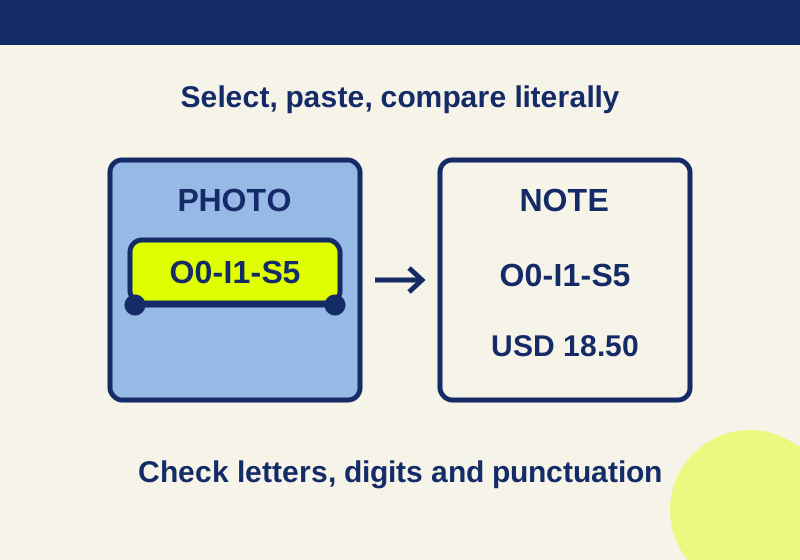
Copy text from an iPhone photo with Live Text, and catch the mistakes before you paste
Turn useful lines in a photo or paused tutorial into text you can edit in Notes.